After selecting “Multiple Channel” icon and enter multiple channel campaign workflow, you will firstly view multiple channel campaign setup page.
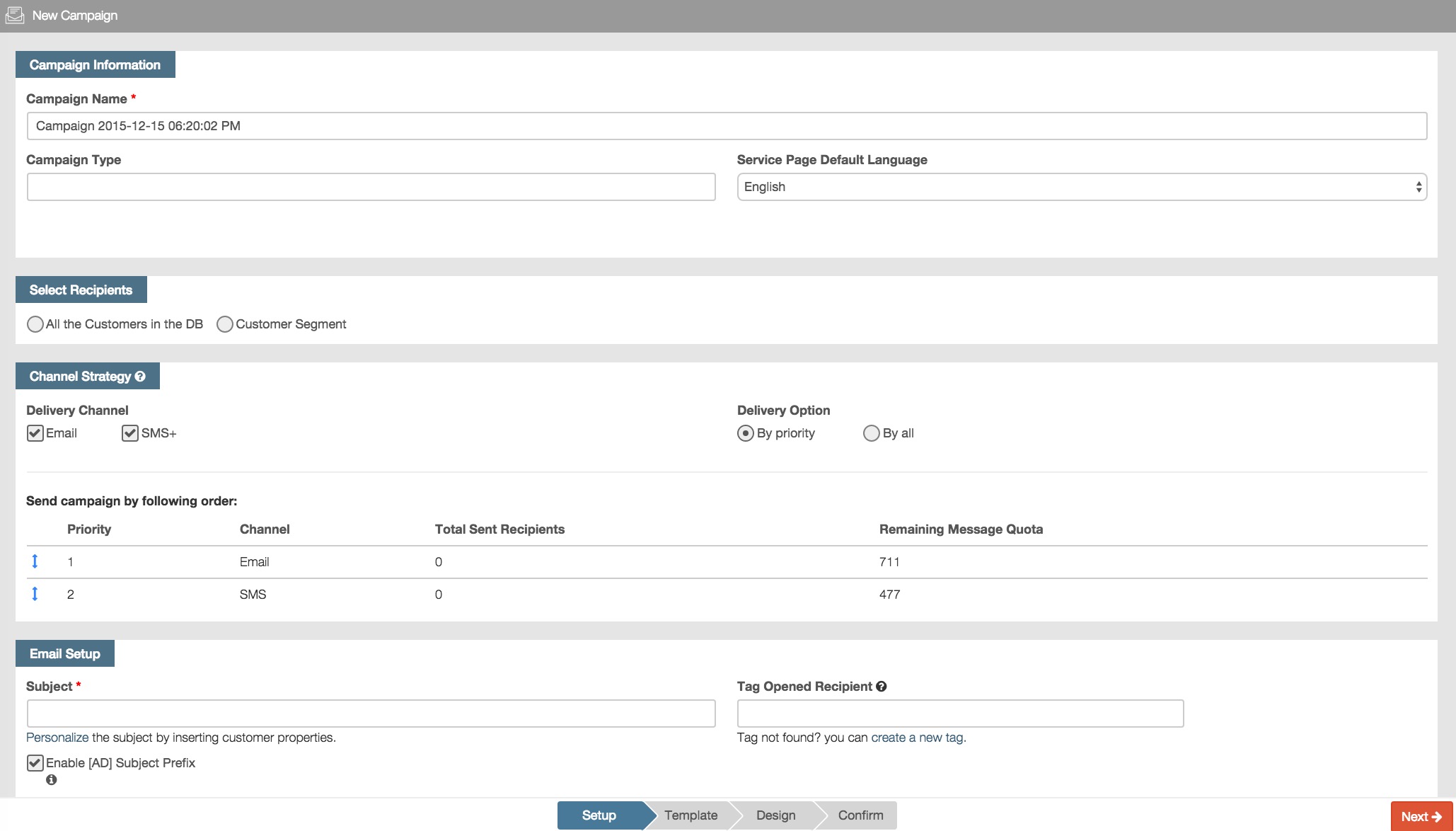
You need to configure campaign setup step information.
Set Campaign Information
Campaign Name
RiMANGGIS will automatically generate a default campaign name in the format of “Campaign yyyy-mm-dd hh:mm AM/PM”. For example, the default campaign name is Campaign 2015-10-21 11:24:32 AM, it indicates the campaign is created at 11:24:32 AM, on 21th October 2015. You can give this campaign a unique name so that you can find out this campaign easily in your database. System will automatically count down the inputted characters from 80 to 0.
Campaign Type
You need to specify the type of your campaign. When recipients unsubscribe campaigns, they can choose the unsubscribe type of campaigns. RiMANGGIS sets four default campaign types: Promotion, eNewsletter, Event and Others.
Select the campaign type from drop down list for your new campaign.
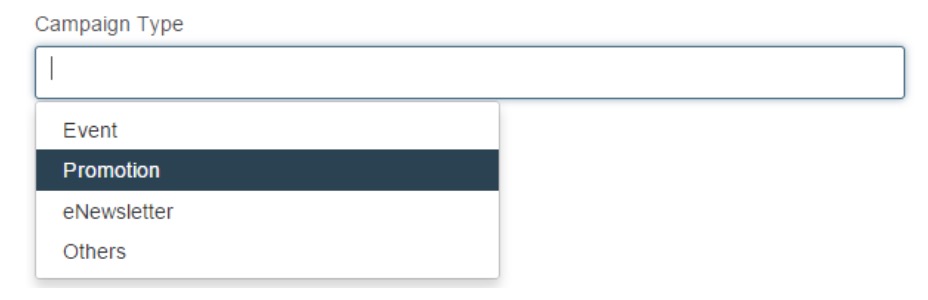
You can also input text content in this field to define the campaign type by yourself.
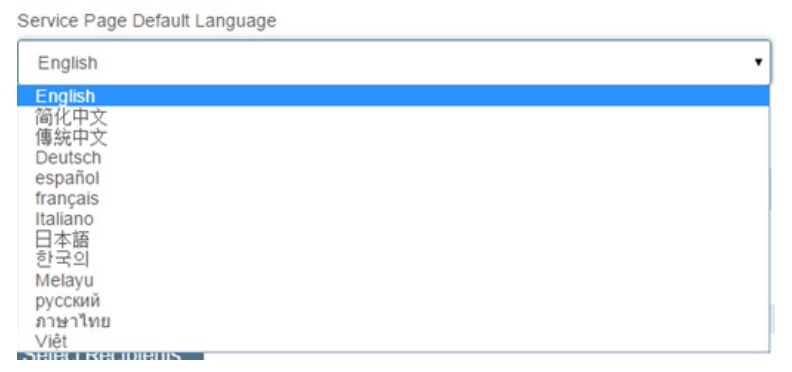
Service page default language
Service pages contain Forward‐to‐Friends and Unsubscribe pages in campaigns. You need to configure default language for service pages, and you can configure other additional languages for your service pages in Service Page Label. When recipients open forward or unsubscribe pages, RiMANGGIS will firstly detect their browser language, and then display matched language page with preset content in Service Page Label. If the detected language of browser is not available in RiMANGGIS, the service page will display in default language.
Select recipients
You need to set the recipients range for your campaigns.

All the customers in the DB
All customers in database except bounced, spammed or unsubscribed customers will receive the campaign. You can check this option if the campaign aims at all customers in database.
Customer Segment
You can set customer segment by tags, properties, behaviors and email domain.
The segment conditions are divided into two types: inclusion condition and exclusion condition.
- Inclusion condition: All the selected customers with this condition will be included in recipient list. You can set included condition in the column of ‘Include customers with following conditions’.
- Exclusion condition: All the selected customers with this condition will be excluded out from recipient list and will not have the opportunity to receive the campaign. You can set excluded condition in the column of ‘Exclude customers with following conditions’.
For detailed segment setting, you can refer to Segment rules setting steps described in Create Email Campaign.
- No matter which items of segment options you set for rules, you can make 10 rules at most.
- Either email or mobile with external ID will not be deduplicated;
- Deduplicate the same email address without External ID;
- Deduplicate the same mobile without External ID.
Export segment data
- After you finish segment rules setting, you can click ‘See How Many Customer involved’ to view the number of customers selected according to segment rules.
- If you have changed your rules setting, you can click ‘Refresh’ to view the updated number.
- If you need to export customer data, you can click “Export”, tick the desired options such as file language, range of exported customers, and customer properties, and then click “OK” to confirm.
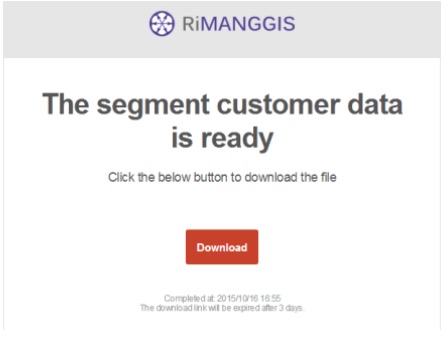
- After the export operation, system gives a prompt, “the CSV detail report is being generated in the background, you will receive a notification contains the download link after it has been done.” Subsequently you will receive a notification email as below. You can click the red button “Download” in notification email to download the zip format file that includes independent CSV files of all selected recipients types to be exported.The system will deliver campaigns to valid subscribed recipients, but filter hard bounce list, spam list, and unsubscribed all campaign type customer list.
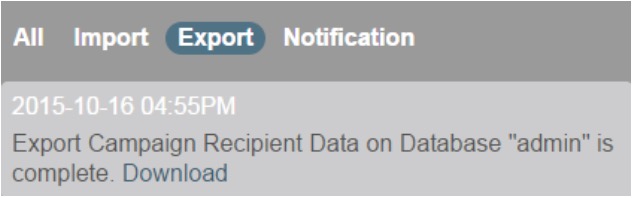
Meanwhile, the message box at the upper right corner will give a notification message with Download link as below. You can also click the link to download zip file.
Channel Strategy
Channel Strategy is used to configure the campaign delivery channel and priority. You can deliver campaigns to recipients by two channels, Email and SMS.
The default selected delivery channel is Email the delivery channel is “By all”, which means RiMANGGIS automatically select email channel to send campaigns by default.
You can also configure delivery channel and delivery option.
Deliver campaign by single Email or SMS channel
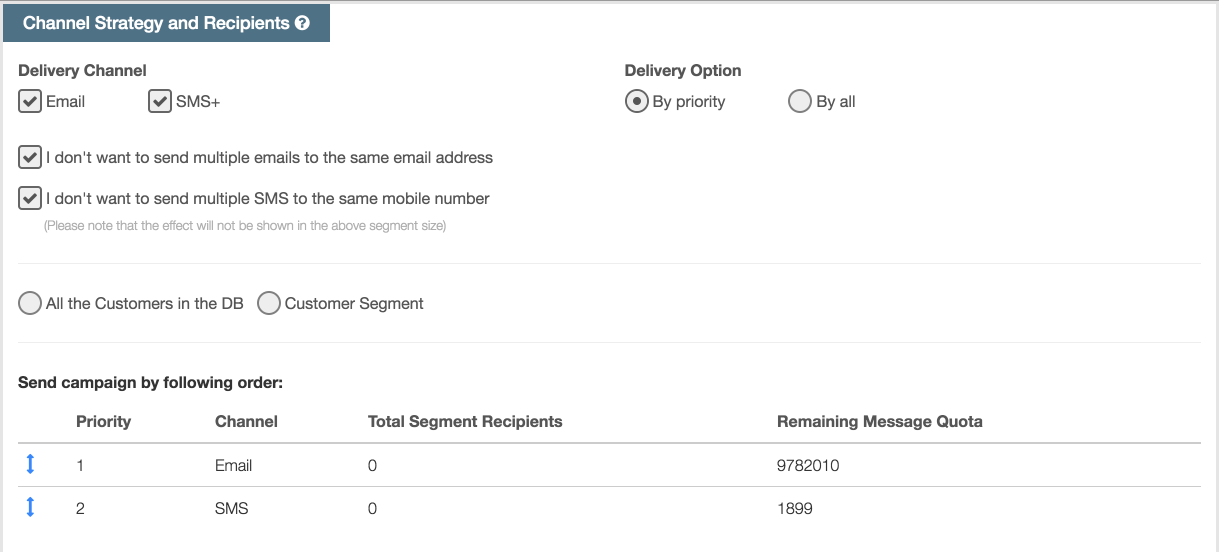
You can choose to send campaign by email or SMS. If you configure a single channel, the “By priority” option will be disabled and the priority order setting area is also disabled.
Scenario description:
For example, assume a user has four recipients in current database, now the user is ready to send a multi-channel campaign to these recipients.
The channel information about these recipients is as below:
- Recipient A has both email address and mobile phone number.
- Recipient B has email address.
- Recipient C has mobile phone number.
- Recipient D has neither.
Delivery results through email or SMS channel:
If the user selects Email channel to send campaign to above recipients, the Delivery Option is automatically chosen as By all (By priority is disabled), and the email campaign will be delivered to recipient A and B by email, while recipient C and D will be filtered by the system.
Similarly, if deliver channel is selected as SMS, the system will deliver the SMS campaign to recipient A and C by SMS, and recipient B and D will be filtered.
Deliver campaign by both Email and SMS channel
You can choose to send campaign by email and SMS. The delivery result is different for delivery options of “By Priority” and “By All”.
For “By All” option, RiMANGGIS will check recipients’ all available channel information, and then send campaign to all channels.
For “By Priority” option, RiMANGGIS will firstly check whether recipients have preferred channel information, and then send campaign firstly through preferred channel. If recipients don’t have preferred channel information, RiMANGGIS will send campaign to recipients’ available channel.
When users select both Email and SMS channel, the system will automatically select “By priority” by default, and the campaign sending priority order will be email first and SMS second by default. You can also adjust the order by left-clicking and dragging the blue vertical arrows up or down.
Scenario description:
For example, assume a user has four recipients in current database, now the user is ready to send a multiple channel campaign to these recipients.
The channel information about these recipients is as below:
- Recipient A has both email address and mobile phone number.
- Recipient B has email address.
- Recipient C has mobile phone number.
- Recipient D has neither.Delivery results of “By Priority” option
Delivery results of “By Priority” option
If users set Email channel prior to SMS channel, RiMANGGIS will send Email campaign to recipient A and recipient B, then send SMS campaign to recipient C because recipient C doesn’t have the preferred Email channel.
Similarly, if users set SMS channel prior to Email channel, RiMANGGIS will send SMS campaign to recipient A and recipient C, and then send Email campaign to recipient B because recipient B doesn’t have the preferred SMS channel.
No matter channel is set as preferred channel, recipient D will be automatically filtered because the recipient has neither email address nor mobile phone number.
Delivery results of “By All” option
The delivery result for “by all” option of Email and SMS channel will be:
- Send Email and SMS campaign to recipient A.
- Send Email campaign to recipient
- Send SMS campaign to recipient C by SMS.
- Recipient D will be filtered because the recipient has neither email address nor mobile phone number.
For “By All” option, the delivery result will be identical no matter users set which channel as preferred channel.
Deduplication Option: (Available after V1.0.3)
If you enabled “I don’t want to send multiple emails to the same email address”, even though there are customers with different External IDs but same email address, only the one who is latest updated will receive an email.
If you enabled “I don’t’ want to send multiple SMS to the same mobile number”, even though there are customers with different External IDs or email addresses but same mobile number, only the one who is the latest updated will receive an SMS.
Channel quota and recipients quantity
The remaining quota column in priority order setting area displays the remaining quota which doesn’t include the quota to be used for current campaign.
For the loading of recipients’ quantity, users need to click “refresh” button to update the recipients after setting segment conditions, and then the total number of recipients of each channel will update automatically.

Email Setup
If users select email channel, they need to configure email setup information.
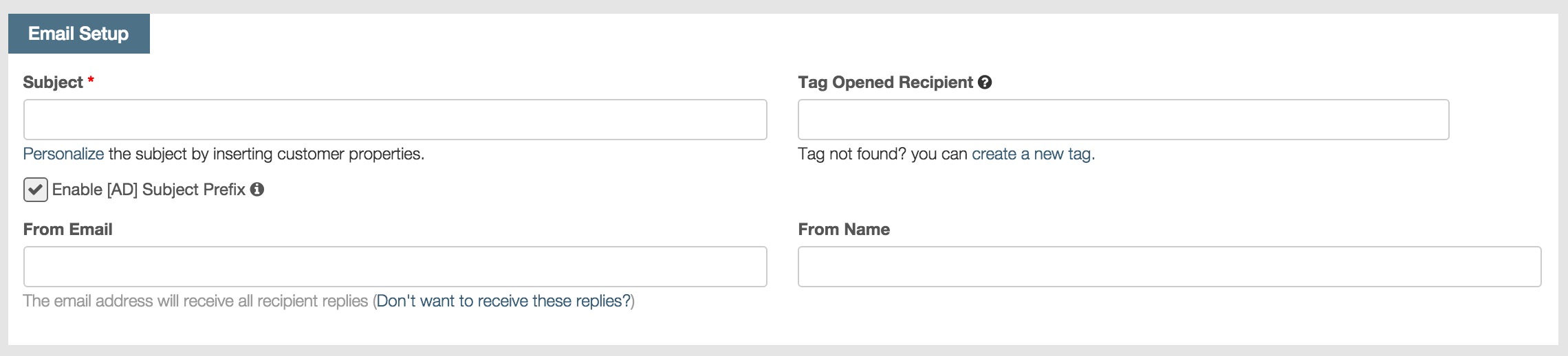
Set Email subject information
When users click the “Subject”, it will display drop down top 10 recommended subject lines based on the open rate of multiple channel campaign and A/B split test campaign. You can select a subject lint and then modify it, or you can directly input a new subject name.
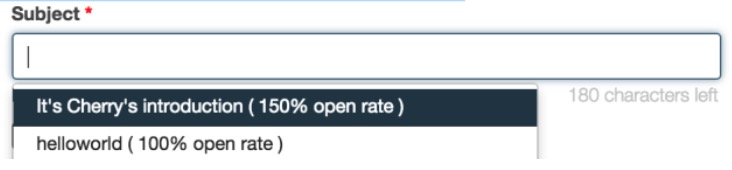
- Independent campaign open Rate = total unique open times/total unique received emails.
- For the campaign with the same open rate, system will choose the most recent created campaign.
- You can click Personalize below Subject field to quote the merge tag of the customer properties into subject name.

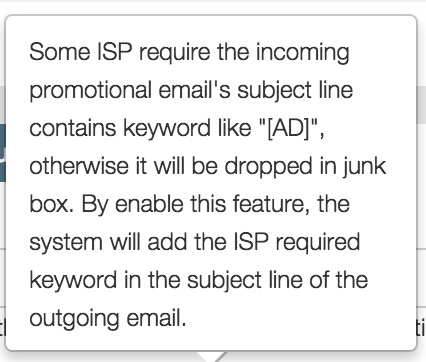
- RiMANGGIS checks the option ‘Enable (AD) subject prefix’ by default for your campaign. The prefix title (AD) will be added to those ISPs which require subject of promotional message must include the prefix title (AD). This setting helps you to minimize the risk of campaign emails being treated as spam.(AD) be will added to the following ISP:
NetEase: 163.com, 126.com, yeah.net, vip.163.com, vip.126.com,188. com, qq.comSina: sina.com, sina.cn, vip.sina.com.
If you want to know more information about the (AD) prefix, you can move your mouse onto the icon  beside the check box and get detailed information.
Tag Opened Recipient (Add open behaviour tag)
Tag open recipient is used to add customers to tags according to their open campaign behavior. For more operation details, you can refer to the setting of the same field in Email campaign setup step.
Set From Email & From Name
The two fields are used to define the sender name and email address of current campaign.For more operation details, you can refer to the setting of the same field in Email campaign setup step.
SMS Setup
The SMS Setup area appears only when user check the SMS+ selection as delivery Channel in Channel Strategy column.
If users set Email subject name at first, the subject will automatically synchronize to SMS message area. You can customize your SMS message content, and the edited SMS message content will be synchronized as Email subject name.
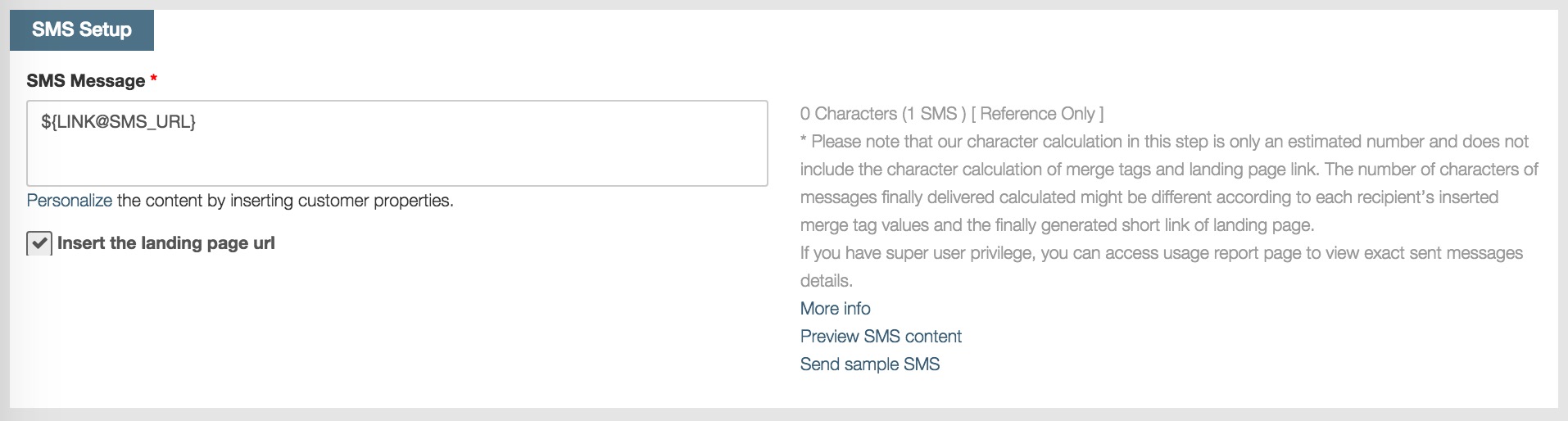
Set SMS message content
The SMS messages supports any kinds of characters without text length limitation.
We’ll split the text into messages according to our character calculation method. You can click “More info” to view detailed character and message calculation method.
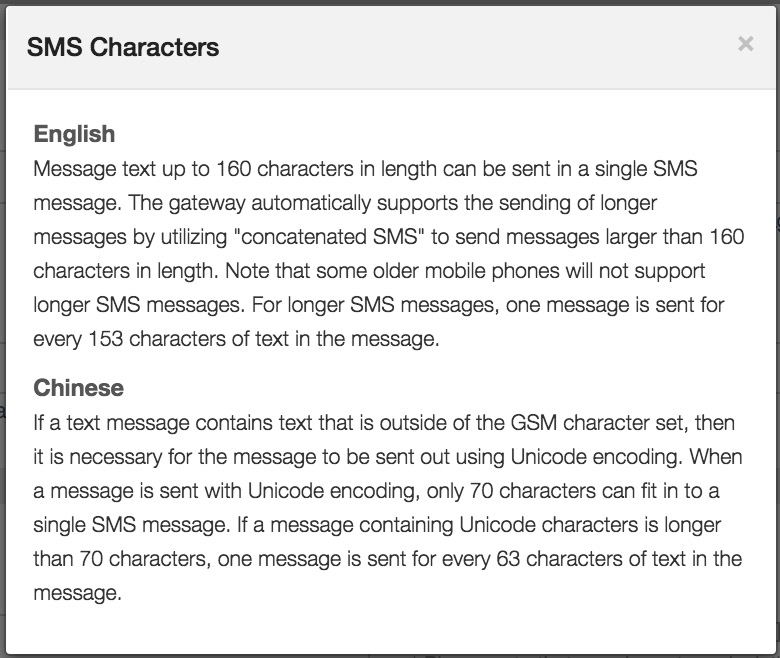
You can click “More info” to view the character calculation method of SMS message.
Insert the landing page url
The landing page url is the pre-generated short link of email campaign html page. Your SMS recipients can click the short link to open the html page to view campaign details.
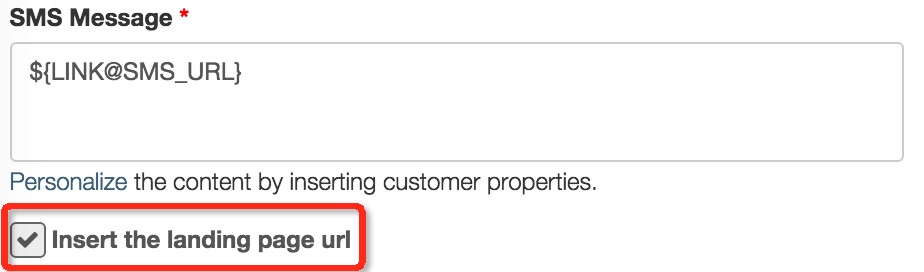
- You can click the check box of “insert the landing page url” to insert the short link into SMS message content. If you select this option, you must finish template and design steps to design the html page content.

- If you only select SMS channel and don’t insert the landing page url into the SMS message content, your SMS message will be pure text content and you will directly enter confirmation step page.
Preview SMS message content
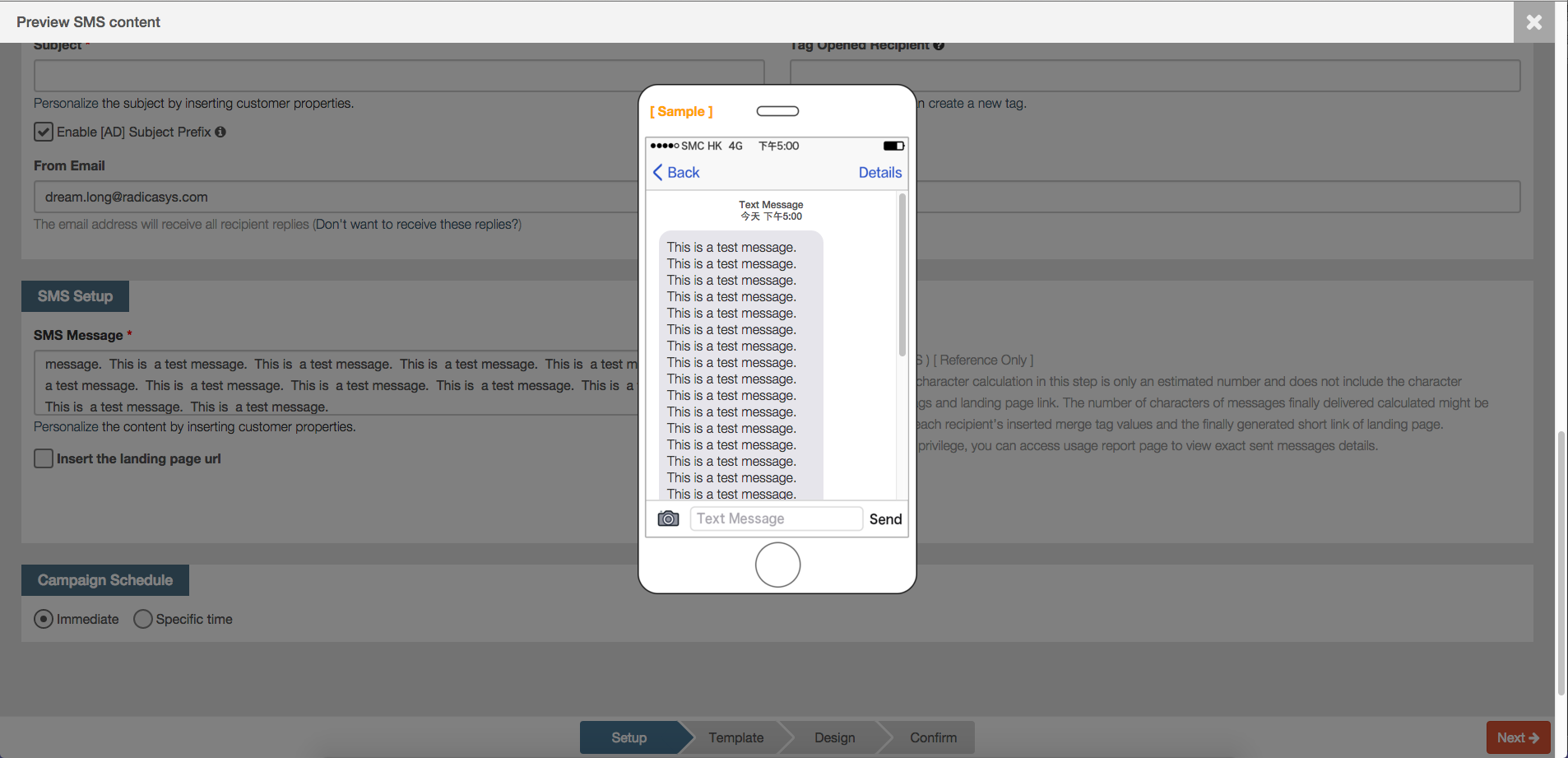
After finish your SMS message setting, you can click “Preview SMS content” to preview your SMS content.
You can click  the to close the preview page and return to SMS setup page. If your SMS message is too long, you can drag the scroll bar to view complete messages in preview page.
Send sample SMS message
After finishing your SMS message setting, you can click “Send sample SMS” to send sample messages.
In the popped up window, you can input mobile numbers in “Delivered to” field for sending sample messages according to the following rules:
- In the format of “+ country code and mobile number”, for example: +861360000000
- Use semicolon or directly press Enter key to separate multiple mobile numbers.
- You can input at most 10 numbers to send sample test messages.
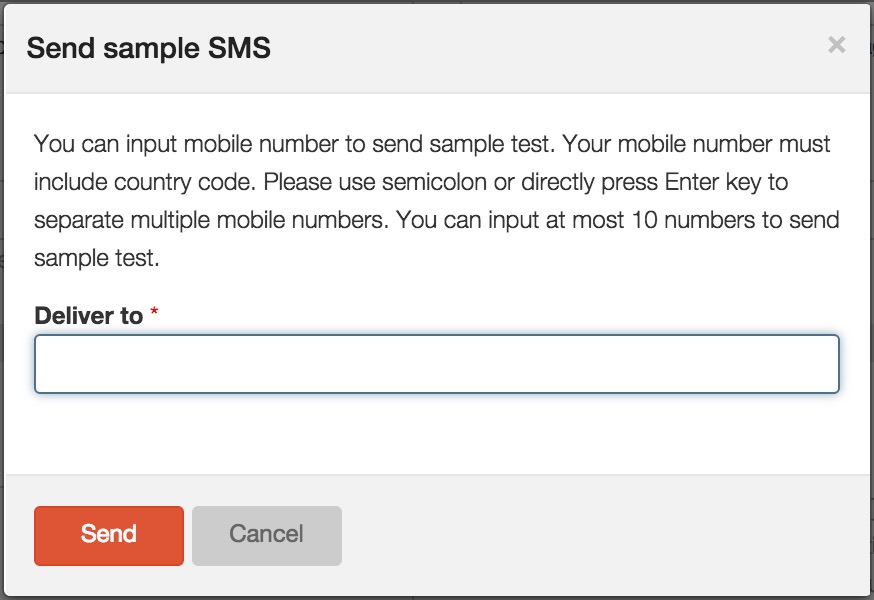
After users input mobile phone numbers, and click “Send”, the sample message will be sent out, and the sending operation cannot be withdrawn.
Set Campaign Schedule
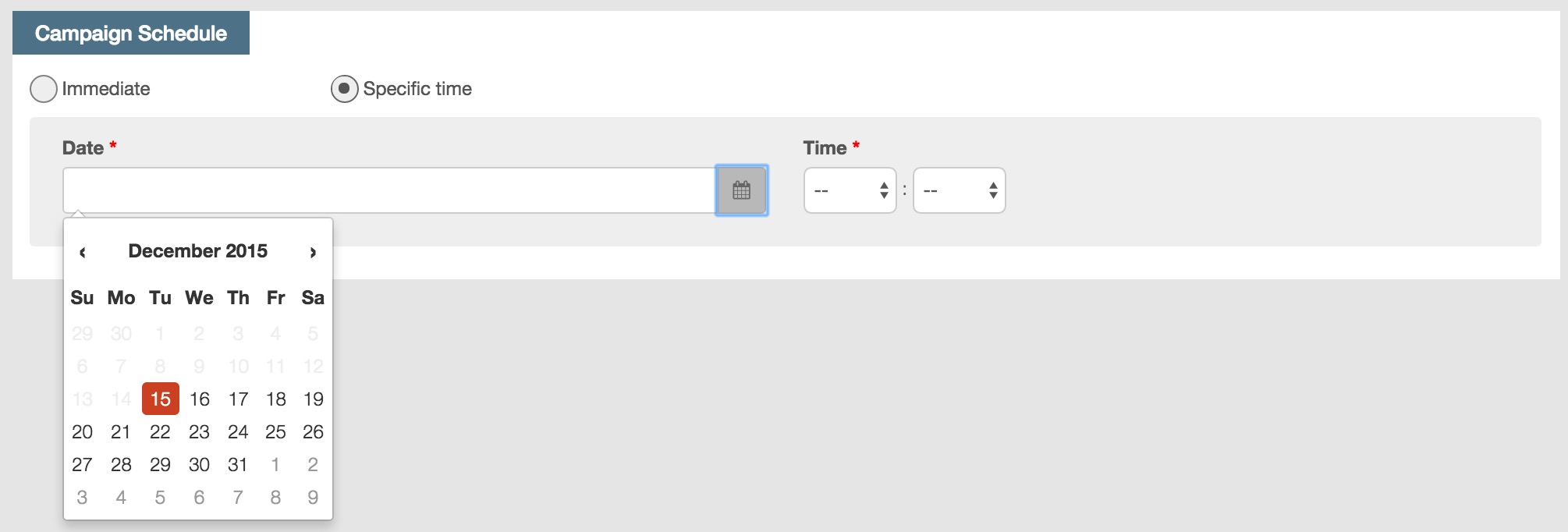
You need to set your campaign sending schedule as ‘Immediate’ or ‘Specific time’.
- For immediate schedule, campaigns will directly send out after approval.
- For specific time schedule, you need to specify the date and time for campaign sending execution.
Set specific time schedule
- Input the date value in ‘xxxx‐xx‐xx (Year‐month‐date)’ format or click the calendar icon to select the date from drop down calendar list.
- Set the campaign sending time.