
Automation at “active”, “paused” or “completed” status will have automation report. In automation management page, you can move your mouse over the automation and click  to enter automation report page. The statistical data of automation report is real-time and dynamic, and the automation report includes the following data: automation recipients’ information, automation summary data, average activity data, independent campaign lists and reports.
View Automation Summary Report
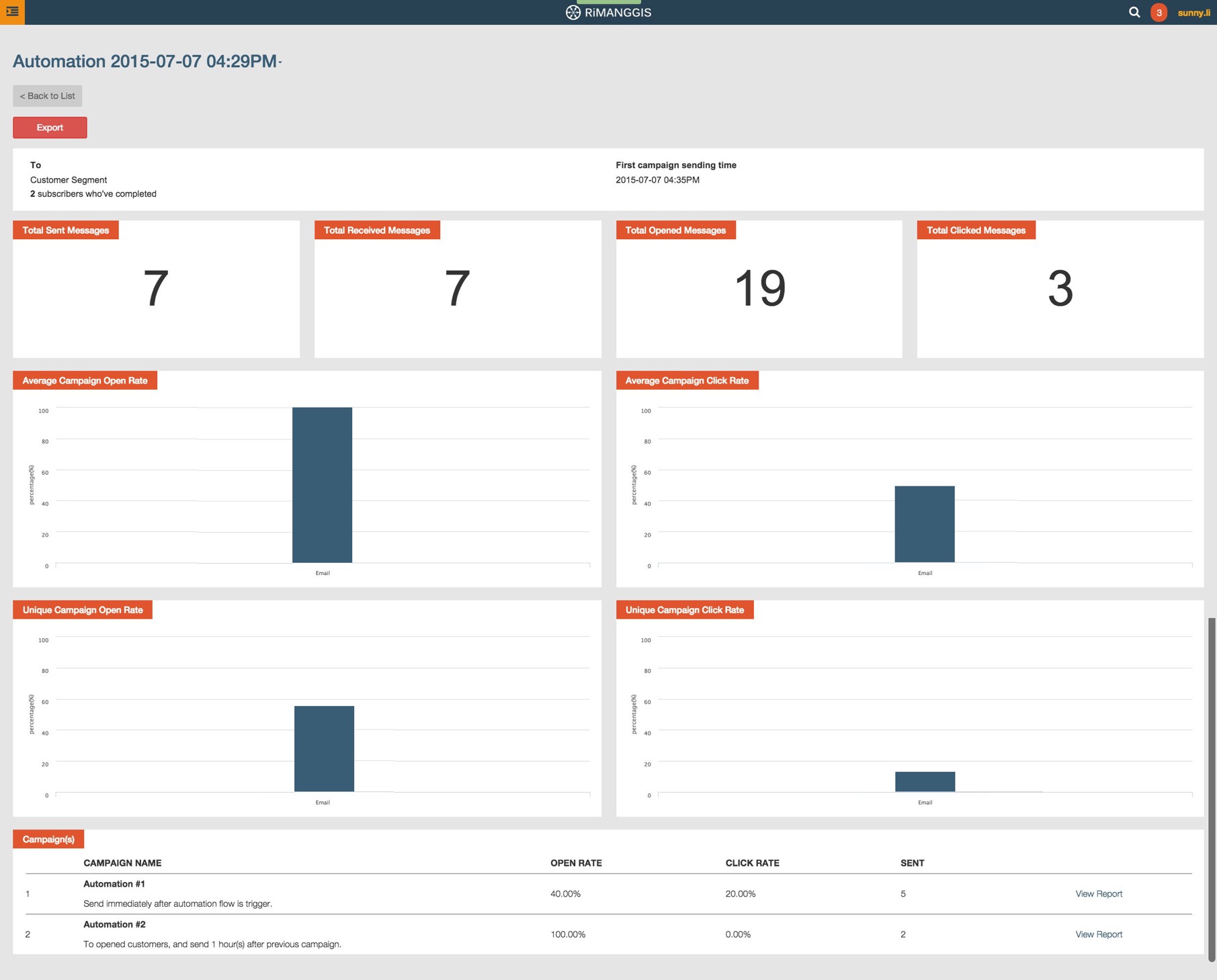
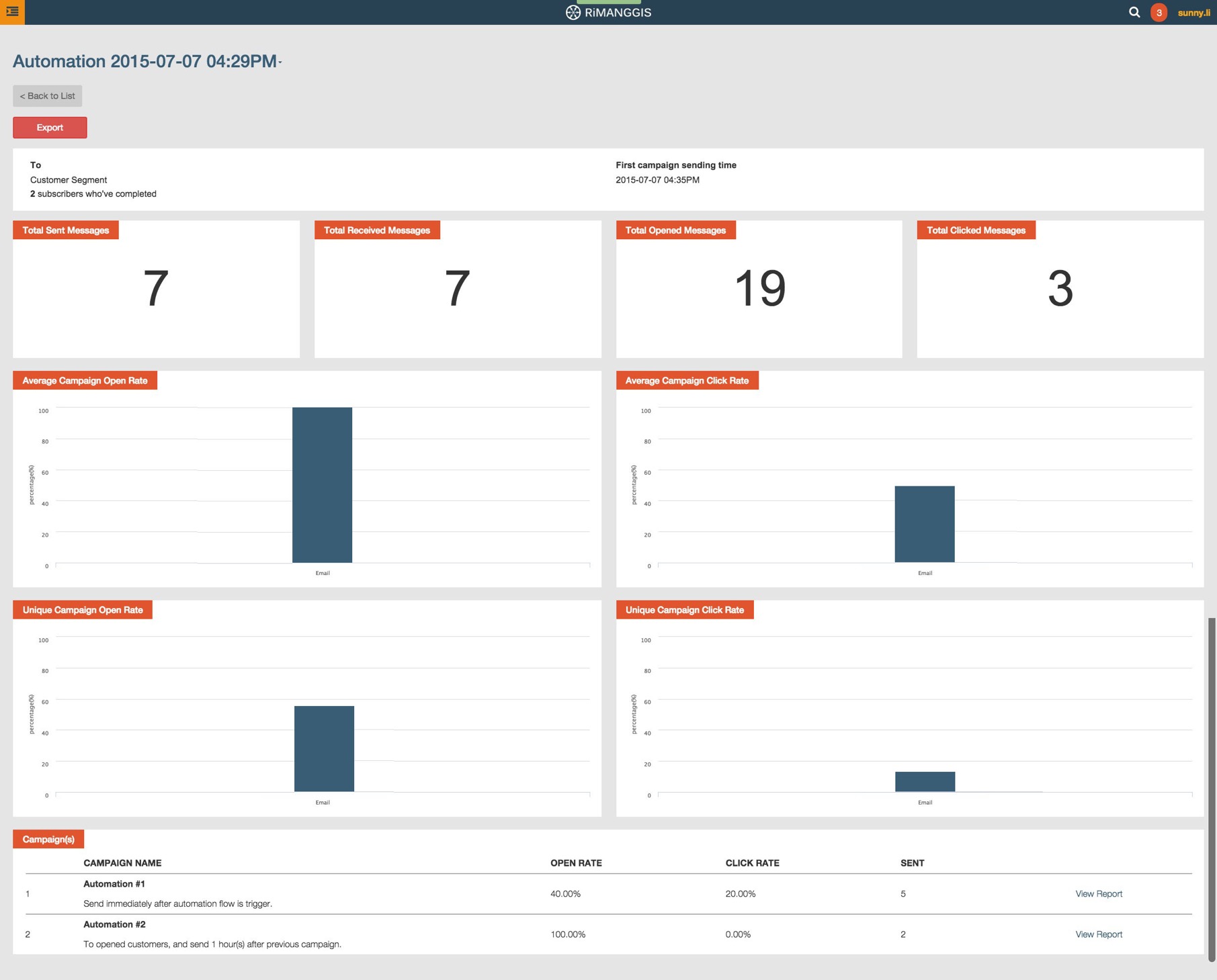
In automation management page, you can move your mouse over a automation flow and click to enter automation report page. You will view the automation summary report which includes automation statistical data of campaign activities.
Basic recipients information
The automation recipients information displays at the top area of automation summary report, and it includes the following information:
- Recipient type: all customers in DB or customer segment.
- The total number of customers (subscribers) who have completed the whole automation flow and received all emails in a campaign round.
- First campaign sending time: it is the real start time of automation flow.

Total summary data
The total summary data of automation includes the following information:
- Total number of sent emails of all campaigns in the automation.
- Total number of received emails of all campaigns in the automation.
- Total unique open times of all target customers in the automation.
- Total unique click times of all target customers in the automation.

Average activity data
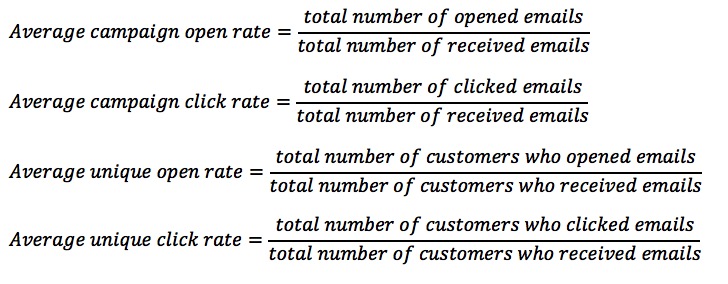
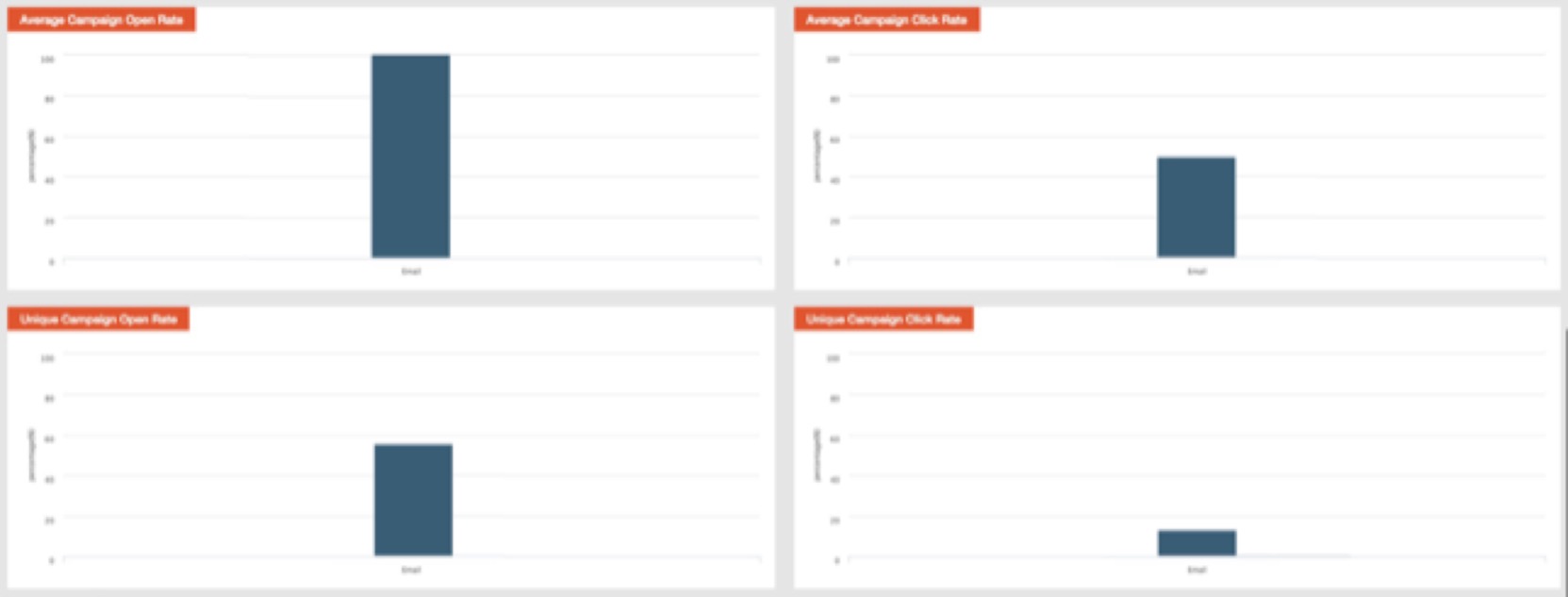
The average activity data of automation displays as bar chart to give users a clear dynamic data view, it includes four kinds of data: average campaign open rate, average campaign click rate, average unique open rate, average unique click rate.
The formula of the four kinds of data is described as follows:
Campaign list
All campaigns added in current automation will be listed in the bottom area of automation summary page.
In campaign list, all campaigns are listed from first added campaign to the last added campaign in descending order.
For each campaign, you will view the following information:
- Automation name, independent campaign schedule and trigger condition.
- Independent campaign statistical data: total number of sent emails of the campaign, open rate, click rate.
- View report: you can click to view each independent campaign report.

You can click  in the top right corner of automation summary page to return to automation management page.
Export Automation Summary Report
If you want to export automation summary report, you can click the button to export your automation summary report.
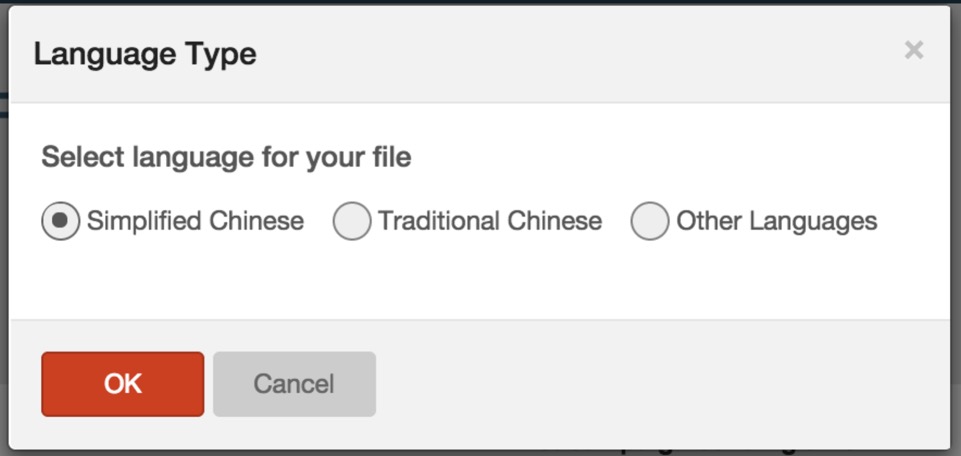
In the pop up window of language type selection, you need to select the language type for your exported CSV file.
View automation campaign report
You can select a campaign and click  to enter independent campaign report page. The campaign report is basically identical with regular campaign report.
You can click to return to automation summary report page.
For more details about independent campaign report, you can refer to the Email Campaign Report.