Summary Report
In campaign summary report, you can get an overview about campaign delivery results including open/click/click to open rate, response and social media analysis, open/ click through trends in 48 hours and top link analysis.
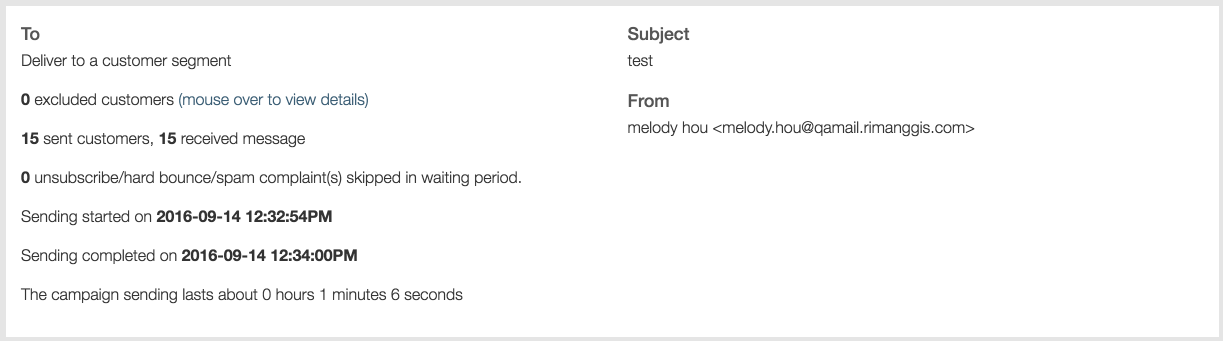
In the first column of summary page, you can get abstract information about delivery results.
Open/Click/Click to open rate
Besides Open/Click/Click to open rate analysis, RiMANGGIS also provides customer behavior demographic analysis.
You can click Demographic Analysis to view open/click demographic analysis report.

Response and Social Media
Response
The response table lists all the data about customer behaviour and campaign delivery results.

Social media

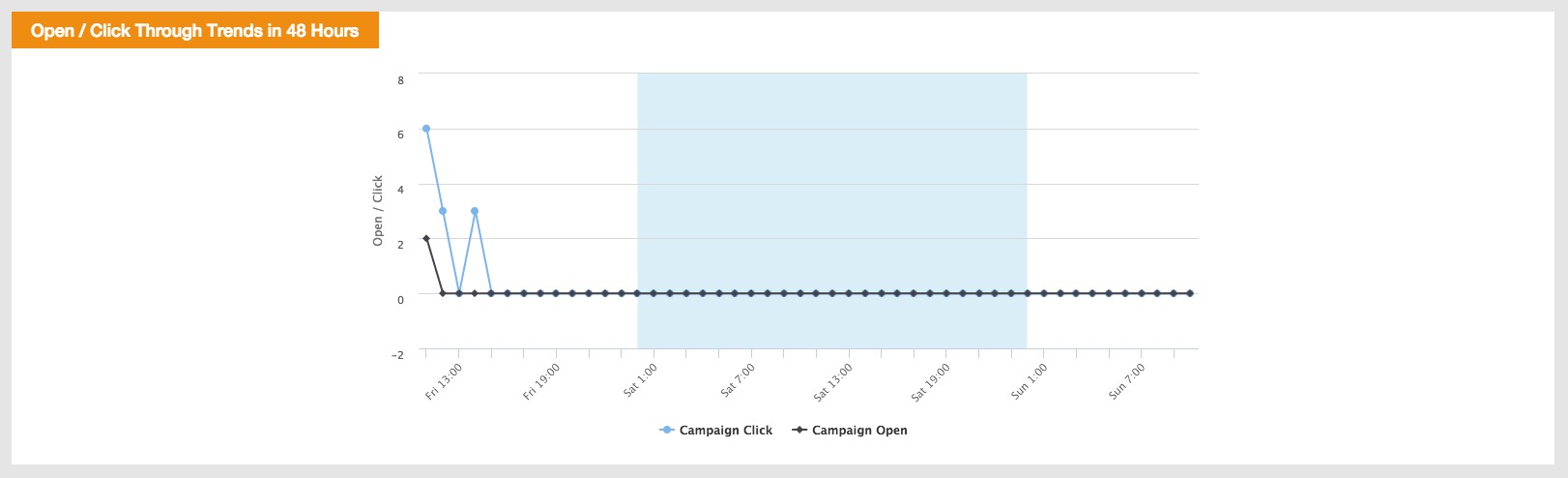
Open / Click Through Trends in 48 Hours
This chart displays customer behavior trends in 48 hours.You can click campaign operation (open/click) to hide corresponding trend curve from the chart.
Top Link Clicked
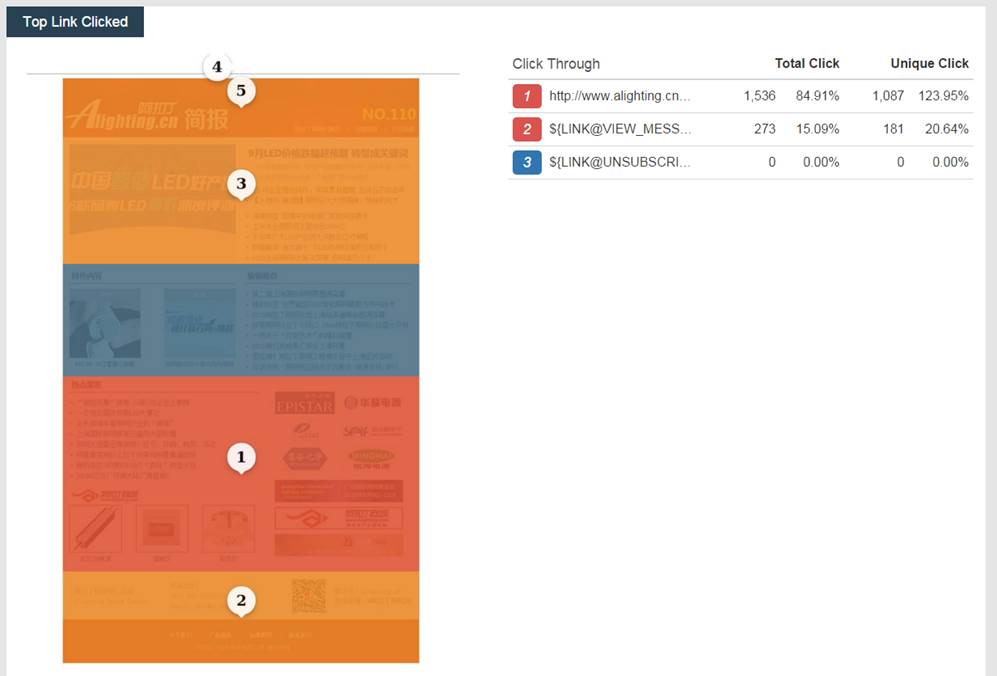
RiMANGGIS calculates all click times of hyperlinks in campaign and lists the several top hyperlinks with high click through rate in descending order. It helps users to know most interested information of customers.
Activities
This column is used to view the campaign operation records according to customer behavior type and email status. You can click Activities and select the item you want to view.
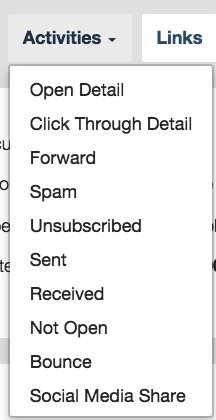
You can select the time period to view records.

- Click ‘All’ to view all records of the selected item.
- Click ‘Within a period’ to specify a period, all records in the specified period will be retrieved.
- Click ‘Within the day(s) after sent’ and select day value from drop down list. All records in the specified days after campaign delivery will be retrieved.
You can select a record and move your curser to the email address to view detailed information.
For example:
If I want to the open details about my campaign in three days after delivery, I need to finish following steps in campaign report page:
- Click Activities and select Open details
- Click the option ‘Within the day(s) after sent’ and set the value as 3 day.
- View all customer records that have opened this campaign.
- Move the cursor onto customer’s email address to view details including open time, device and email client.

Links Analysis
Click Links to view layout analysis and click through ranking.
Layout analysis
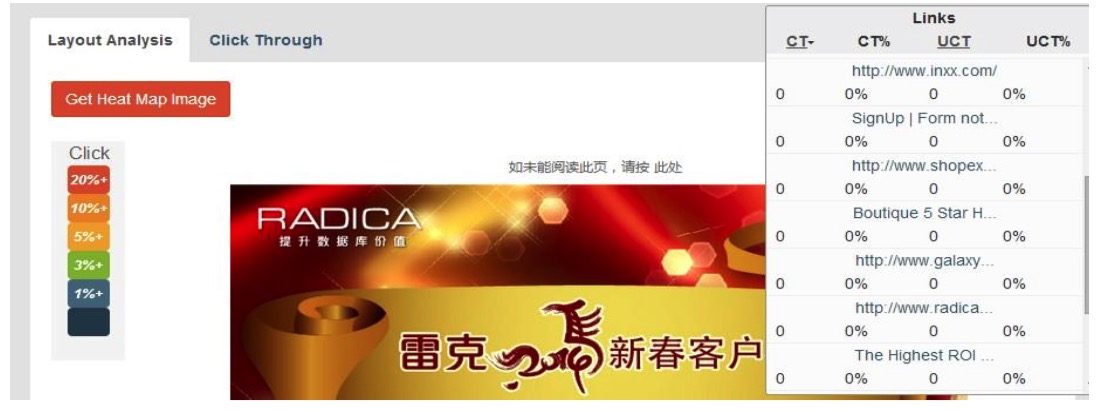
It displays statistical analysis of all hyperlinks quoted in campaigns. The links table displayed at the left side lists all the links statistical data including CT counts and rate, UCT counts and rate.
- Click ‘Get heat map image’ to view heat map, and then click download to save the heat map image.
- Move your mouse onto a link listed in the table to confirm its location in campaign page.
- Click the link to open corresponding web page.
Click through
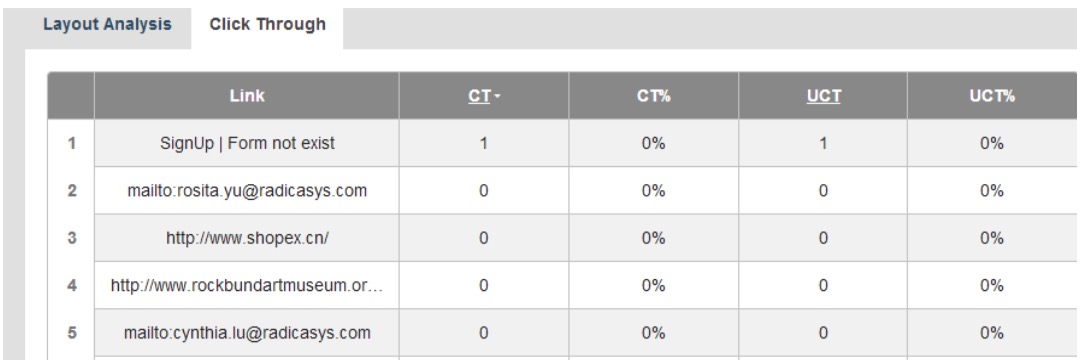
It lists the statistical data of all hyperlinks in your campaign, all the links are listed in descending order by CT data.
Export Transactional Data
RiMANNGIS provides powerful statistical analysis reports. You can export CSV files of transaction data.
1. Click Export and select ‘Export Transactional Data’.
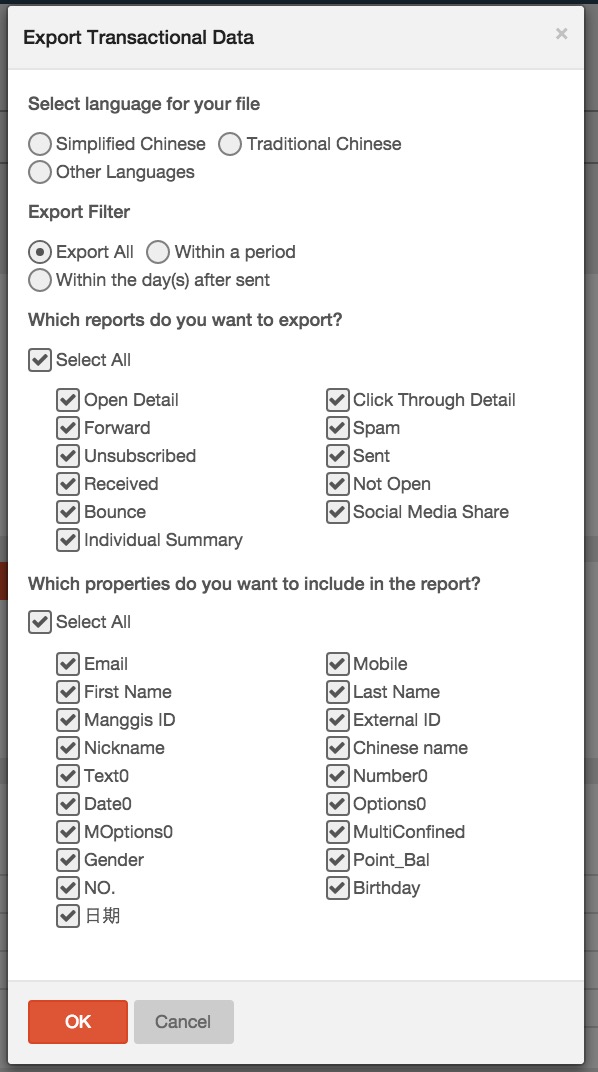
2. You need to configure items to be exported in your CSV file.
- Specify a language for your file.
- Specify the period of records to be exported
- Select the report type you want to export
- Select customer properties listed in an exported CSV file
- Click OK to save your setting.
3. RiMANGGIS will execute export in background according your settings; it will send a notification email to your mailbox after export is finished. You can click the download link button to download the CSV file.
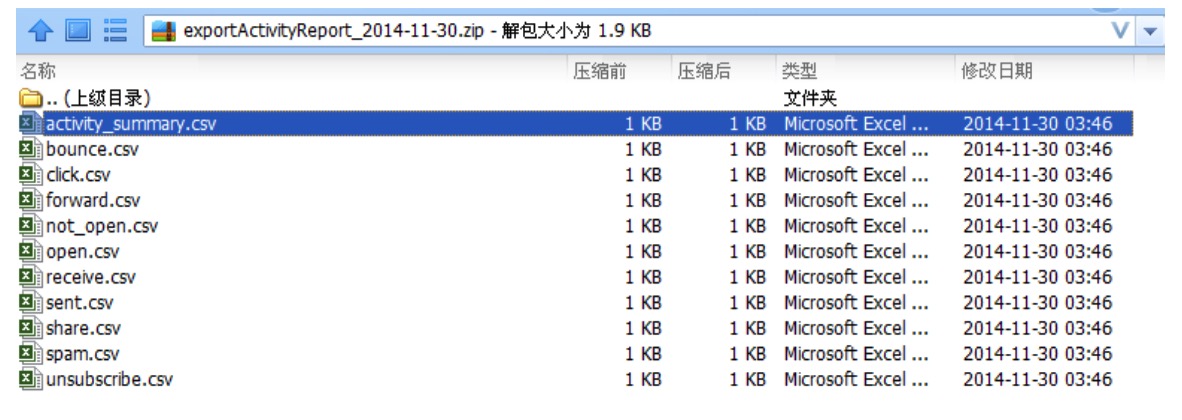
The downloaded zip file folder includes all CSV reports which are created according to your setting.
The following screenshot image displays a complete list of exported CSV reports.
Export Summary PDF
The summary PDF file provides a campaign summary report, it consists of following parts:
- Layout of EDM
- Other basic information including the number of target recipients, campaign subject, sender information, delivery date and time.
- Campaign summary reports including delivery, response, social sharing, heat map, open/click through trends, and click through details.
You can get your summary PDF file by following steps:
1. Click Export and select Export Summary PDF.
2. RiMANGGIS will execute export in background according your setting, it will send a notification email to your mailbox after export is finished. You can click the download link button to download the PDF file.
A/B Test Report (optional)
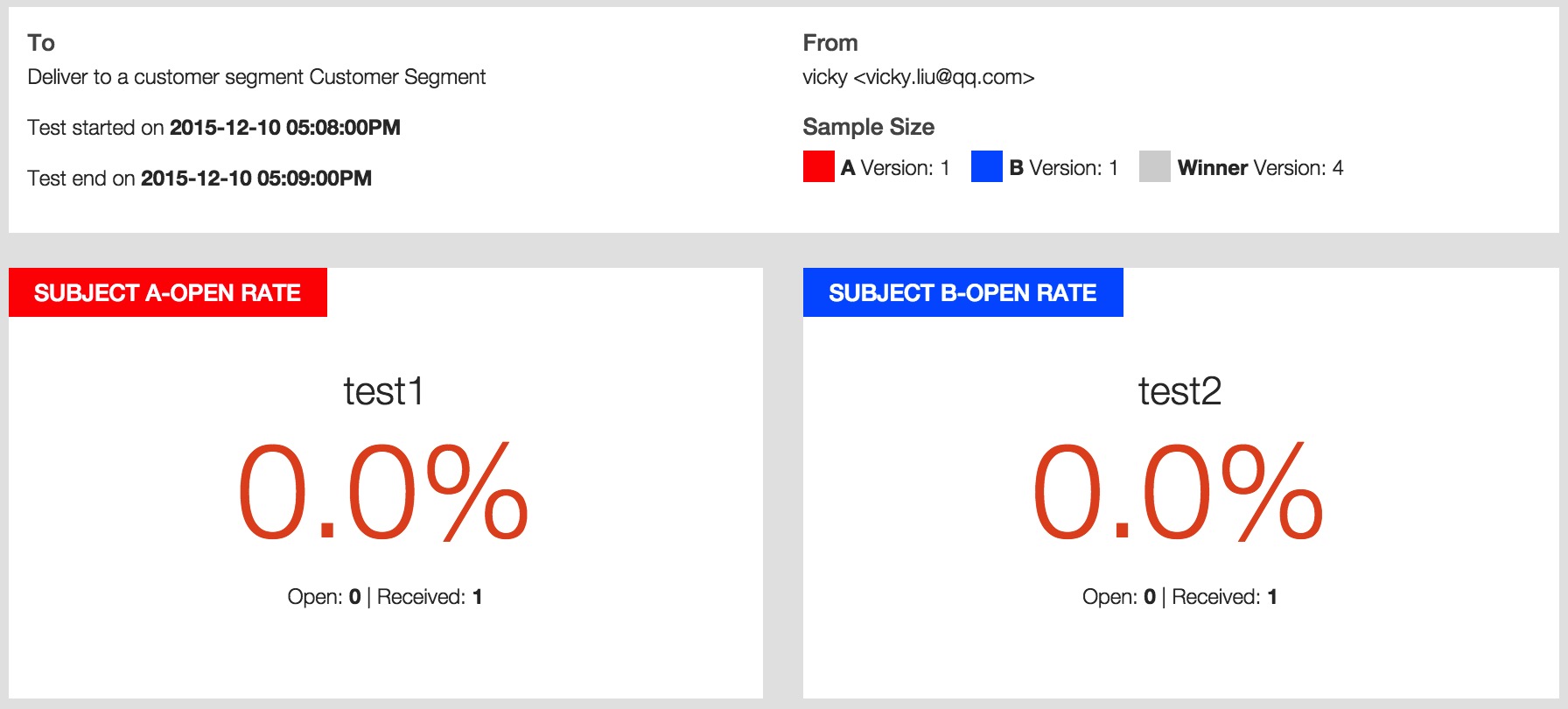
This column is only visible in the report view page of A/B Split Test campaign. You can click it to view the open rate analysis of two subject lines. RiMANGGIS executes test and calculates customers open times to get the open rate of two subject lines to decide the winning version.