
Tags demographic analysis helps users to get customized report charts based on the preset tag and properties.
Create demographic analysis
You need to create your demographic reports on tag and properties by following steps:
1. Click Demographic in database menu to enter following page, and then click the indication to add properties.

2. Click the blank field and select the properties of which reports you want to get.

3. Click  to select a tag to specify the customer records used in reports.
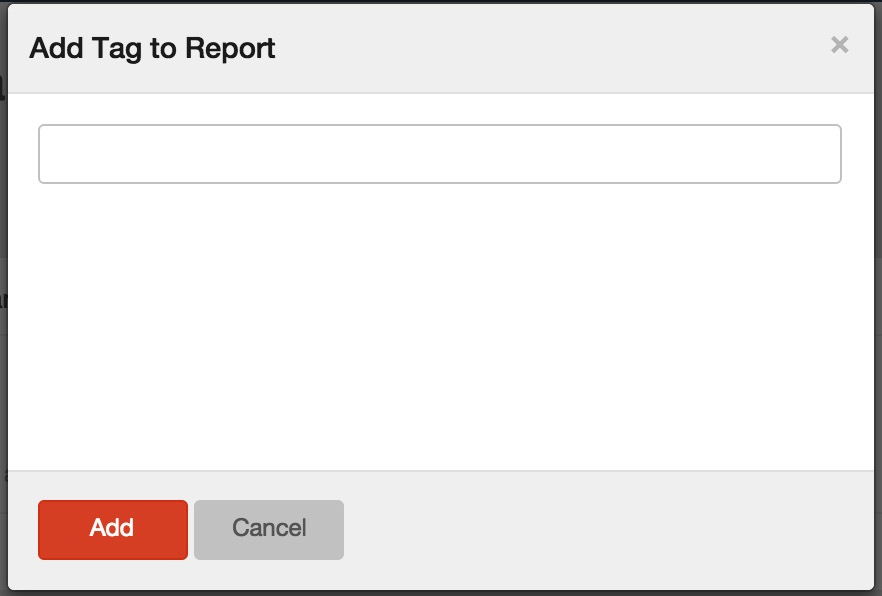
4. Click Add to get your demographic analysis reports.
You can click Select Properties if you want change your selection of properties.
Example:
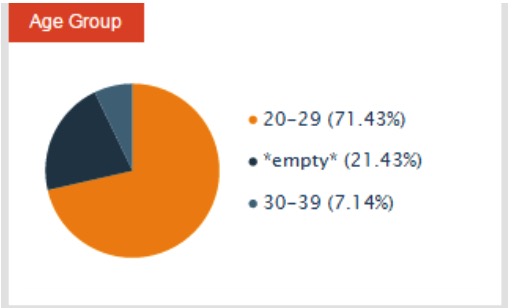
If you want to view the customers’ age distribution of campaign results with product A, you need to add the property ‘age group’ and the tag ‘product A’. RiMANGGIS will automatically generate the age group distribution chart for all the customer records included in Category b. In this chart, you will get the age distribution and know that the age group from 20‐29 takes the leading percentage. You can view campaigns opened and clicked by customers in 20‐29 age group. Based on this analysis result, you can make campaigns about product A which young customers in 20‐29 age group are most inter‐ ested in next campaign activities.
View Campaign Information
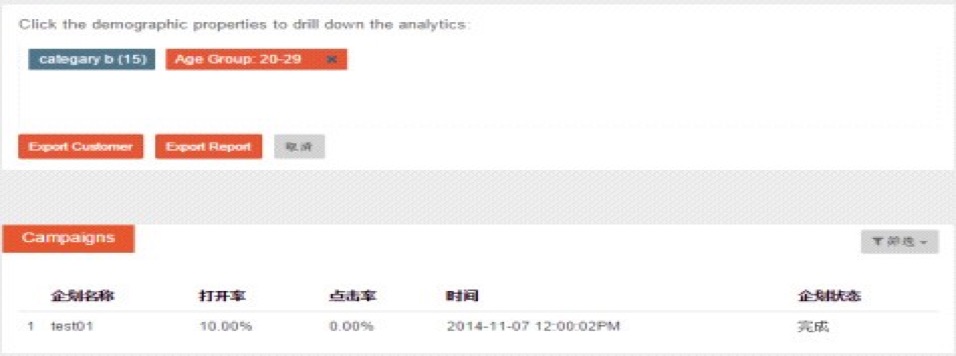
After users select properties and a tag to create reports, RiMANGGIS will list the top 10 campaigns opened and clicked by customers grouped in the selected tag. Campaigns are sequenced in descending order according to open and click rate.
Detailed campaign information
You can select a data field in a chart to view detailed campaign information.
For example, if you want to view all campaigns opened by the customers in 20‐29 age group, you can select the data ‘20‐29’ in age chart to set it as searching conditions. RiMANGGIS will list all campaigns opened and clicked by these customers.
Campaign filter condition
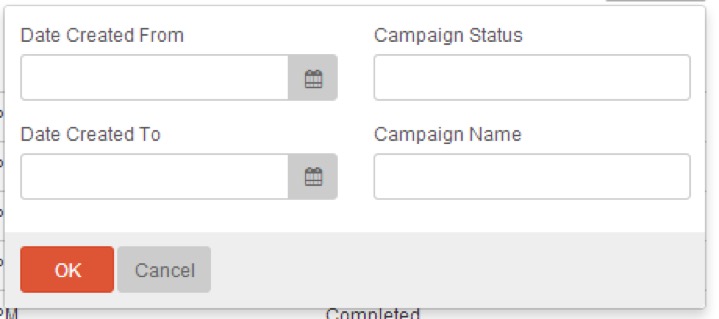
You can find campaign information quickly by filter conditions.
1. Click Filter in the right corner of campaign list.
2. Set partial or all of conditions and click OK to your campaigns.
Export Customer and Report
Export customer
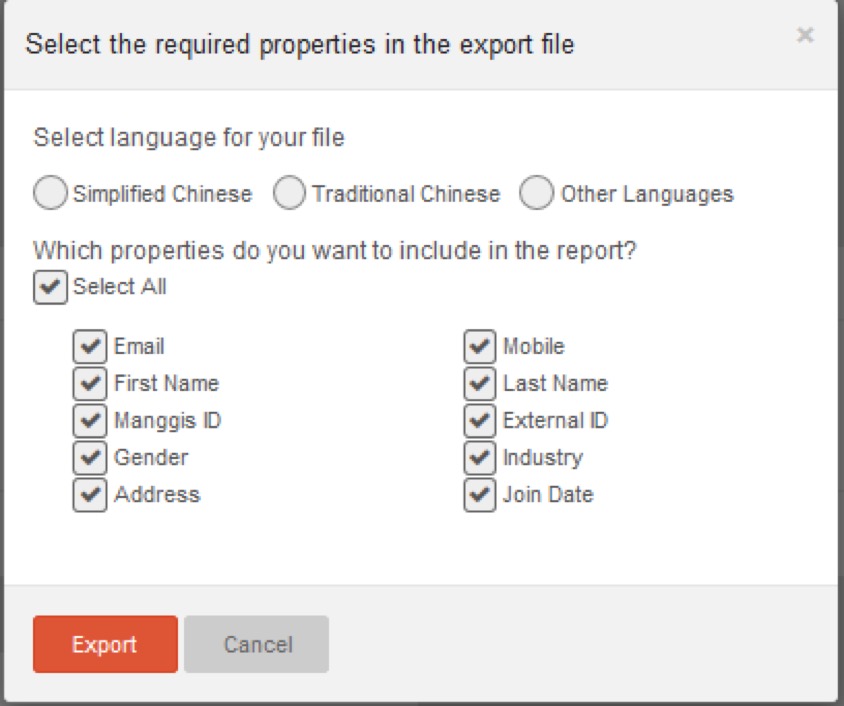
- Click Export Customer.
- Select the language and the required properties to be exported.
- Click Export to create exported file in CSV format.
- Click the download link button to download your file after you receive the notification email.
Export Report
You can click Export Report to export file.
- Click Export Report.
- Select the language for your file
- Click the download link button to download your file after you receive the notification email.