You can set multiple parameters to create your DPC reports.
Set Your Report Type and Profile (mandatory)
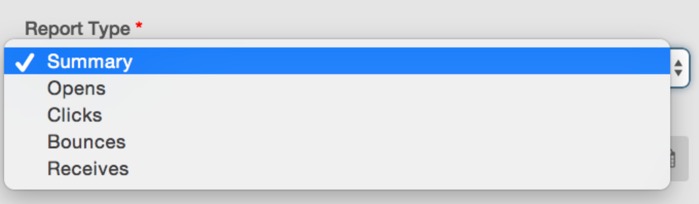
To create a report, firstly you need to select the report type and specify a profile.
- Click the report type field and select the report type from drop down list.
- Click the profile field and select a profile or multiple profiles from drop down list.
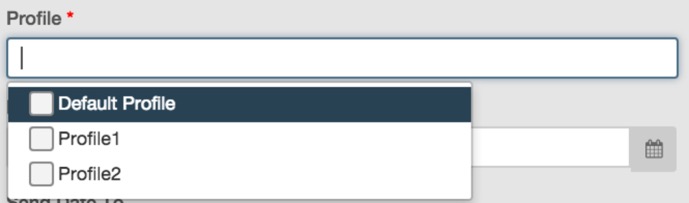 You can select at most 10 profiles to generate a report.
Set Your Date Range Value (optional)
You can specify a date range to create your summary report.
Set your inqueue date range
Inqueque date means the day when DPC receives emails from your mail server. You can specify an inqueque date range to find emails in the specified inqueue date range.
You can set your date value by the following methods:
- Click the date field and manually input the date value in ‘yyyy-mm-dd’ format.
- Click the date field and select the date value from drop down calendar list.
- The ‘Inqueue date to’ can not be earlier than ‘Inqueue date from’, otherwise the date value setting will fail.
Set your send date range
Send date means the day when DPC send emails out to your recipients. You can specify a send date range to find emails in the specified send date range.

You can refer to the inqueque date range setting method to set your send date range.
Set Your Email Subject
You can set email subject information to find emais of which subject matching your input information. DPC will find the emails according to preset subject information.
Input information in ‘Subject’ field, this field supports any kinds of characters with maximized 80 characters.

Set Return Path (optional Bounce Email Address)
The return path email address is used to receive bounced emails. In profile setting, if you choose bounce management, all bounced emails will return to default bounce email address configured in DPC background administration system. If you do not choose DPC bounce management, all bounced emails will return to your original return email address.
In this field, you can configure the default email address or your original address.

Set Sender name and Email Address (optional)
You can set sender name and email address to match emails, and DPC will retrieve corresponding emails with matched sender name or email address.
Set your sender name
In ‘Sender Name’ field, you can input any kinds of characters with maximised 80 characters.

Set your sender email address
In ‘Sender Email’ field, you need to comply with the email address format (maximised 80 characters) to input sender email address.

Set Reply-to Name and Reply-to Email (optional)
You can refer to 6.2.6 Set Sender name and Email Address to set replyt-to name and email address.

Set Email Header (optional)
In DPC report page, email header information is used to filter mails. According to your email header matching condition, DPC will find emails with matched mail headers and then generate related report.
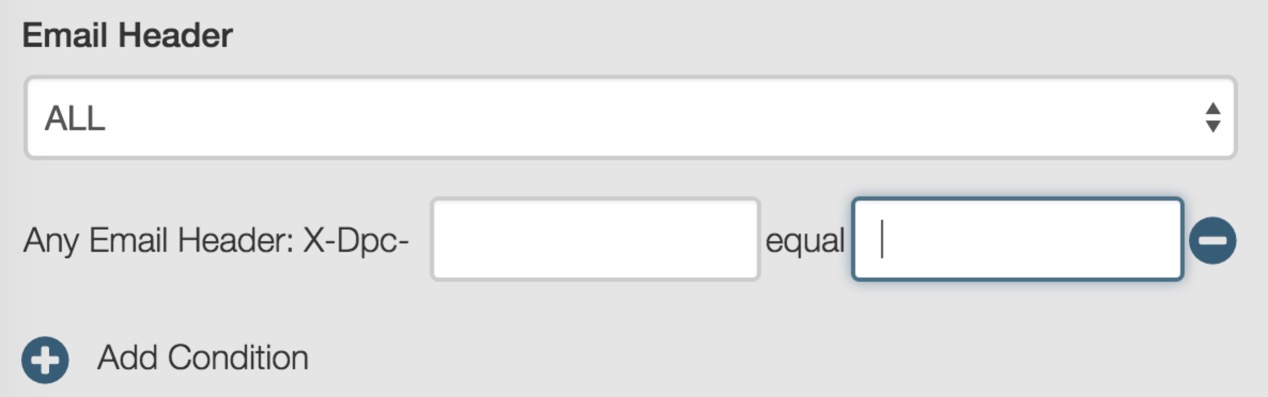
Configure email header matching condition
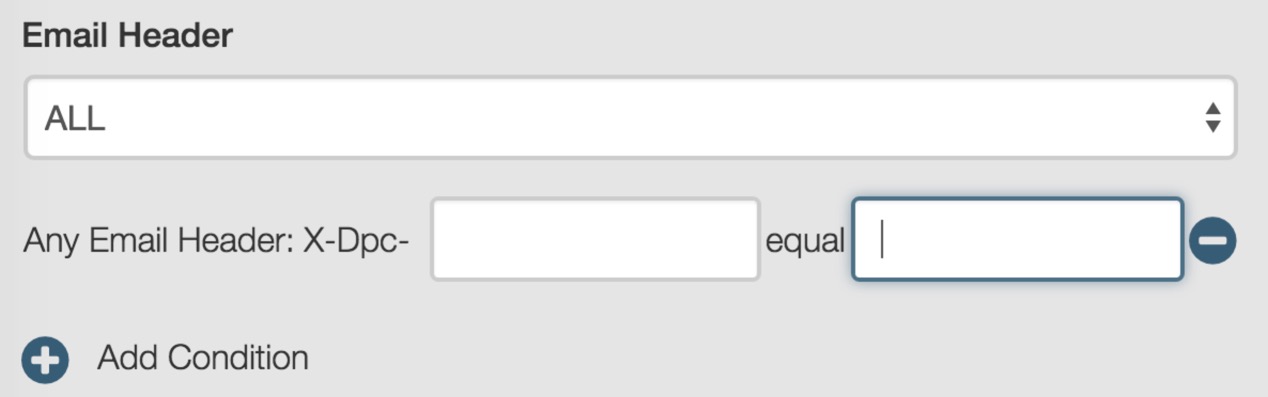
To set your email header matching condition, firstly you need to select the matching condtion, click and select the condition relation from drop down list.
- Select ‘All’, emails matching all emails header conditions will be selected for the report.
- Select ‘Any’, emails matching any email header condition will be selected for the report.

Set matching header criteria
The email header matching method is ‘equal’ by default, which means only emails with totally matched header information will be selected for the report.
In profile setting, if users do not choose to remove custom header, the DPC header ‘X-Dpc-xxx’ will be automatically added into recipients’ email header. While setting email header matching createria for your report, you only need to define the email header type and corresponding information. For example, you want to view the summary report of all emails sent to Mr Smith, you can define the email header matching criterion as ‘X-Dpc-to equal Mr Smith’, then DPC will find all emails with email header ‘(X-Dpc-) to’ field as ‘Mr Smith’ and generate summary report. You can set any mail header content in your mail to find corresponding emails.
 Click
 to add multiple email header matching conditions, and click to delete a matching condition.
Set Action Time (optional for open/click report)
For open or click report, you can set action time to select emails.
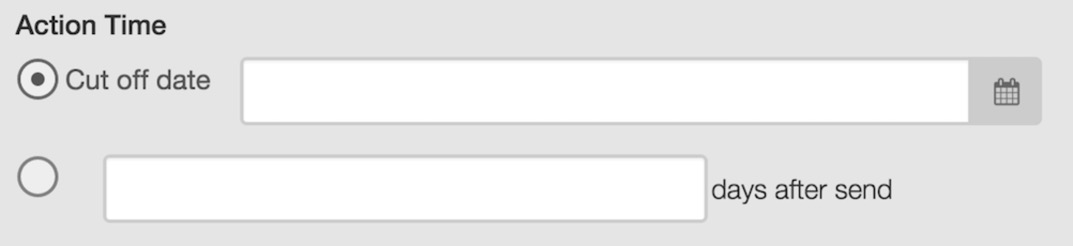
- For cutoff date: When specified, only data of open and click activities that happened before the specified date will be selected for report.
- For specified days after send: When specified, only data of open and click activities that happened within the specified days after email is sent will be selected for report.