The total volume and validity period of users’ Email and SMS quota are configured in RiMANGGIS administration system.
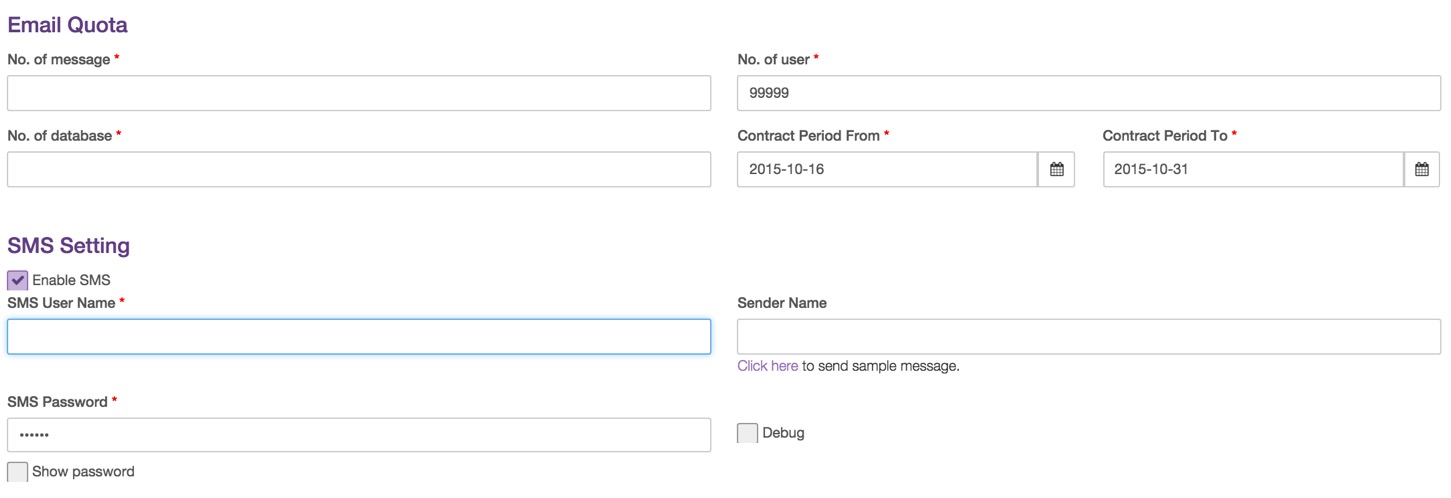
RiMANGGIS will execute quota validity period and volume control according your configured quota settings.
Email Quota Control Work Flow
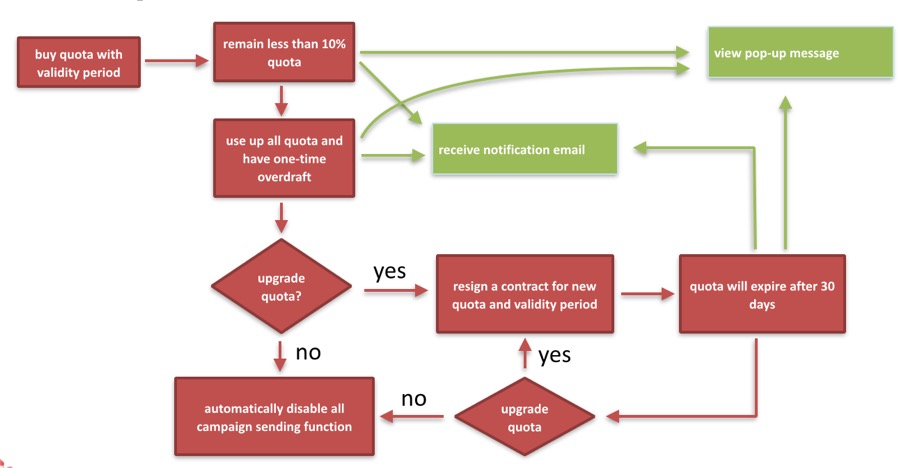
For Email quota, RiMANGGIS will send pop-up alert message and notification message to users:
- The remaining email quota is less than 10%.
- The email quota will expire after 30 days.
- The email quota has been overdrawn.
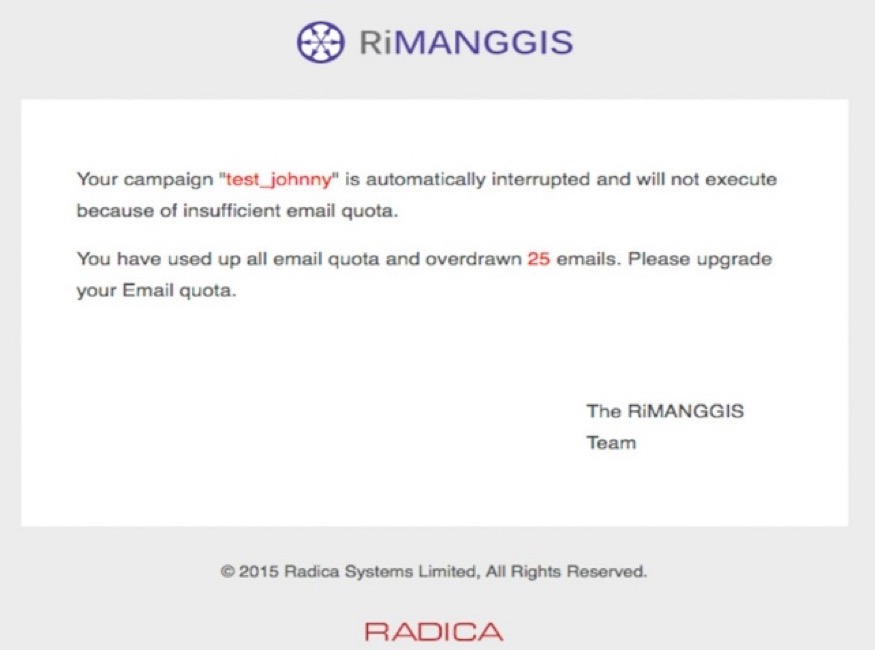
You can have one‐time quota overdraft. RiMANGGIS check that user’s email quota has been overdrawn, it will automatically stop executing campaign schedule and change corresponding campaign status into “Interrupted”. RiMANGGIS will also send a notification email to remind users that the campaign is aborted due to insufficient quota and the total number of overdraft emails.
SMS Quota Control Work Flow
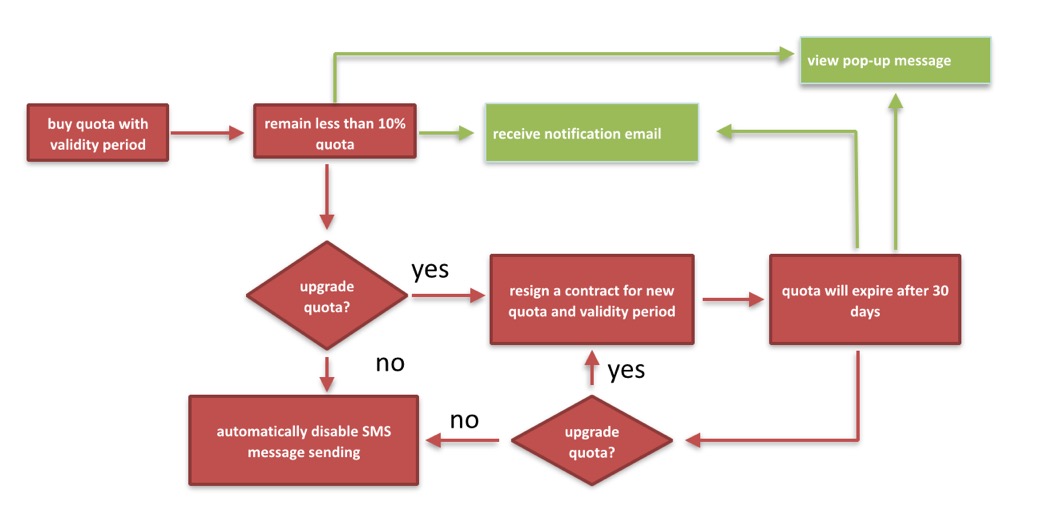
For SMS quota, RiMANGGIS will send pop-up alert message and notification message to users:
- The remaining SMS quota is less than 10%.
- The SMS quota will expire after 30 days.
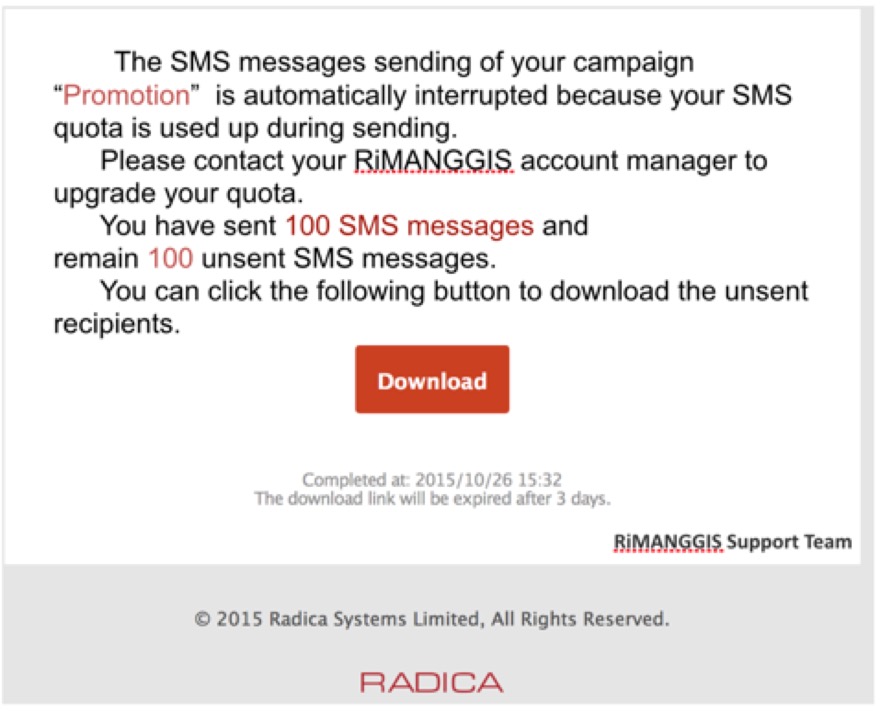
The SMS quota can not be overdrawn. RiMANGGIS checks that user’s SMS quotais used up during sending, it will automatically stop sending SMS and change corresponding SMS status into “Interrupted”. RiMANGGIS will also send a notification email to remind users that the campaign is aborted due to used up quota. You can click the “Download” button to download unsent recipients list to resend SMS message to them.
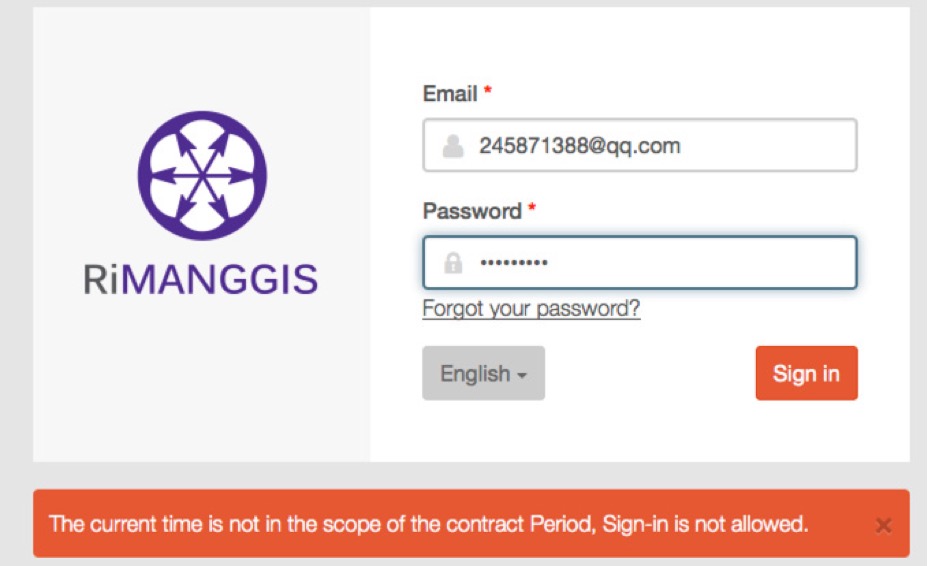
Log in control
If you Email and SMS quota are expired at the same time, you will fail to log in to RiMANGGIS.
View your account information
Users with any one of the following campaign or automation privileges in any authorized will view alert message and receive notification email.
- Delete campaign
- Edit campaign
- Create campaign
- Approve campaign
- Suspend campaign
- Delete automation
- Create automation
- Edit automation
- Suspend automation
- Resume automation
- Approve automation
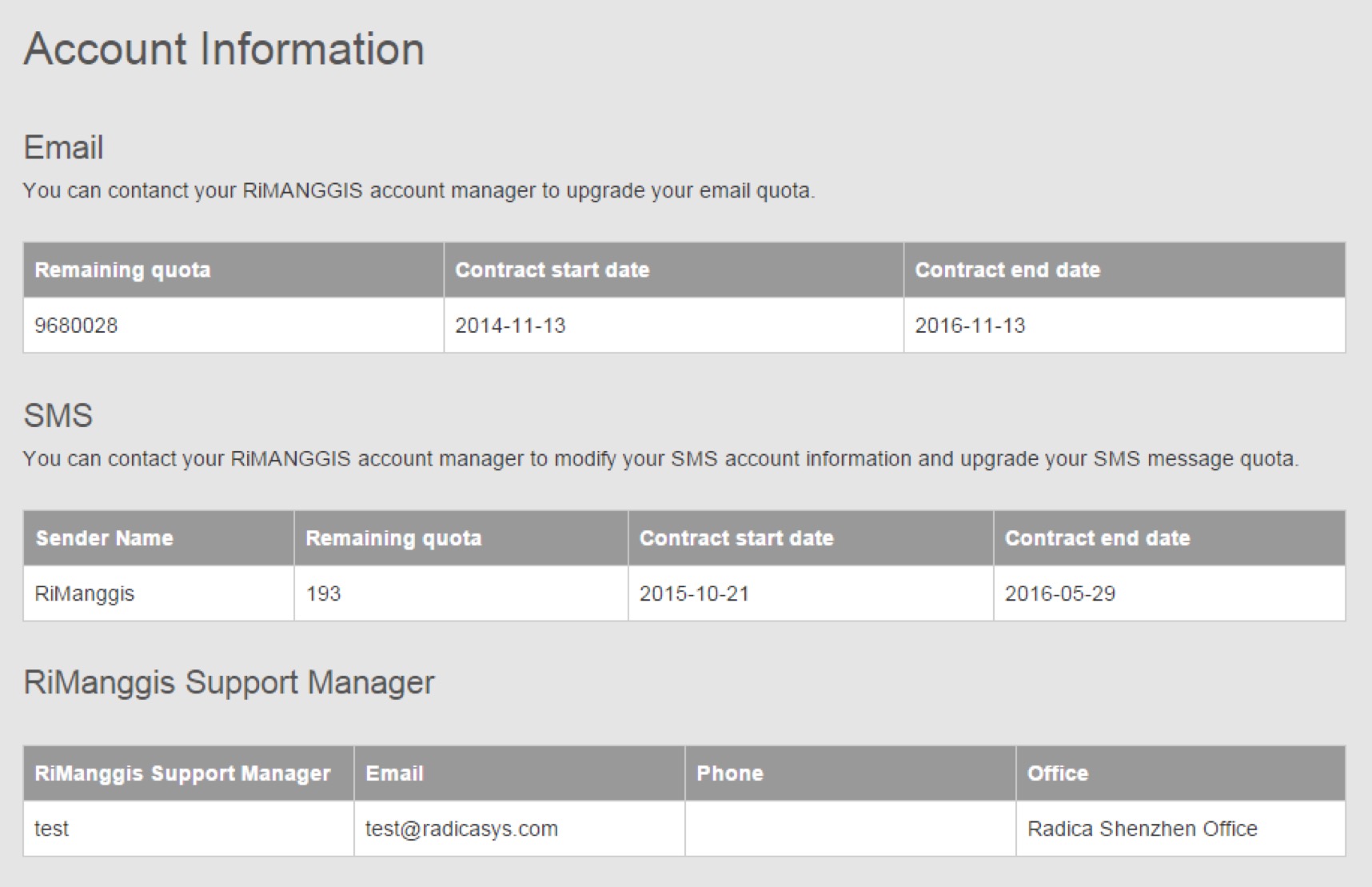
If you have any one of above mentioned privilege, you can open your user menu and click “Account” to view your account information.
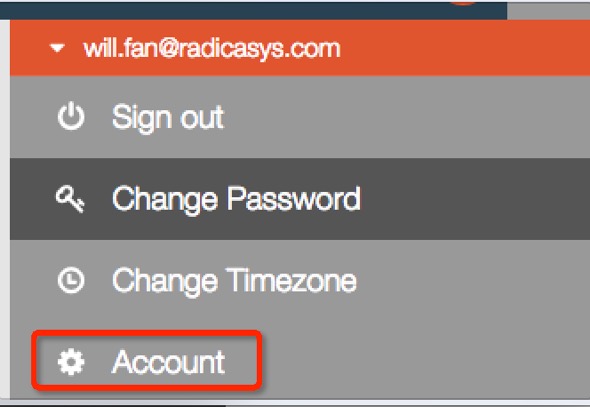
In the account information page, you can view all your available channel quota information including remaining quota and contract period. If your RiMANGGIS support manager is configured in RiMANGGIS administration system, you can also view the support information to upgrade or renew quota more conveniently.