
After you finish trigger and campaign steps setting, you can go to confirm step.
The automation confirmation step page will check the information settings of every automation step.
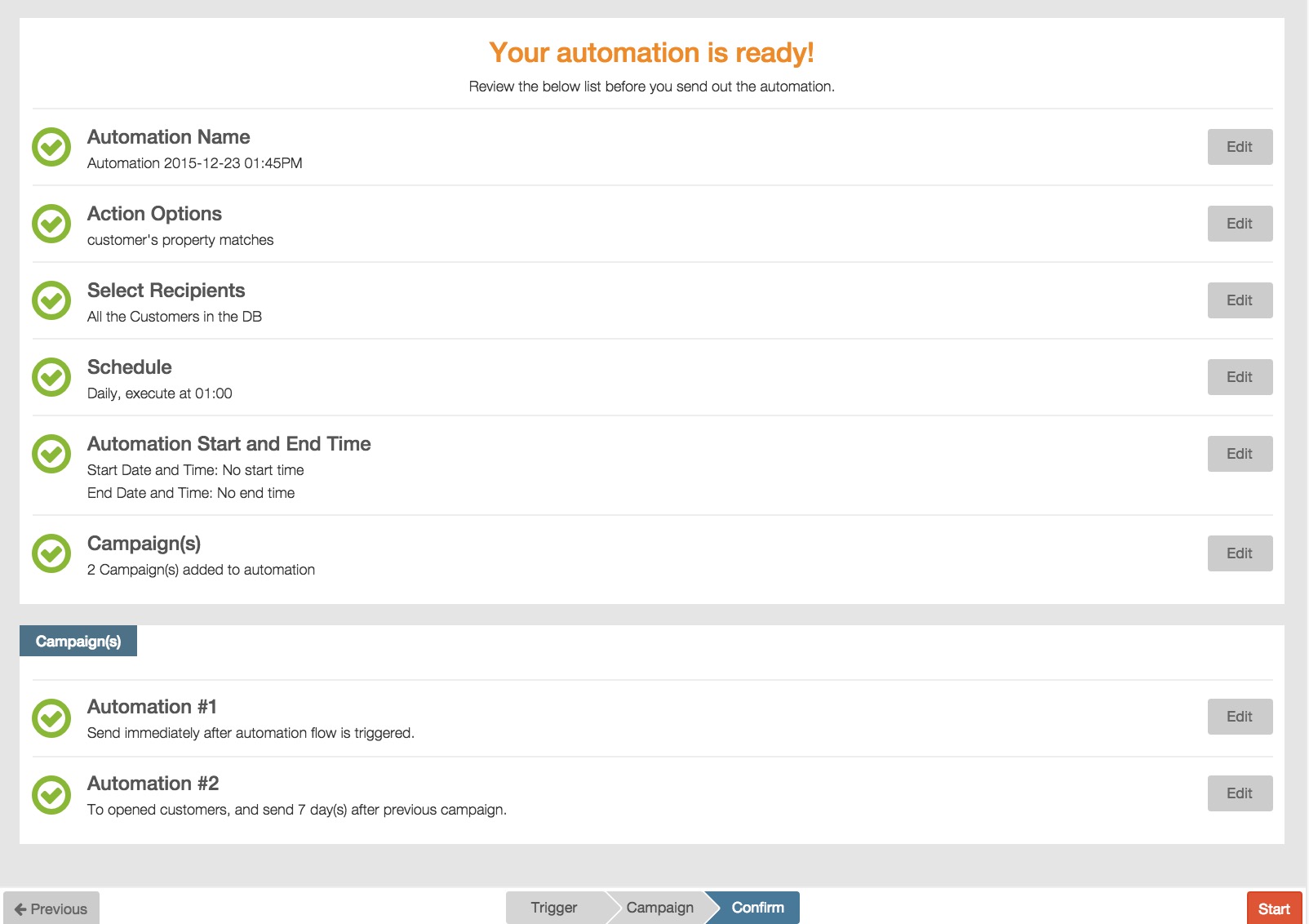
In automation confirmation page, RiMANGGIS will check following information:
- Automation Name: display automation name.
- Action Options: display the trigger condtions set by users. The information of action options is mandatory to be filled, if users can enter confirmation page, it means that all information in action options field are completed.
- Select recipients: display the segment condtions set by users, “all customers in the DB” or “customer segment”. If users sets customer segment, they can click the link to view all display segment setting of recipients, and then click to hide the details. If users select the trigger condtion “When API data matches”, this option will not display.
- Schedule: display the automation execution schedule set by users. For the trigger condition of “When API data matches”, the trigger condition display “as soon as possible” by default.
- Automation Start and End time: display the automation start and end time set by users.
- Campaign: display the total number of campaigns added in current automation. You must add at least one campaign into the automation flow, otherwise the campaign confirmation field will be marked as
 and you can’t start your automation flow.
- Campaign(s) area displays the list of all campaigns in the automation. If the campaign information is complete, the campaign confirmation field will be marked as
 , otherwise the campaign will be marked as and detailed unfinished step information will display below the campaign.
You can click  to enter and edit corresponding step page. You can not start your automation flow if your automation and campaign information is incomplete.
In automation confirmation page, if you confirm all automation information is prepared, you can click the button  to start your automation.
If you are a user without automation approval privilege, your automation flow will become “pending” status after you click “Start” button. Only users with automation approval privilege can directly click “Start” button to start the automation flow.
If your automation quota is overdrawn, no matter you have approval privilege or not, the automation can not be approved. The automation will be automatically saved and its status will become “pending” after you click “Start” button.