
Mail Rule Page Overview
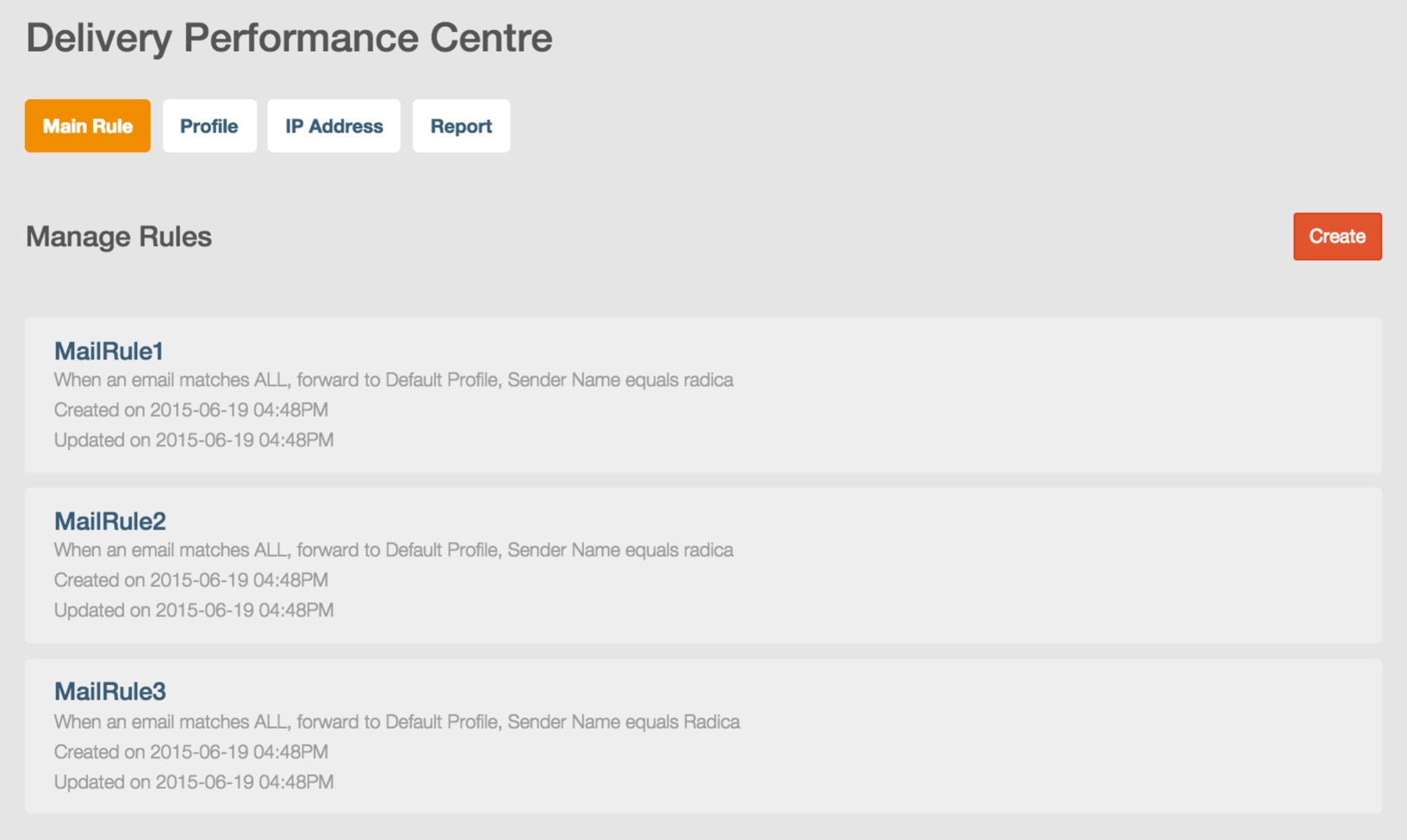
In mail rule list page, you will view all created rules in your DPC database. All mail rules are sequenced in descending order according to mail rule creation time.
Create Your Mail Rule
In mail rule list page, you can click  to create a new mail rule.
Set Your Rule Name
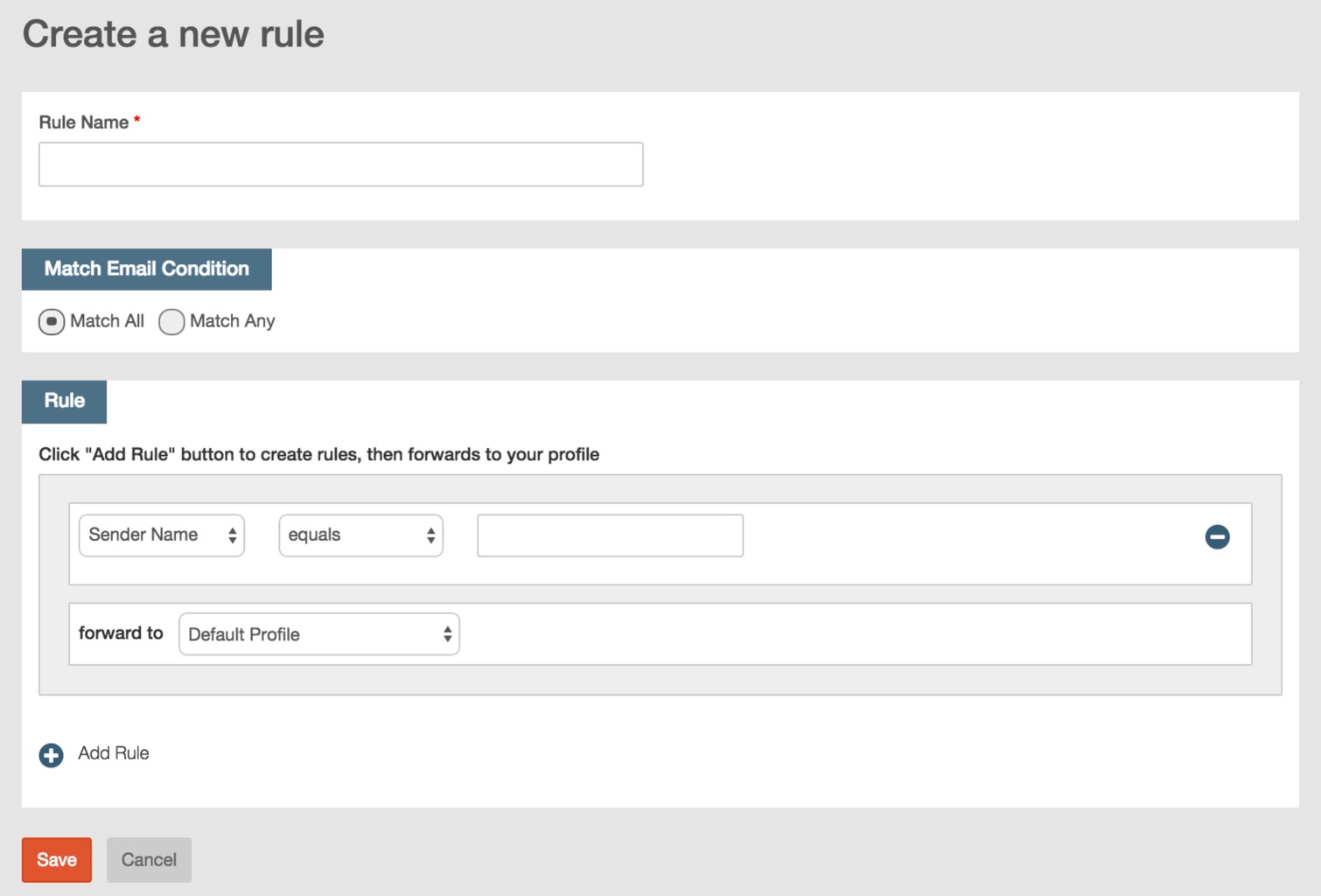
You need to set a name for your mail rule. The format of your mail rule name is identical with profile name. Please refer to Set your profile name described in Configure Your DPC Profile.
Set Match Email Condition
You need to set the relations of each mail criterion.
- Click and select ‘Match All’ and emails matching all mail criteria will be specified.
- Click and select ‘Match Any’ and emails matching any mail criterion will be specified.

Set Your Mail Rule Criteria
You must set at least one mail rule criterion.
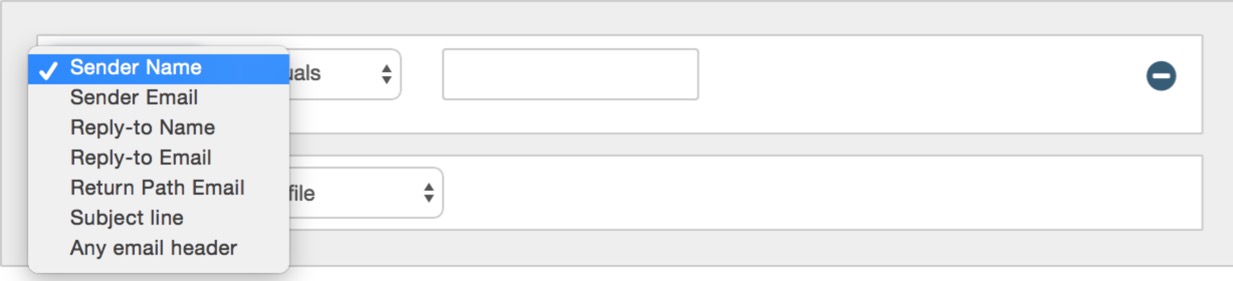
- Click and select the criterion from drop down list.
- Click and select matching method from drop down list.

- Input the matching information of the criterion.

- You need to specify the profile for your mail rule, click and select the profile you from drop down list.

- Click
 to add multiple criteria for your rule, and click
 to delete a criterion.
- After you finish all settings of mail rule, click ‘OK’ to save your mail rule and return to mail rule list page. If you don’t want to save your mail rule, click ‘Cancel’ and directly return to mail rule list page.
The mail rule creteria field supports any uppercase and lowercase letters, and symbols of ‘-’(strikethrough) and ‘_’(underline), and the total length of mail rule name can’t exceed 255 characters. You can add 10 creteria at most for a mail rule.For ‘Match all’ condition, users can not use duplicate matching criteria to set different matching conditions (except email header), if you use the criterion ‘Any Email Header’ to set multiple matching conditions, the matching information can not be duplicate.For ‘Match any’ condition, users can use duplicate matching criteria to set multiple matching condtions, however, you can not use duplicate matching information for the same matching criterion.You can set at most 16 matching criteria.For detailed functional information about mail rule, please refer to Criteria and matching method described in DPC Overview.
Edit Your Mail Rule
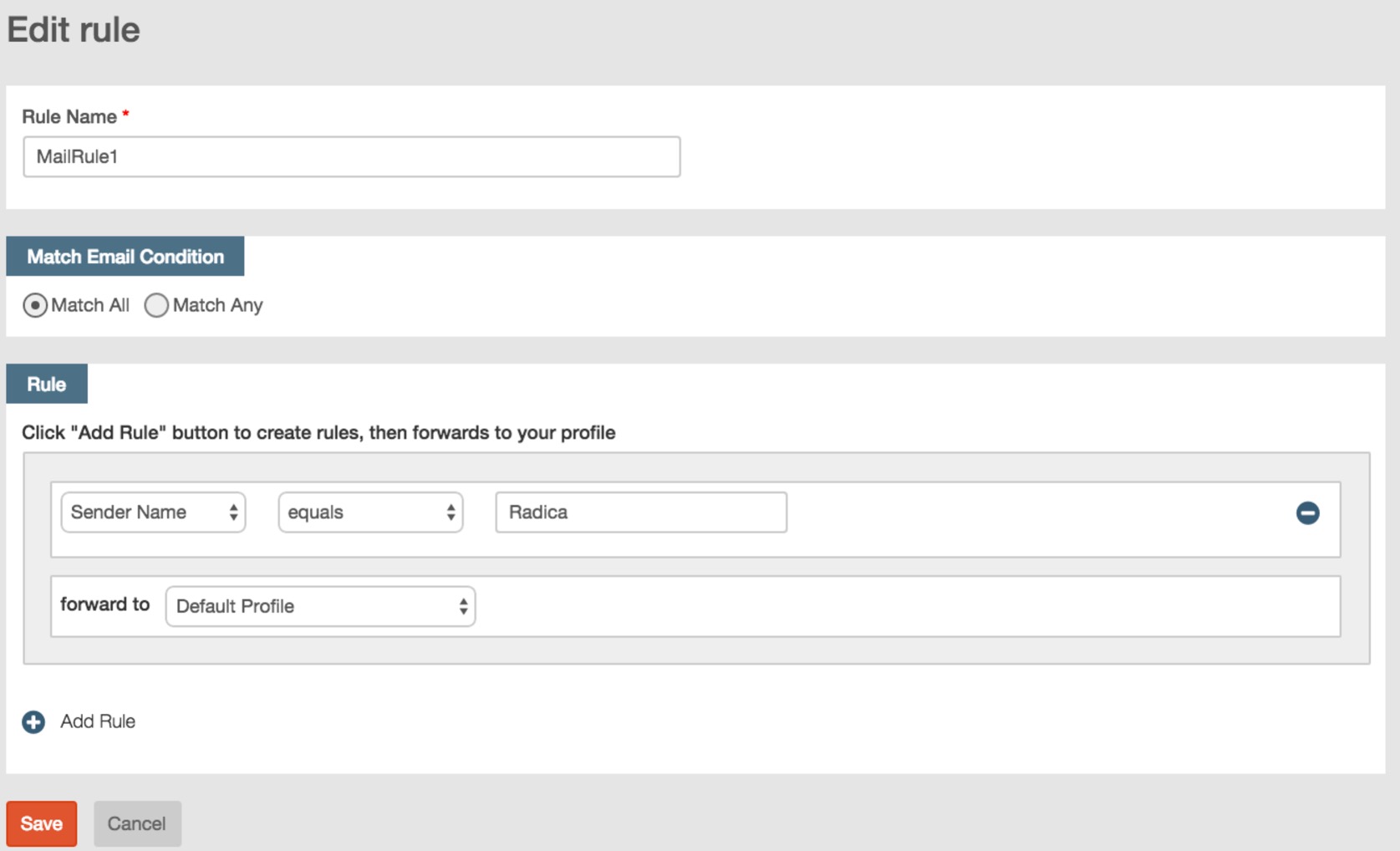
In mail rule list page, move your mouse over the mail rule and click ‘Edit’ to edit your mail rule.

In edit mail rule page, you can modify all mail rule settings including mail rule name.
Delete Your Mail Rule
In mail rule list page, if you want to delete a mail rule, move your mouse over and click ‘Delete’ to delete your mail rule.
In the pop up confirmation message box, click ‘OK’ to confirmation your delete operation.
