You can create and directly view your summary report in DPC report page. For other types of reports, you can directly export the report file in CSV format.
Generate Summary Report
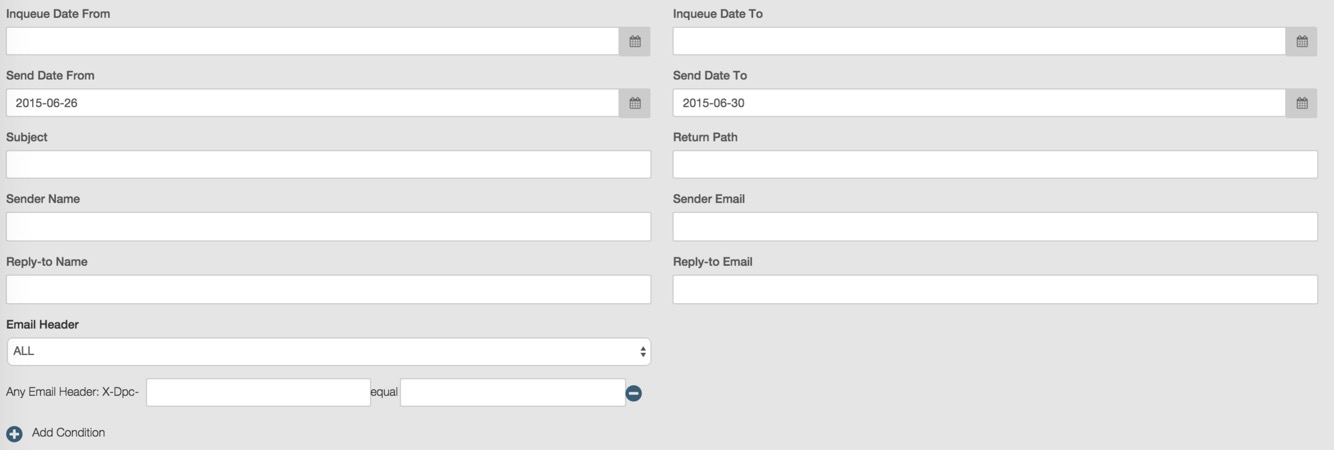
You can set multiple parameters to create your DPC summary report. Please refer to Set Report Parameters described in View Your DPC Report to set your report parameters.
- Firstly you need to select the report type and profiles.

- Set other optional parameters to filter email data for your report.
- Click
 to create your summary report.
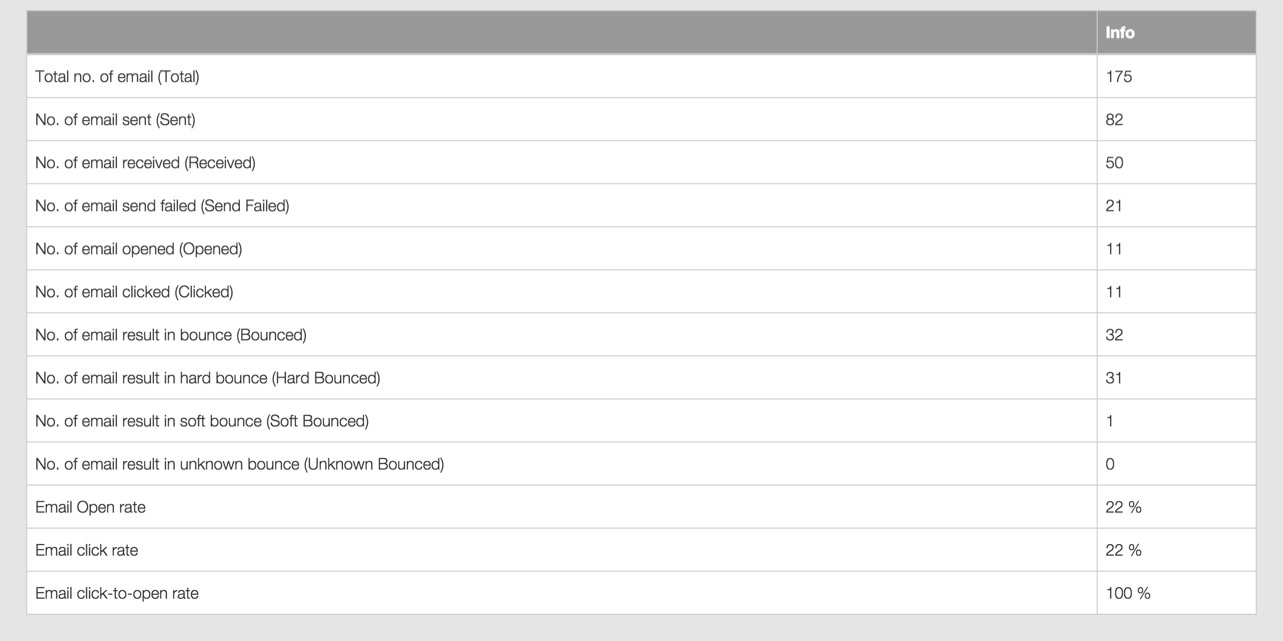
- Your summary report will display below the parameter setting area. The following screenshot image shows the data type included in the summary report.
Export Open/Click/Bounce/Receive Reports
You can set multiple parameters to create your DPC reports. Please refer to Set Report Parameters in View Your DPC Report to set your report parameters.
After you finish all parameter fields setting, you can click  to export your report.
You can download the report by the following two methods:
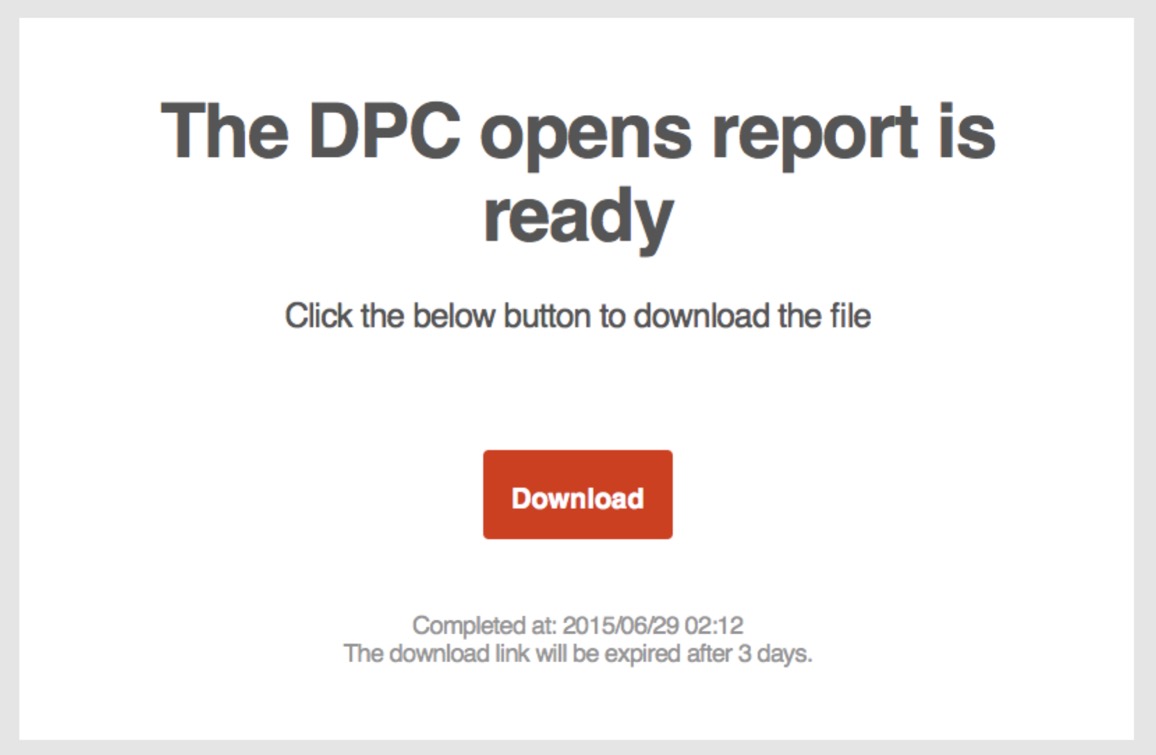
- You will receive a notification email after the report exporting is finished, and you can click the download link button to download your report CSV file.
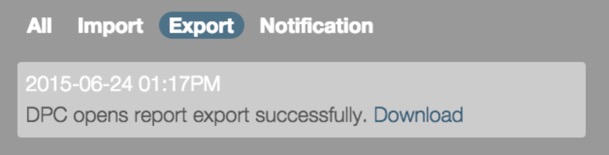
- You can also find your download message in export notification column, and click the download link to download your report CSV file.