
Profile Page Overview
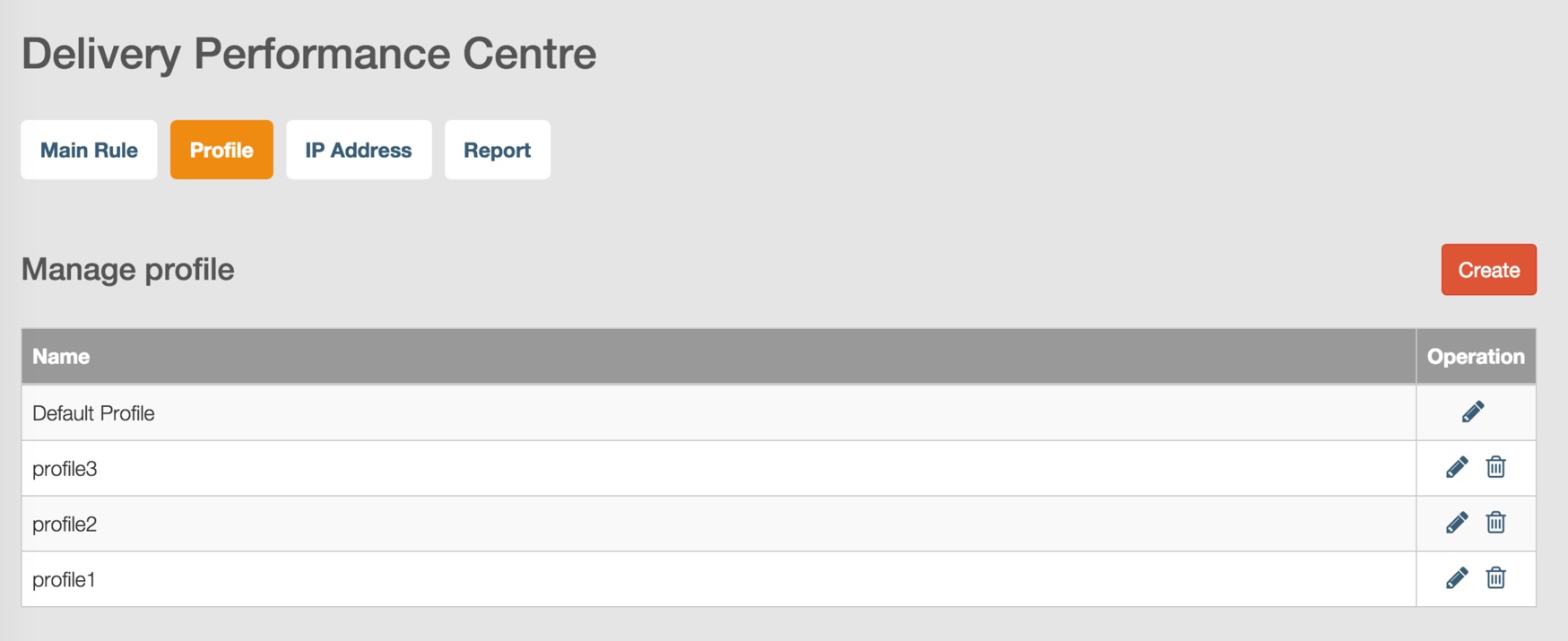
Click the ‘Profile’ tab button to view profile page. In this page, you will view all profiles including default profile and profiles created by users with DPC privilege.
View Your Default Profile
DPC provides a default profile to users. You can move your mouse over the default profile and click the edit icon to enter your default profile page.

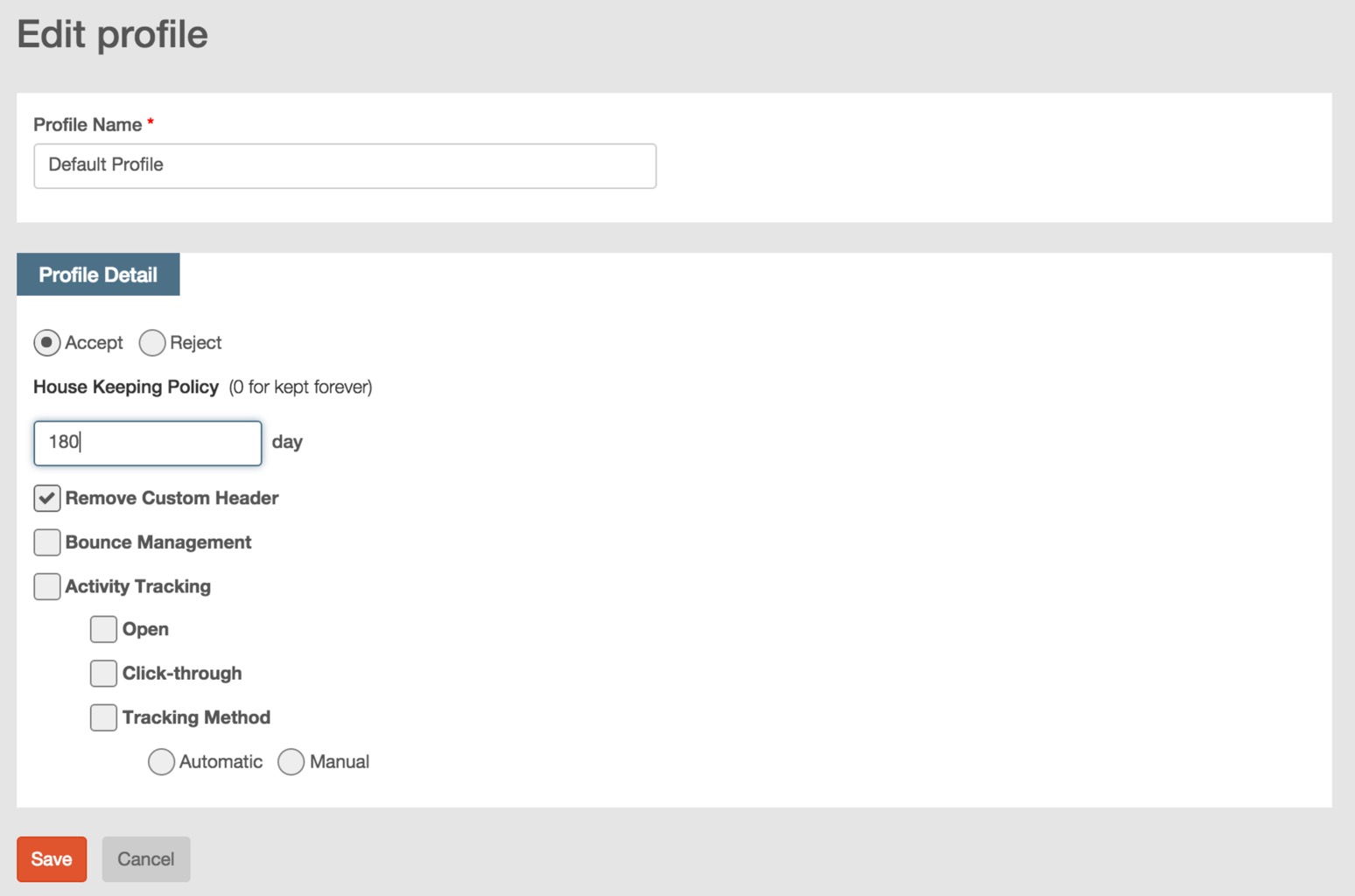
In default profile page, you will view the following default value:
- Profile name: Default Profile.
- Profile detail:
- Email processing policy: ‘Accept’, which means DPC will send emails out to your recipients.
- House Keeping Policy: ‘180 days’, which means DPC database will store the emails received in recent 180 days. The historical data earlier than 180 days will be automatically cleared.
- Remove Customer Header: this option is selected by default, which means the DPC mail header ‘X-Dpc-xxx’ will be removed from email header before email delivering to recipients.
- Bounce management: this option is not selected by default, which means all bounced emails will return to the mail box with users’ original bounce email address instead of the bounce email address specified in RiMANGGIS backend administration system.
- Activity Tracking: this option is not selected by default, which means DPC will not track recipients’ open and click activity data by default.
Create Your Profile
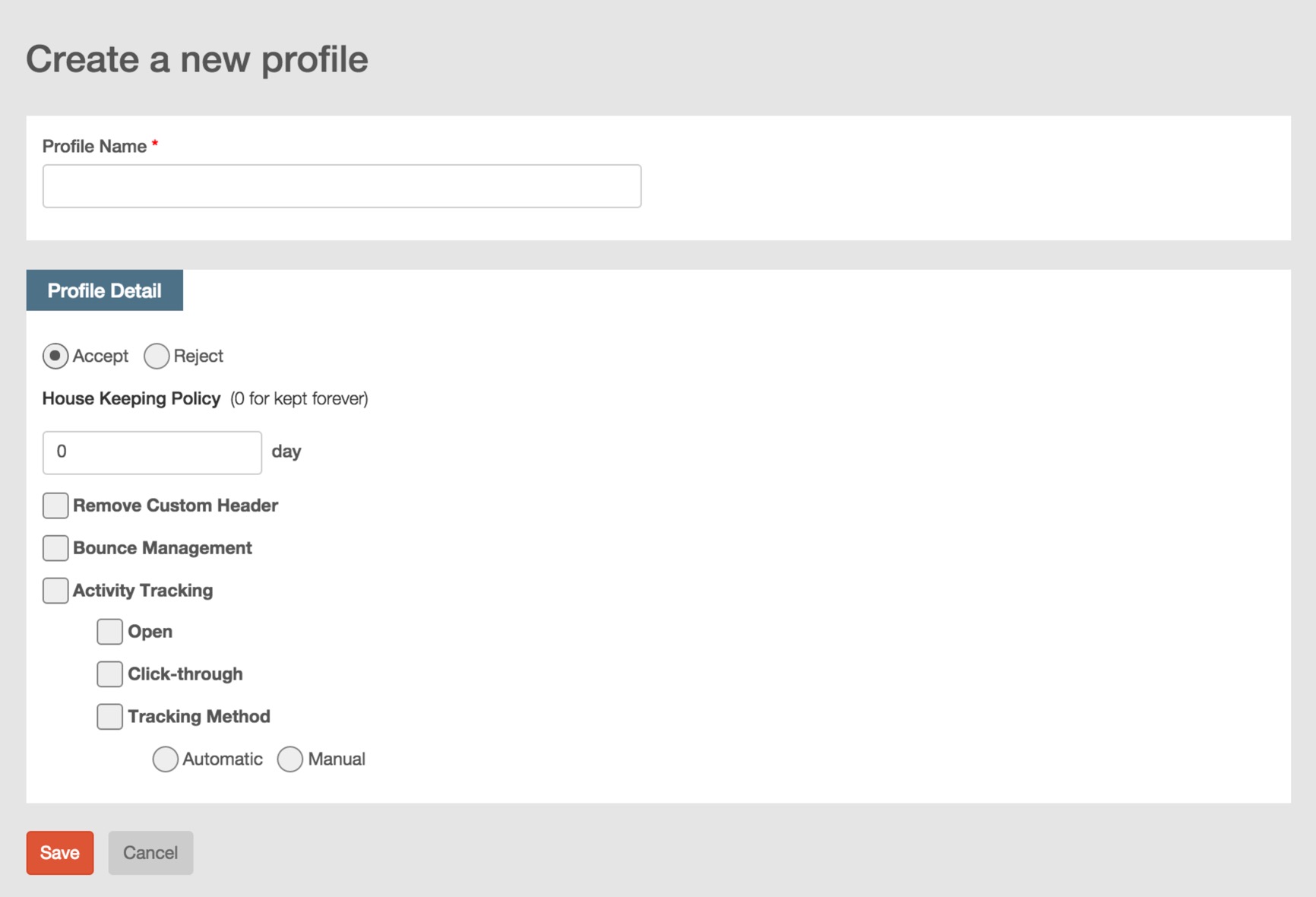
In profile list page, click the button  to create a new profile.
 Set your profile name
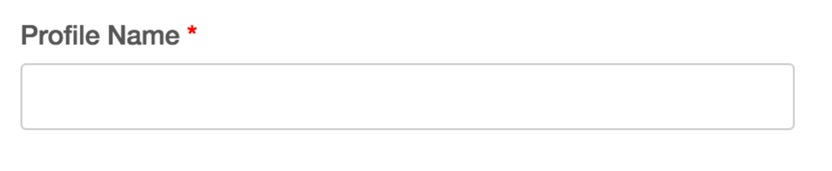
The profile name is a mandatory field. You must comply with the profile name-setting rule to set your profile name.
Set your email processing policy
You need to set your email processing policy. By default, the email processing policy is ‘Accept’. If you don’t want send incoming emails from your email application server to your recipients, you can set the email processing policy as ‘Reject’.
If you set your email processing policy as ‘Accept’, you need to set the following options:
House Keeping policy
By default, the date value of house keeping policy is 180 days. You can set the date value from 0 to 999. DPC will store the campaign email data in your specified date range. If you want to store your campaign email data in DPC database forever, you can set the value as ‘0’.
Remove Customer Header
If you don’t want the customized DPC header ‘X-Dpc-xxx’ to display in the email header of sent emails, you can click to select this option.
Bounce Management
If you want to use the configured DPC bounce email address to manage all bounced emails, you can click to select this option. Otherwise all bounced emails’ information will return to the mailbox with your original return email address.
Activity tracking
If you want to track your sent email campaign activities, you can select this option.
- Click ‘Open’ option to track all recipients’ open behviour data.
- Click ‘Click-through’ to track all URL links’ click bahaviour data.
You need to configure the click-through tracking method.
- Automatic: this option is selected by default. DPC will track all click through data of all URL links in emails.
- Manual option: you can set matching rules to specify links to be tracked.
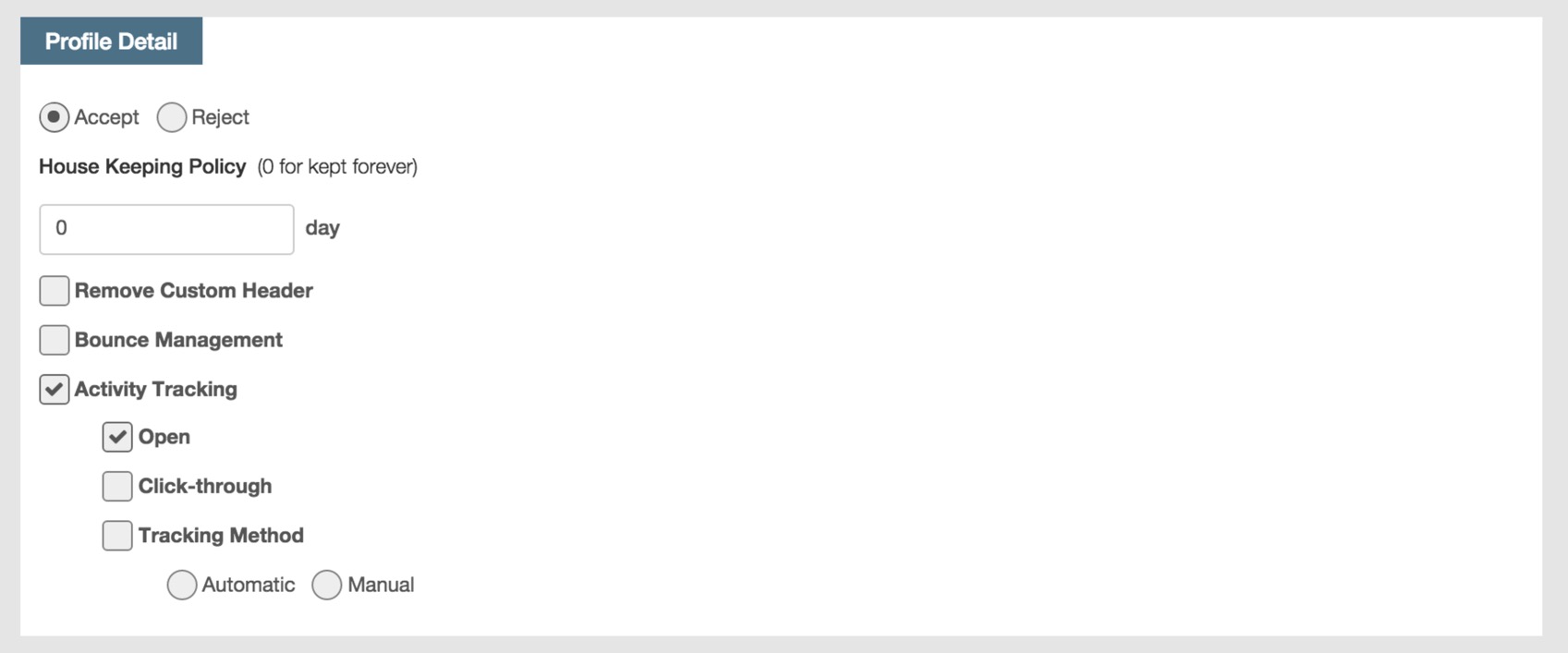
You can manually set matching rules of URL links by the following steps:
- Click the ‘Manual’ radio button.
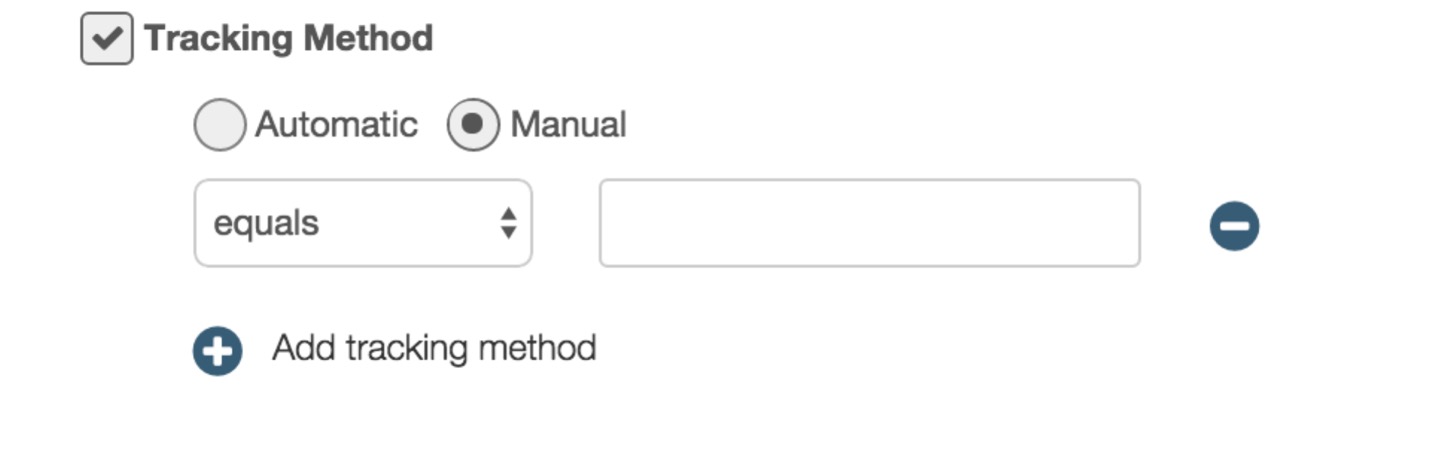
- Select the matching rule condition from drop down list, and then input your URL link information to be matched. DPC will match corresponding URL links in emails according to your input URL information.
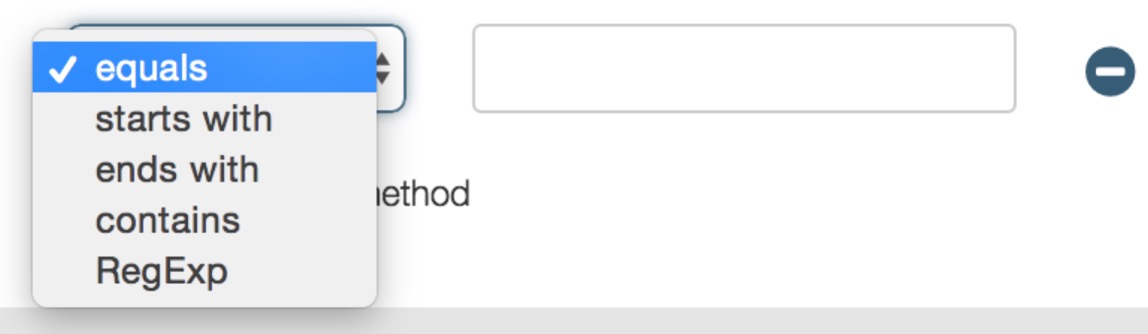
- For ‘equals’ option, only URL links in emails completely match the input URL information will be tracked.
- For ‘starts with’ option, URL links in emails of which first several characters match the input URL link information will be tracked.
- For ‘ends with’ option, URL links in emails of which last several chatacters mathc the input URL link information will be tacked.
- For ‘contains’ option, URL links in emails that exactly contain the input URL link information will be tracked.
- For ‘RegExp’ option, URL links in emails that match your regular expression character string will be tracked
You should carefully input URL link information to set your matching rules. If you set wrong matching rule information, DPC can not find matched URL links in emails to track related click-through data.
- Click
 to add multiple URL links matching rules, and click
 to delete rule.
After you finish all settings of profile, click ‘OK’ to save your profile and return to profile list page. If you don’t want to save your profile, click ‘Cancel’ and directly return to profile list page.
Edit Your Profile
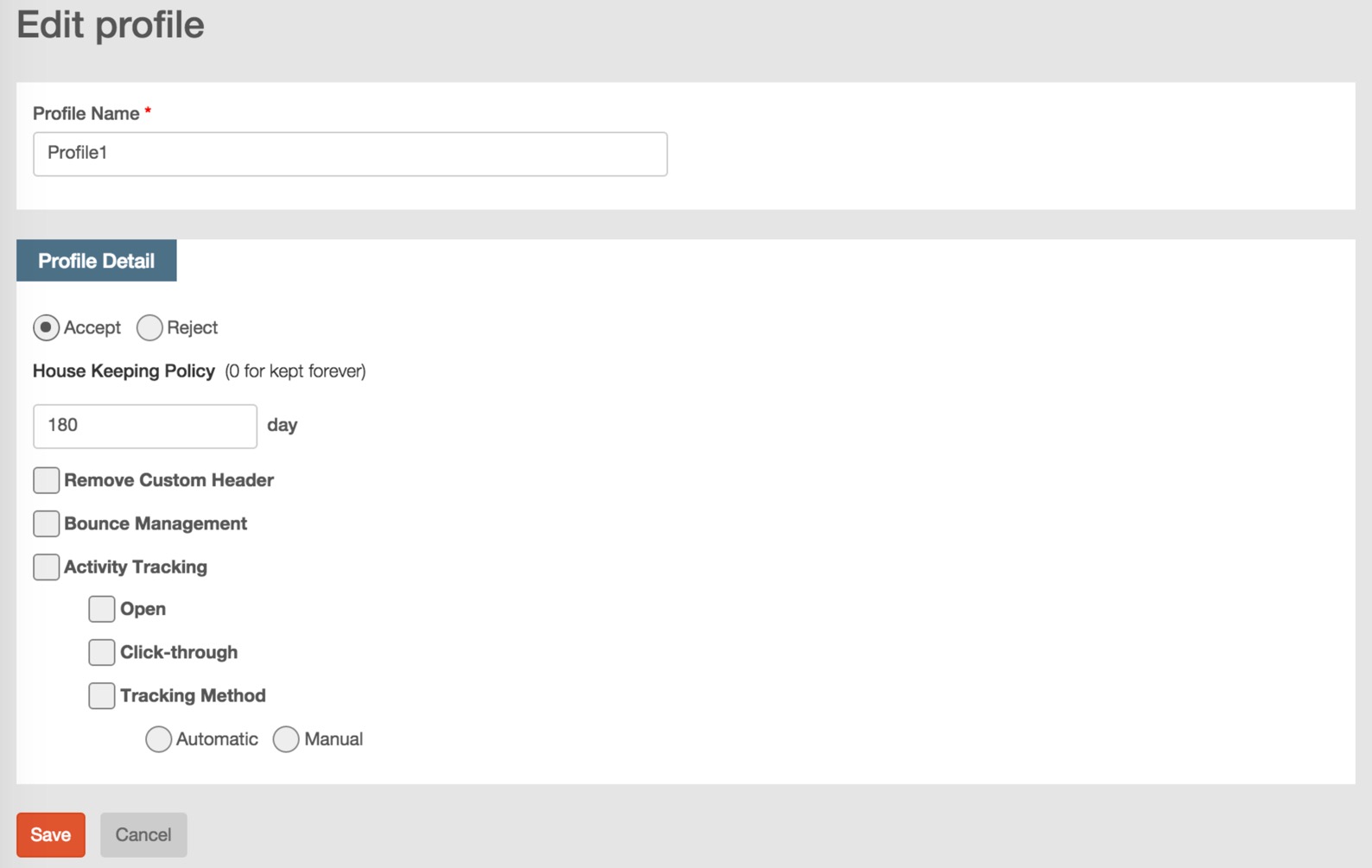
In profile list page, if you want to edit the setting of a profile, you can move your mouse over a profile and click the edit icon  to enter profile edit page.
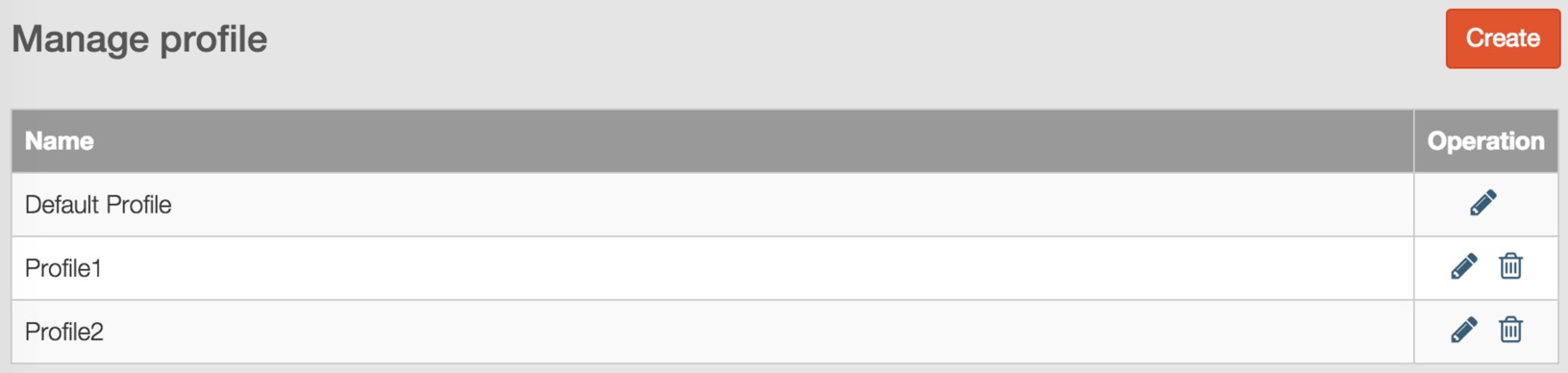
In edit profile page, you can modify all profile settings including profile name.
Delete Your Profile
In profile management page, if you want to delete a profile, move your mouse over and click the delete icon  to delete your profile.
In the pop up confirmation message box, click ‘OK’ to confirmation your delete operation.