
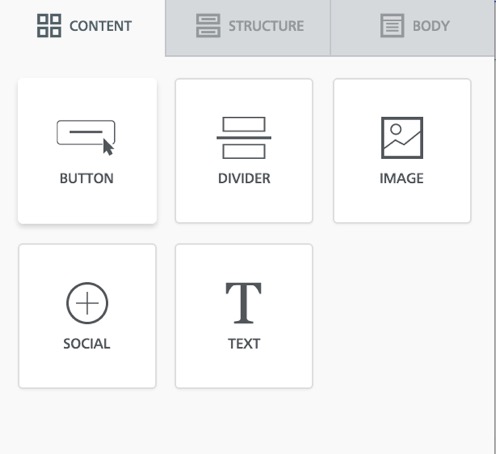
The content tab includes five kinds of content including button, divider, image, social, text.
Button
This editor is used to insert a button.
- Click to drag and drop this editor to the area you want to place.
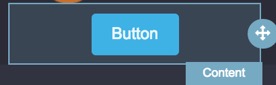
- Click the text to modify button name and use the text font editor displaying below the button to modify text font.

- Click
 to delete the image, or click
 to duplicate the button.
- Use the button properties editor in the right side to set button properties.
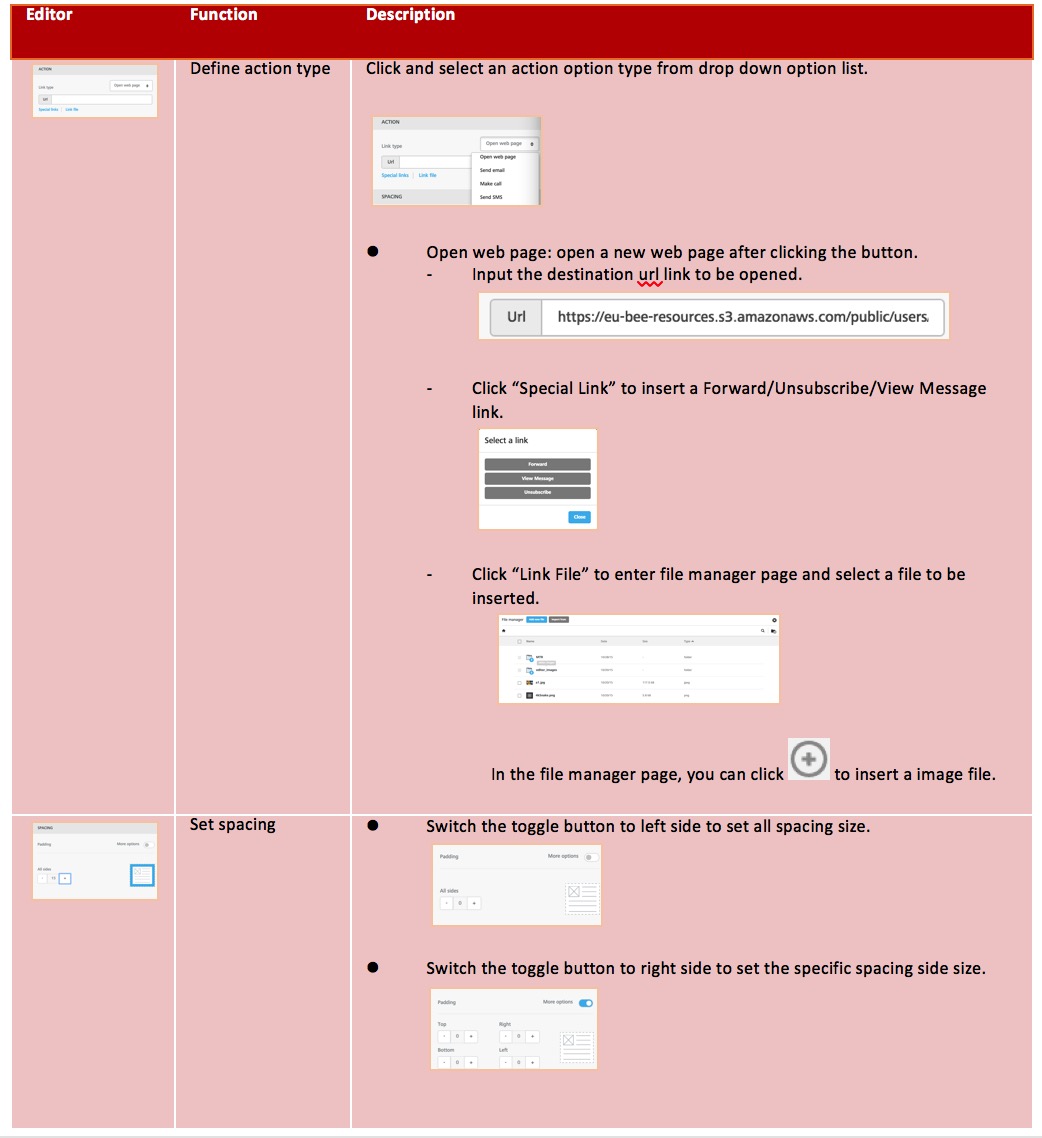
Table 1 : Button Editor Description
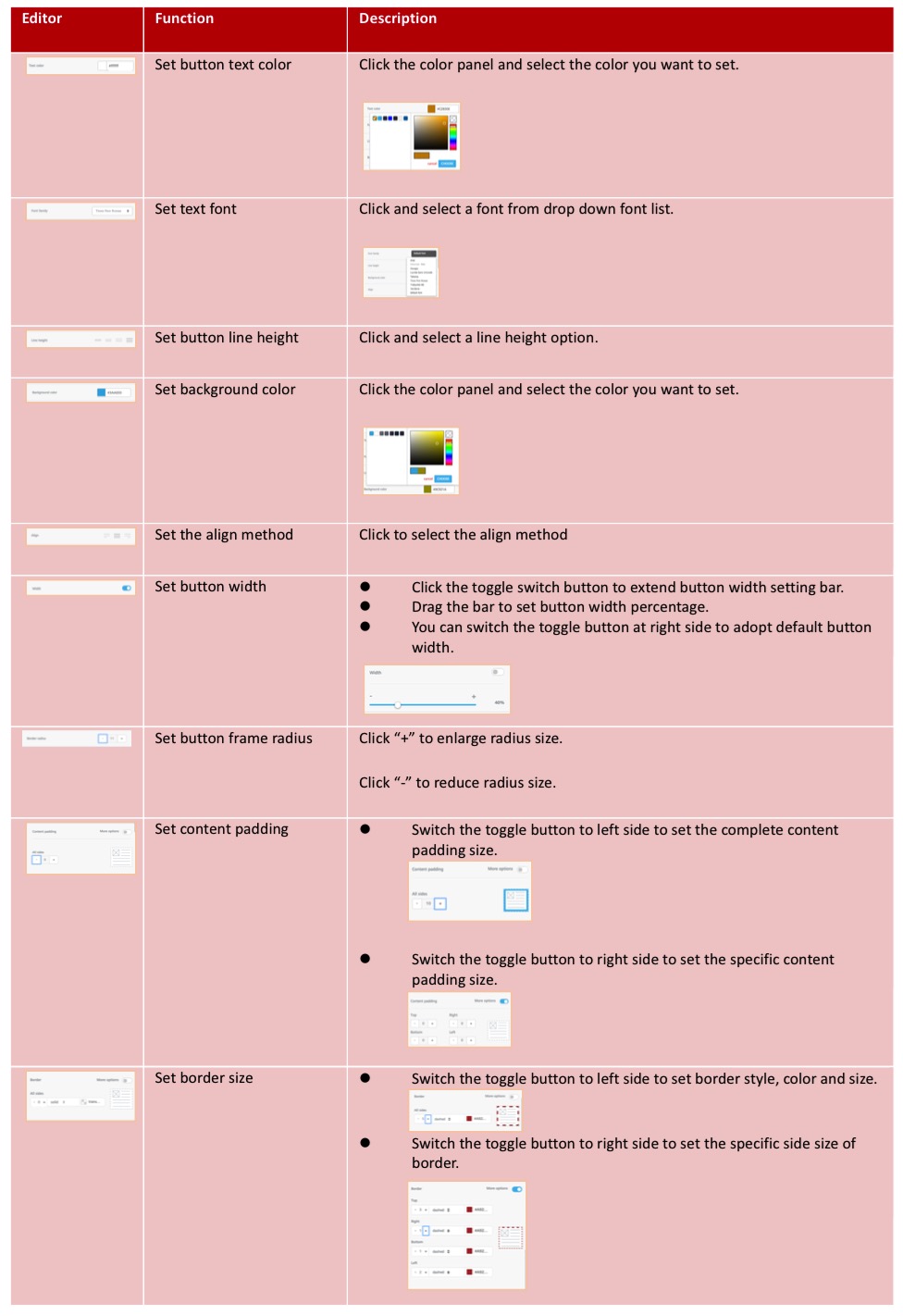
Table 2: General Properties Editor
Properties editor including “Action” and “Spacing” apply to all editors.
Divider
This editor is used to insert a divider.
- Click to drag and drop this editor to the area you want to place.
- Click to delete the image, or click to duplicate the button.
- Use the divider properties editor in the right side to set divider properties.
Table 3: Divider Editor Description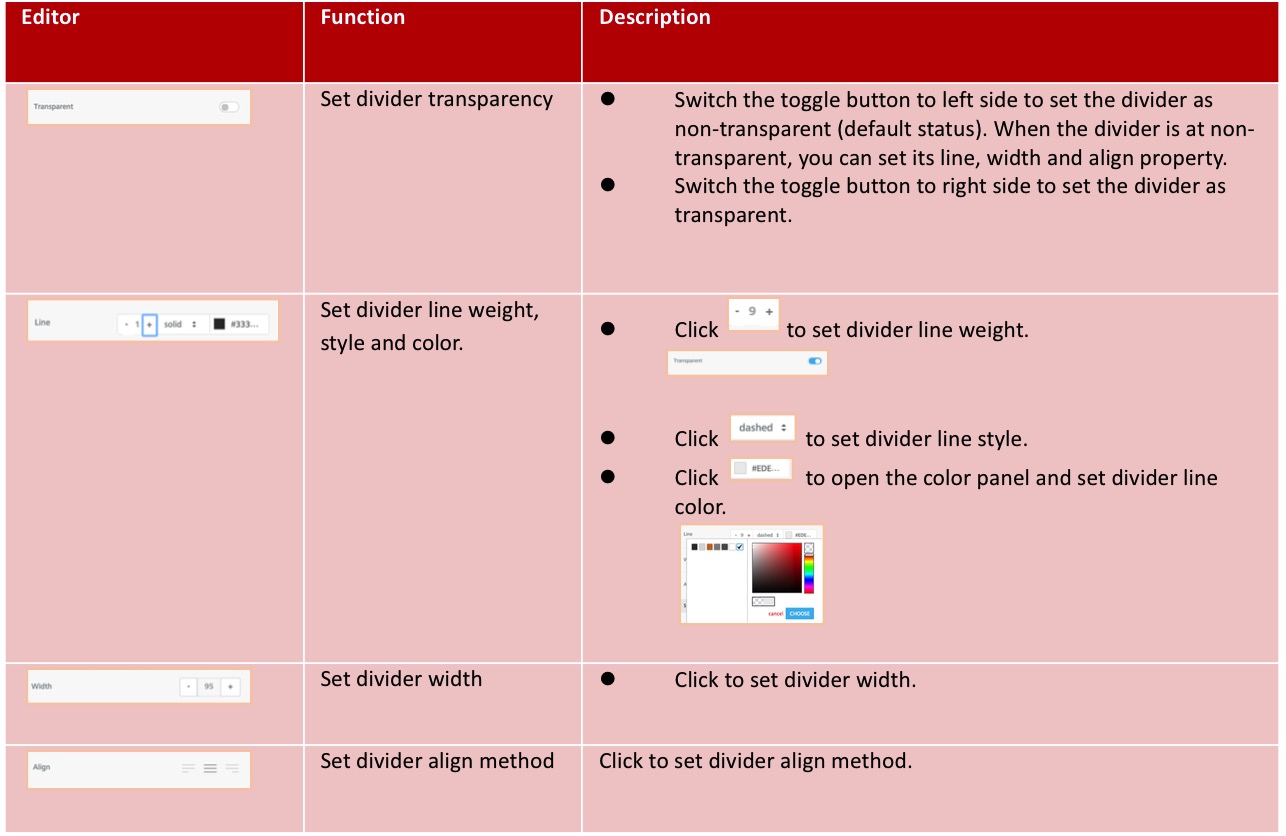
Image
This editor is used to insert an image file.
- Click the check box
 in front of an image file to make the following operations.
- Click “Browse” button to enter file manager page.
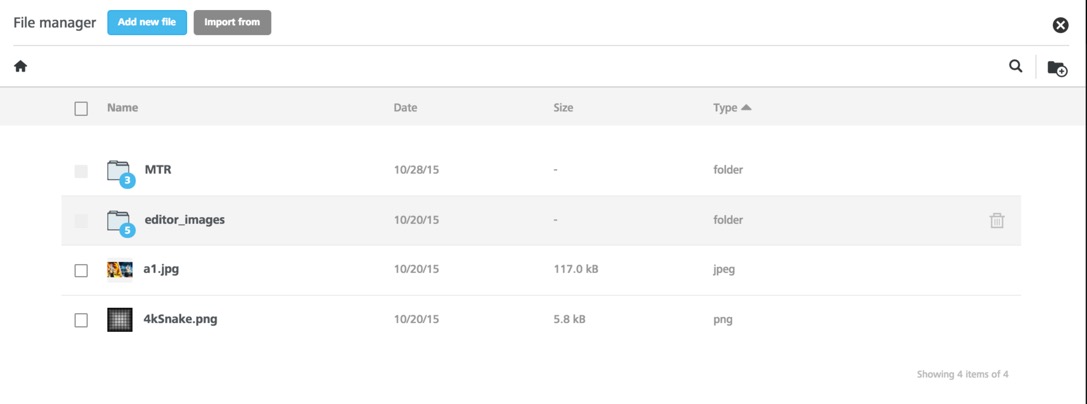
- Drag and drop the image button to the html page.
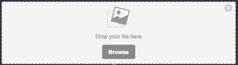
– Click to insert the selected image file.
– Click to preview image.
– Click to delete the image.
- You can click
 to upload a local file, and the file manager supports all types of files to be uploaded.
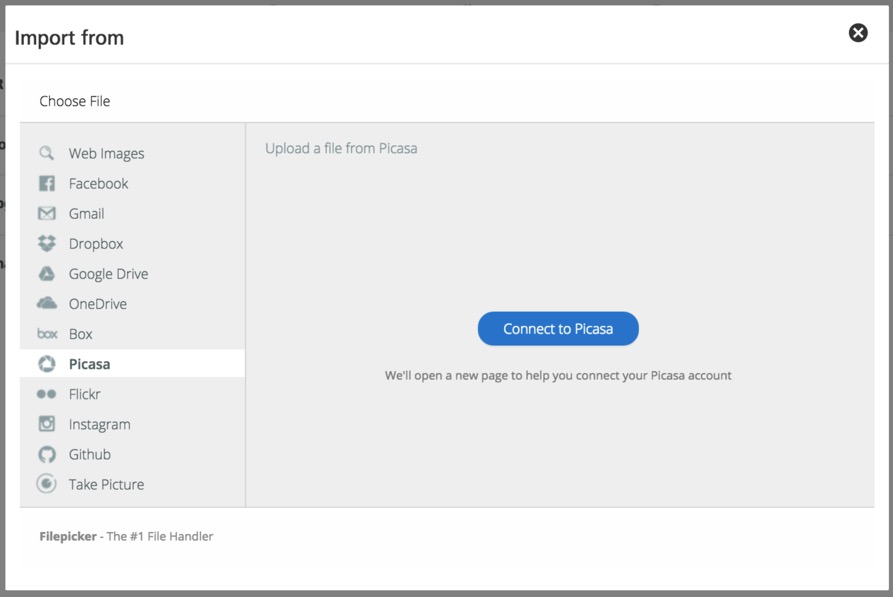
- You can click
 to connect supported third party application to add image file.
- You can input key words of file name in search bar
 in the upper side corner to search files.
- You can click
 beside the search bar to add a new file folder.
- You can click
 to close file manager page and return to html design page.
The storage size of file manager is limited to 100GB.
In html design page, you can select the image to make the following operations.
- Click to delete the image
- Click to duplicate the image.
- You can use the image properties editor at the left side column to modify your image.
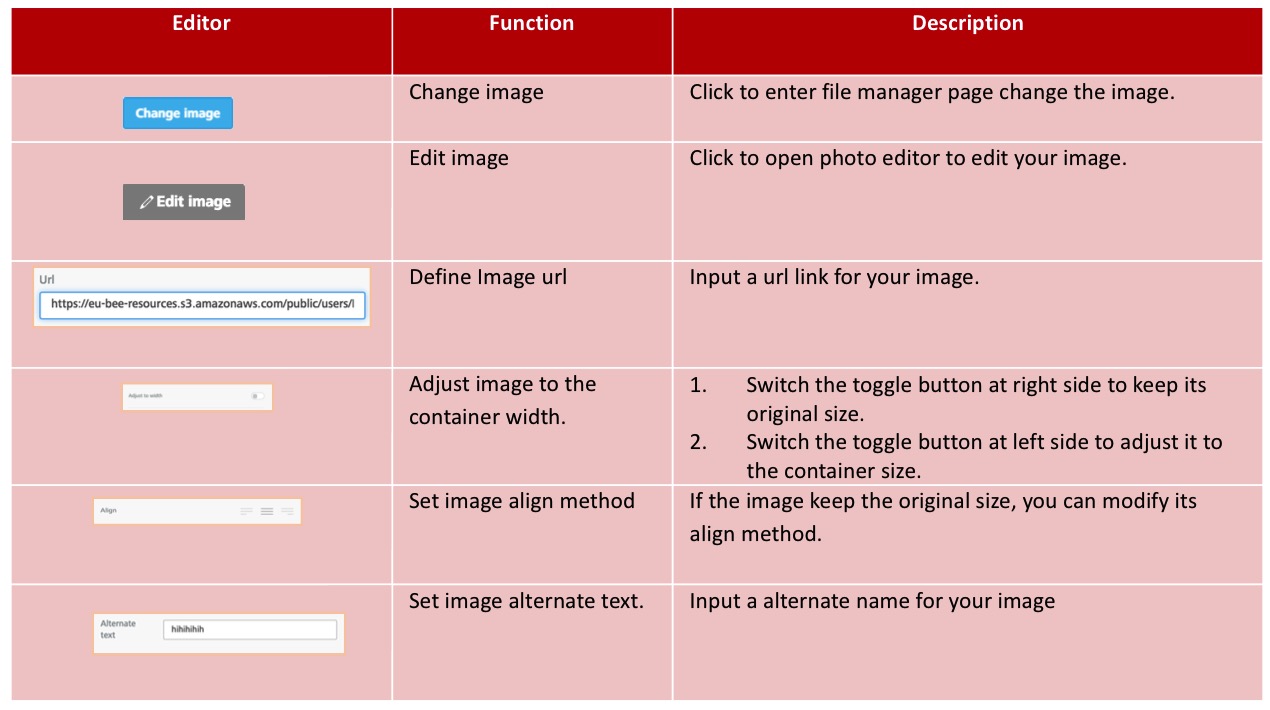
For Action and Spacing editor, please refer to Table 2: General Properties Editor.
Social
This editor is used to insert social media share button into the html design page.
- Drag and drop the social media share icon to the html page.
- Click to delete the image, or click to duplicate the image.
- Use the social media share button properties editor in the right side to set social media share button properties.
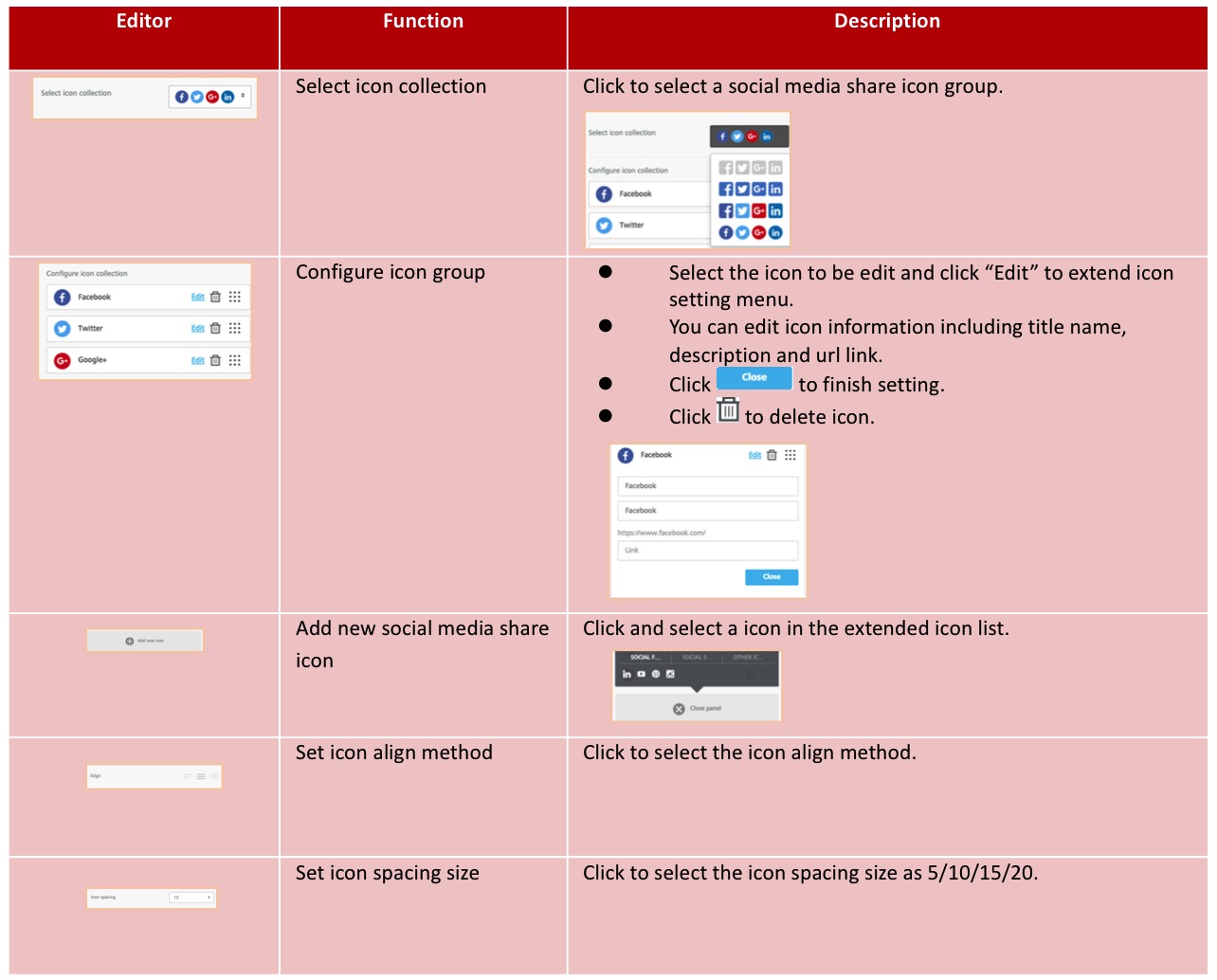
For Action and Spacing editor, please refer to Table 2: General Properties Editor.
Text
This editor is used to insert text frame into the html design page.
- Drag and drop the text to the html page.
- Click to delete the image, or click to duplicate the image.
- You can use the quick edit menu to set text properties such as character font, size, color. You can also add links for the text content, or insert merge tag of RiMANGGIS properties into text.

- You can use the text frame properties editor in the right side to set text properties.
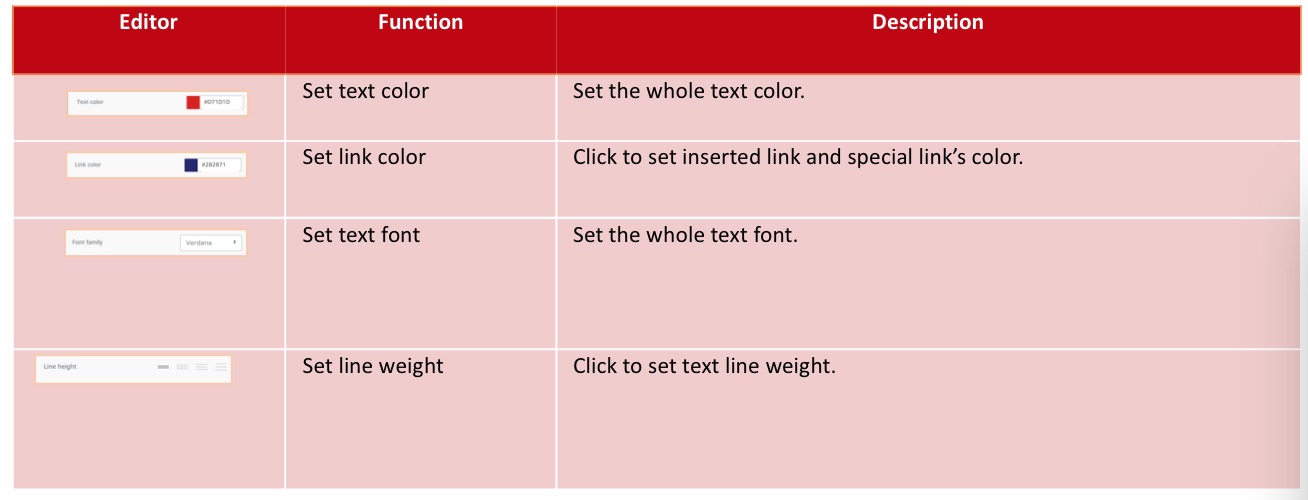 For Action and Spacing editor, please refer to Table 2: General Properties Editor.
If you use the quick edit menu to set color of specific characters, the color will stay unchanged even if you change the whole text color.