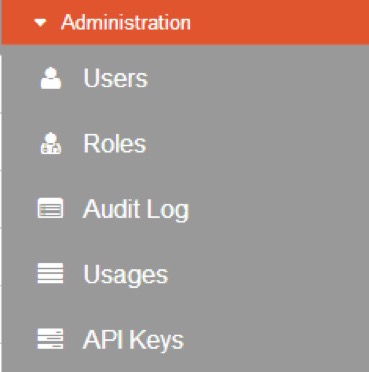
Administration is only accessible for system administrator with super user privilege. If you are a system user or super user, you can click your user name to open following administration menu.
Default Roles
You need to manage roles assigned to users. Click ‘Roles’ to enter roles management page.
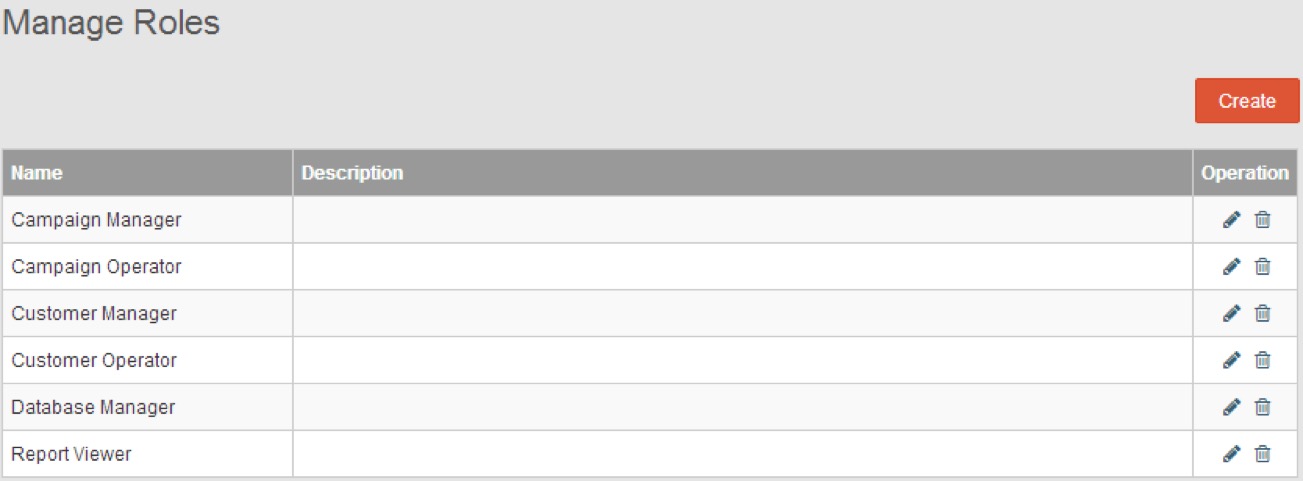
The configuration of role rights is flexible and convenient. System user and super user can easily define each role’s rights by selecting rights group. The administrator can also create new roles which are most suitable for their campaigns.
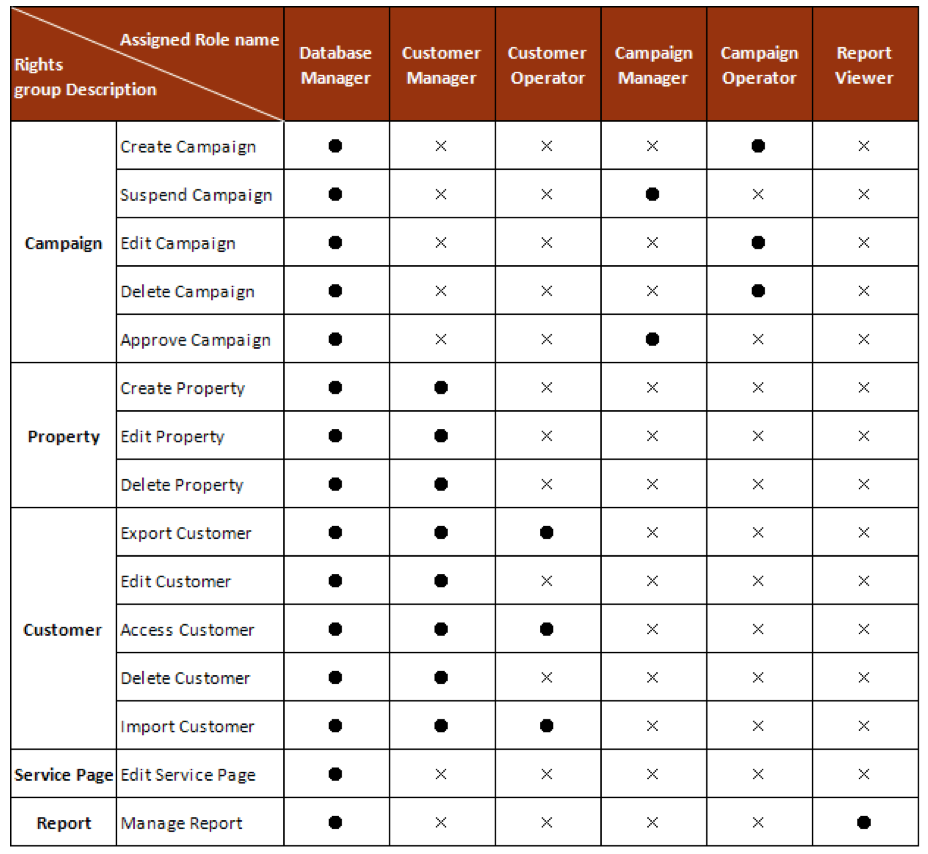
RiMANGGIS has configured eight default roles:
- Database Manager: this role can access and manage system functional information including customer, campaign, report, customer service page, property and tags.
- Customer Manager: this role can set customer property and manage customer information.
- Customer Operator: this role only has rights to access, import and export customer information.
- Campaign Manager: this role has rights to approve and suspend campaigns initiated by campaign operator.
- Campaign Operator: this role has rights to make all operations related to campaigns except the rights of campaign manager.
- Report Viewer: this role has rights to view and manage campaign reports.
- Automation Operator: this role is used to create, edit and delete automation.
- Automation Manager: this role is used to approve, suspend and resume automation.
Operation Rights of Default Role
Create New Roles
You can create specific roles which are most suitable your users and campaigns.
- Firstly you need to click Create to enter following page.
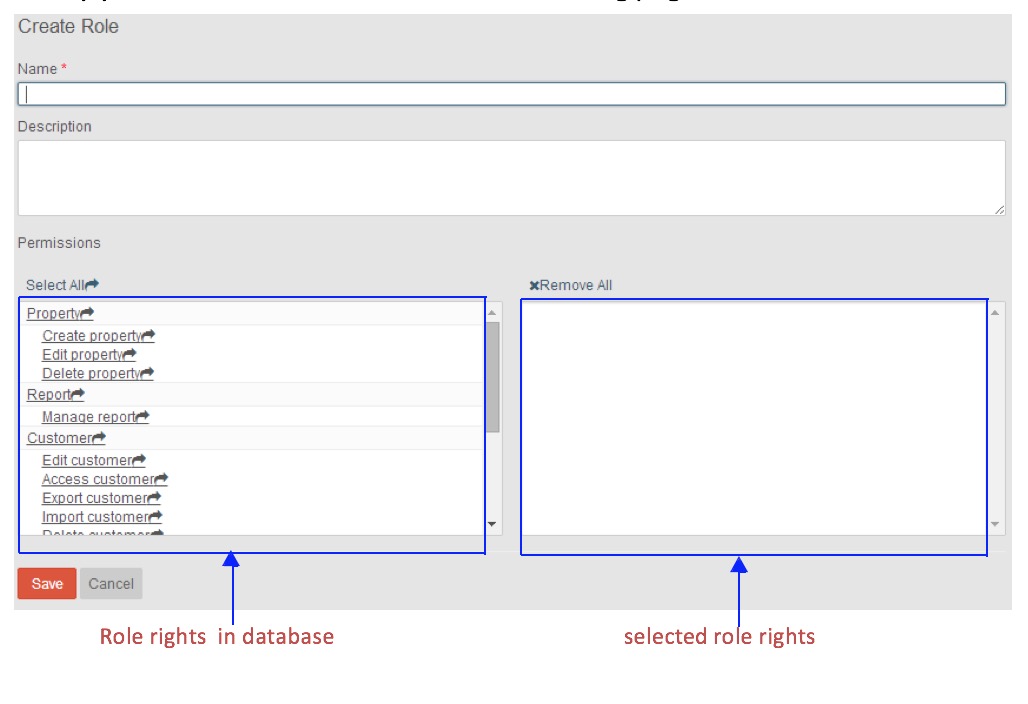
- Input a name for your new role. The Name field supports all kinds’ text content including Chinese and English characters, punctuations, Arab numbers, and special characters. The character length of name must be within 80 characters.

- Add description for your role if necessary.
- In Permissions column, all the role rights are divided into groups according to their function name. The left column lists all rights in database, and the right column lists all the selected rights for your role. You can click the right or rights group name to realize rights selection or removing.Click ‘Select All’ to configure all rights for your role, and click ‘Remove All’ to remove all configured rights.
- Click ‘Save’ to store your new role.
Edit Roles
You can modify role name and change its role rights configuration.
- Click
 to enter edit role page.
- Modify the selection of rights.
- Click Update to save your role modification.
Delete Roles
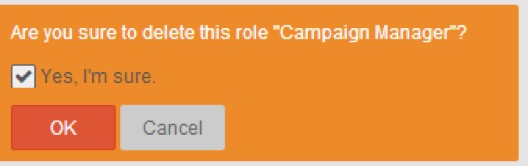
You can click  to delete a role. Following indication box will pop up to remind you to confirm your operation. You need to check the information box and click OK to finish deletion.