Open your database side menu and click ‘Automation’ to enter automation management page. You will view all automation created in current database, all the automation are sequenced in descending order by creation date.
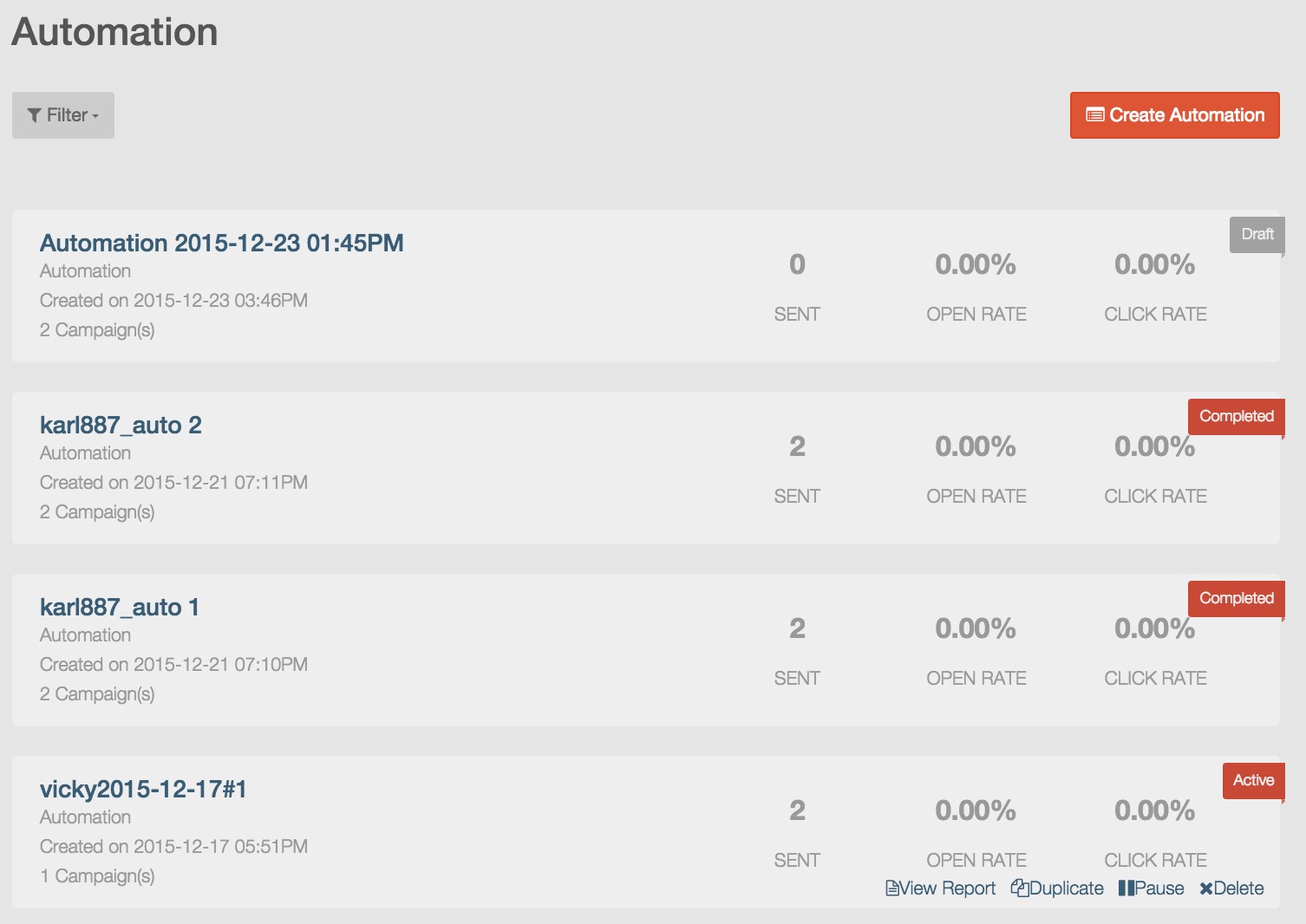
About automation information
Every campaign information block will display following information:
- Automation name, automation created time and the total number of campaigns added into the automation flow.
- Total number of sent campaign emails in the automation.
- Unique campaign open rate and click rate of all campaigns in the automation.
- Automation status is marked at the top right corner of automation information block.

About automation status and operation menu
Automation Status
There are six types of status for automation (marked at the top right corner of automation information block).
- Draft: automation of which content is incomplete or does not start.
- Pending: automation which finishes all steps and is pending for approval.
- Active: automation that is executing or resumed to continue execution.
- Paused: manually paused automation.
- Completed: automation that is completed according to specified end date and time (automation without specified end time and manual pause will not have such status.) When a automation flow is completed according to preset automation end date and time, the automation will stop triggering new round of campaigns. For the executing round of campaigns, RiMANGGIS will continue to execute the subsequent campaign sending until the whole round of campaigns are finished.
- Approved: the automation is approved and will begin to execute at the preset start time specified by users.
Automation operation menu
Move mouse over an automation block and you will view automation operation menu.
The viewable automation operation menu is limited by automation status and users’ automation privilege. You can click the menu to make authorized operations according to automation status.
Edit automation
- For automation at “Draft” or “Pending” status, click
 to enter trigger step page to edit automation, you can edit all automation steps information.
- For automation at “paused” status, click to enter campaign step page to merely edit campaign content.
After you enter the campaign step page of the paused automation, the button  is disabled and you can not add campaigns into the paused automation.
The edit button  of each campaign schedule and trigger condition is also disabled and you can not modify the campaign sending schedule and trigger condition.
For paused automation, you can not go to trigger step page to modify trigger setting information.
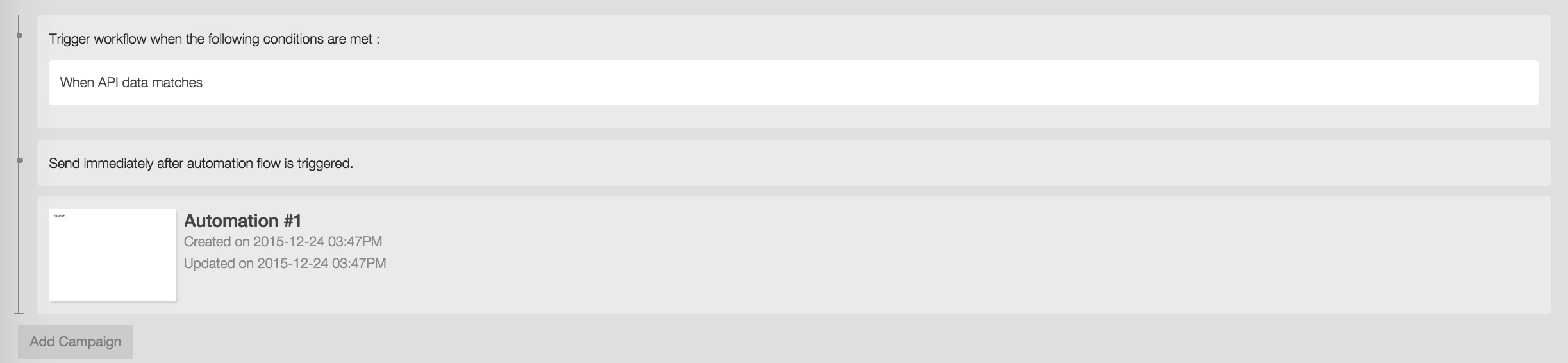
If you finish the campaign edit of paused automation, you can click to enter confirmation page to check your completeness of your automation. If your paused automation is prepared, you can click the button  at the right top corner of automation confirmation page to save your settings and return to automation management page.
Approve automation
Users with automation approval privilege can approve the automation at pending status.
In automation management page, you can move your mouse over pending automation and click  to approve the automation flow.
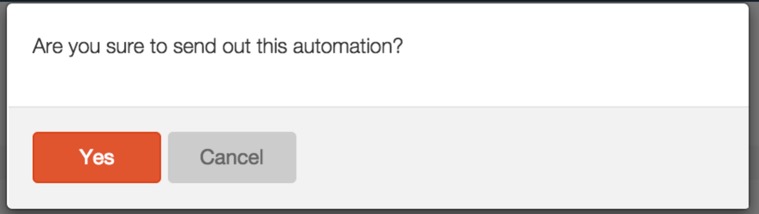
In the pop up confirmation message box, you need to click “Yes” to confirm your approval.
Pause automation
The executing automation at “active” status can be paused.
In automation management page, you can move your mouse over active automation and click  to suspend the automation flow.
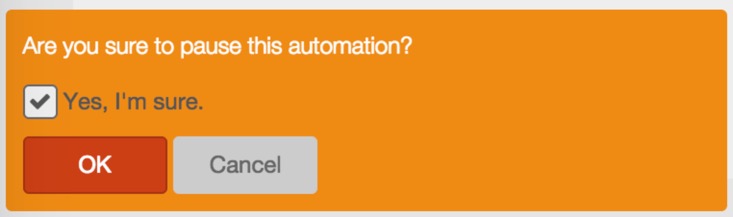
In the pop up confirmation message box, you need to click the check box and click “OK” to confirm your operation.
Duplicate automation
Automation at any status can be duplicated. In automation management page, you can click  to copy the automation as new automation flow. You will directly enter trigger setting step page to edit the duplicated new automation flow.
Delete automation
Automation at any status can be deleted. In automation management page, you can click  to delete the automation.
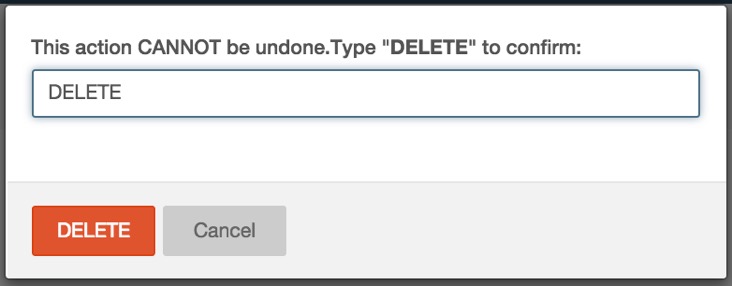
In the pop up delete confirmation message box, you need to input ‘DELETE’ and click delete to confirm your operation.
Resume automation
Automation at “paused” status can be resumed.
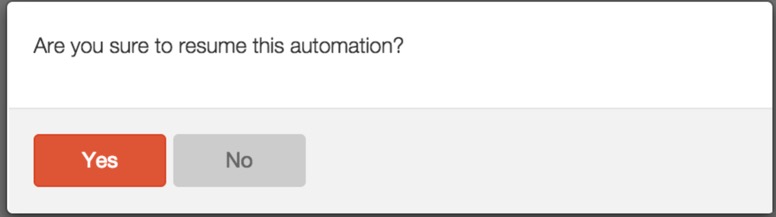
In automation management page, you can move your mouse over paused automation and click  to resume the automation.
In the pop up delete confirmation message box, you need to input ‘DELETE’ and click delete to confirm your operation.
View automation report
You can view the report of Automation at “active”, “paused”or “completed” status.
In automation management page, you can move your mouse over automation and click  to view detailed automation and each included campaign report.
For detailed automation report information and operation, please refer to Automation Report.
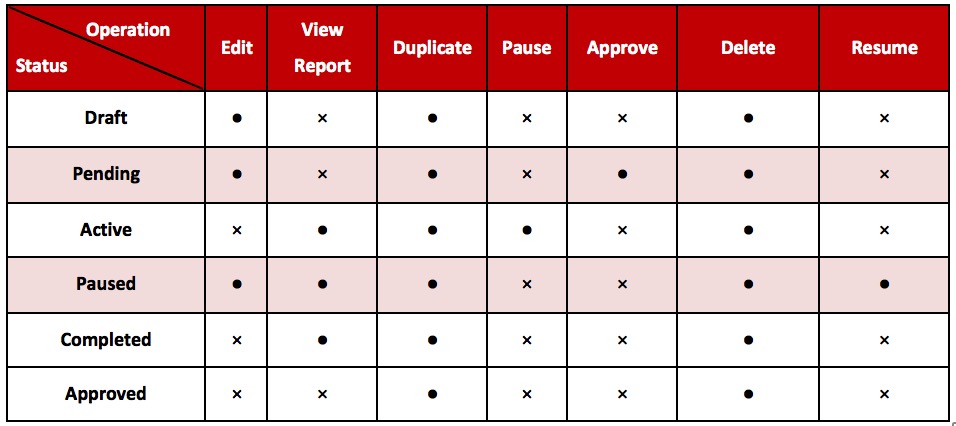
Relations between automation operation menu and status
The automation status has limited available operations of the automation flow, their relations are describe as following table.
Filter automation
In automation management page, you can set filter conditions to find specified automation.
- Click the filter icon
 in the top left corner of automation management page.
- In the extended filter box, you can set your filter conditions.
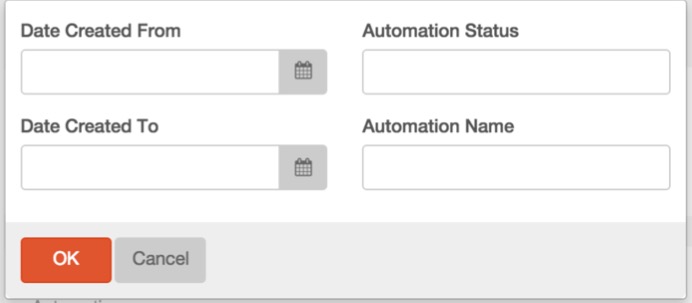
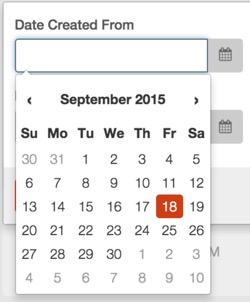
- Set time period filter condtions: input a date value in the format of “yyyy-mmdd” or directly click the calendar icon to select a date from drop down calendar list. If you specify a time period, all automation flows created in the specified time period will be retrieved.
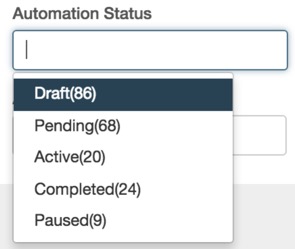
- Select automation status: click the status field and select a satus option from drop down list. You can specify a status option to find all corresponding automation flows with the specified.
- Specify automation name: click to input keywords to find all automation flows of which name includes the filtering key words.