
After you finish design step, you can click  or click
 to enter confirmation step page. In multiple channel confirmation page, you need to check the information integrity of campaign before sending campaigns.
- The green tick symbol indicates that the content of listed item is complete and ready to be sent.
- The red cross symbol indicates that the content of listed item is incomplete and needs to be completed.
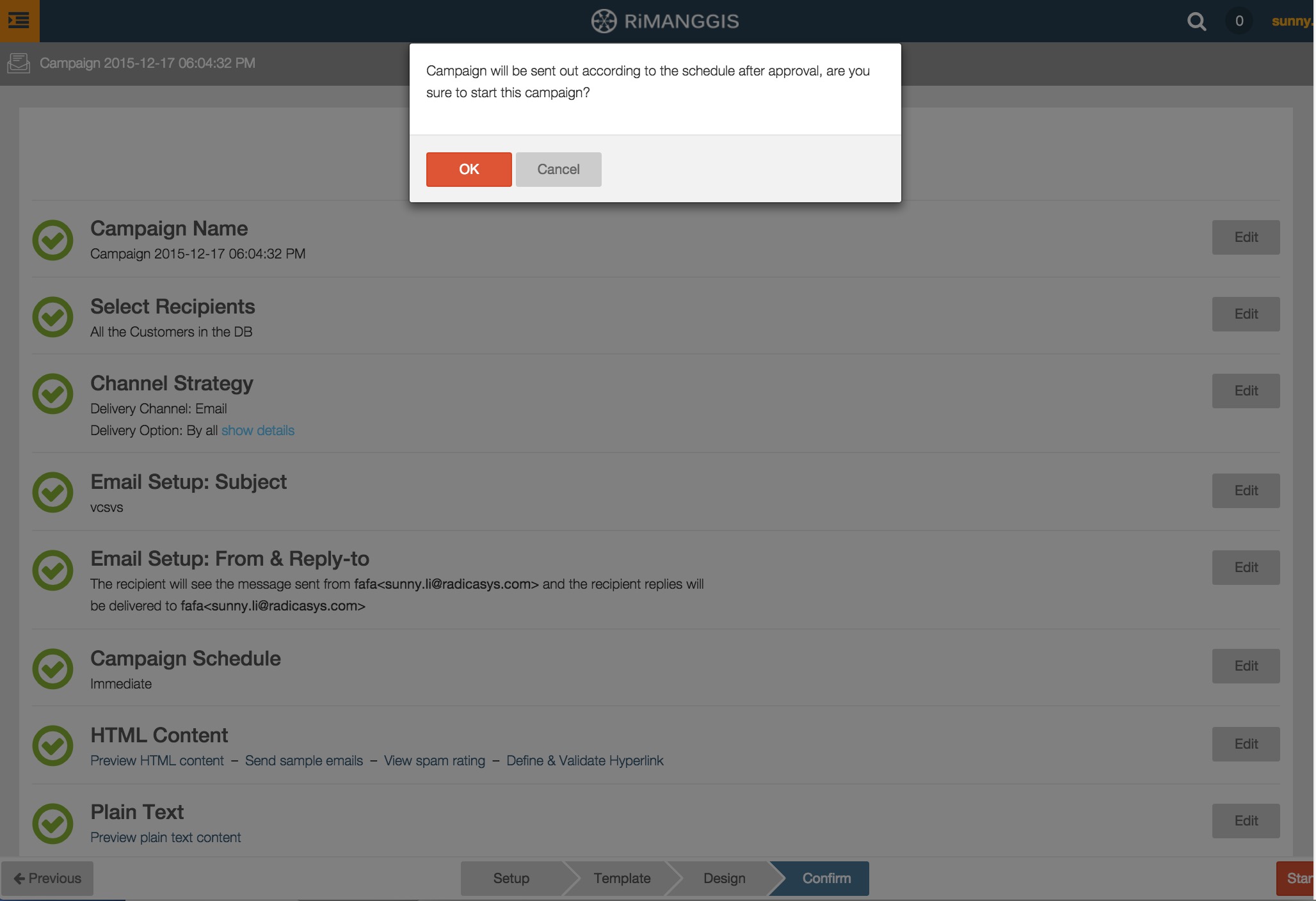
If all the listed items are marked with green tick symbols and the notice word ‘Your campaign is ready’ displays in the page, it indicates that your campaign is complete and is prepared for sending.
-
Start and send campaign
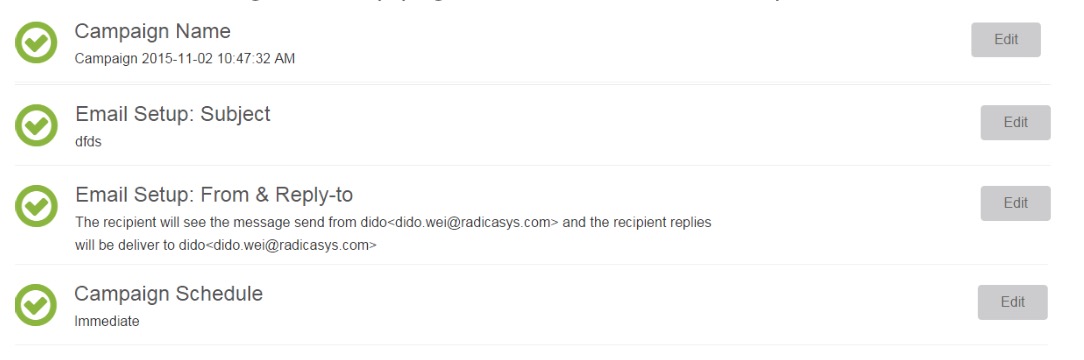
In confirmation page, user can check the integrity of the campaign setup.The campaign name, Email setup, and campaign schedule can be previewed, user can click “Edit” to go to setup page to edit them if necessary.
For campaign recipients and channel strategy, user can click the blue link “show details” beside them to view segment setting and channel strategy setting.

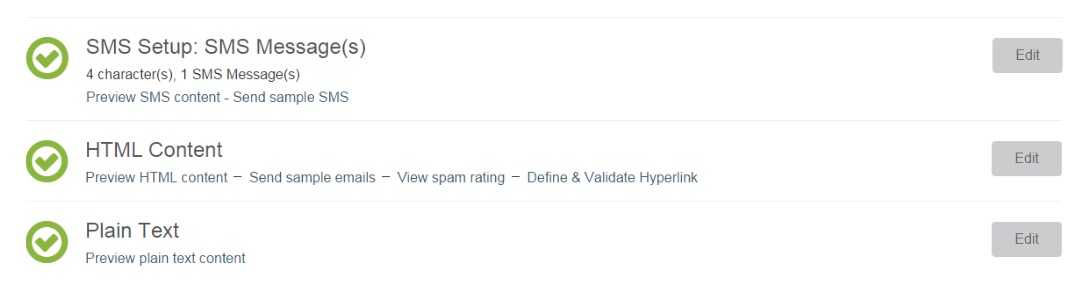
For SMS setup, HTML Content, and plain text, user can click the dark blue links such as “Preview SMS content“, “View spam rating“, “Preview” and to preview or do related operation if necessary.
After all the above mentioned items are prepared, users without “Approve campaign” privilege can click
 button to save campaign. The campaign status will be pending and it can only be executed after approval. Users with “Approve campaign” privilege can click
 button to directly save and approve the campaign, then campaign will be executed according to user’s preset schedule.