
Properties are used to define the data name and type of imported customer records. Users with property rights can manage properties.
Property name is the identification field for RiMANGGIS to match the imported customerrecords with system data. For example, the imported Excel file of customer records has a information column named as ‘age group’, users can create a property ‘age group’. After the property is set, RiMANGGIS will automatically match the imported data in ‘age group’ column and synchronize the data into system
About property data type
Besides the six default properties(Email, Mobile, First Name, Last Name, Manggis ID, External ID), you can create your own properties matching your imported file column header.
RiMANGGIS has defined five data types for new properties created by users:
- Text: property fields with text type can be filled with any types of text content such as characters, numbers, punctuation and special characters.
- Number: property fields with number type only supports Arab numeric characters input.
- Date: property fileds with date only supports date content input in xxxx‐xx‐xx (year‐month‐date) format.
- Options: property fields with options must be filled with preset options.This property is single option field.
- Multiple options: property fields with multiple options must be filled with preset options. This property is multiple options filed.
Create new properties
Open your database menu and click ‘Properties’ to enter properties management page. You can see all the properties in database.
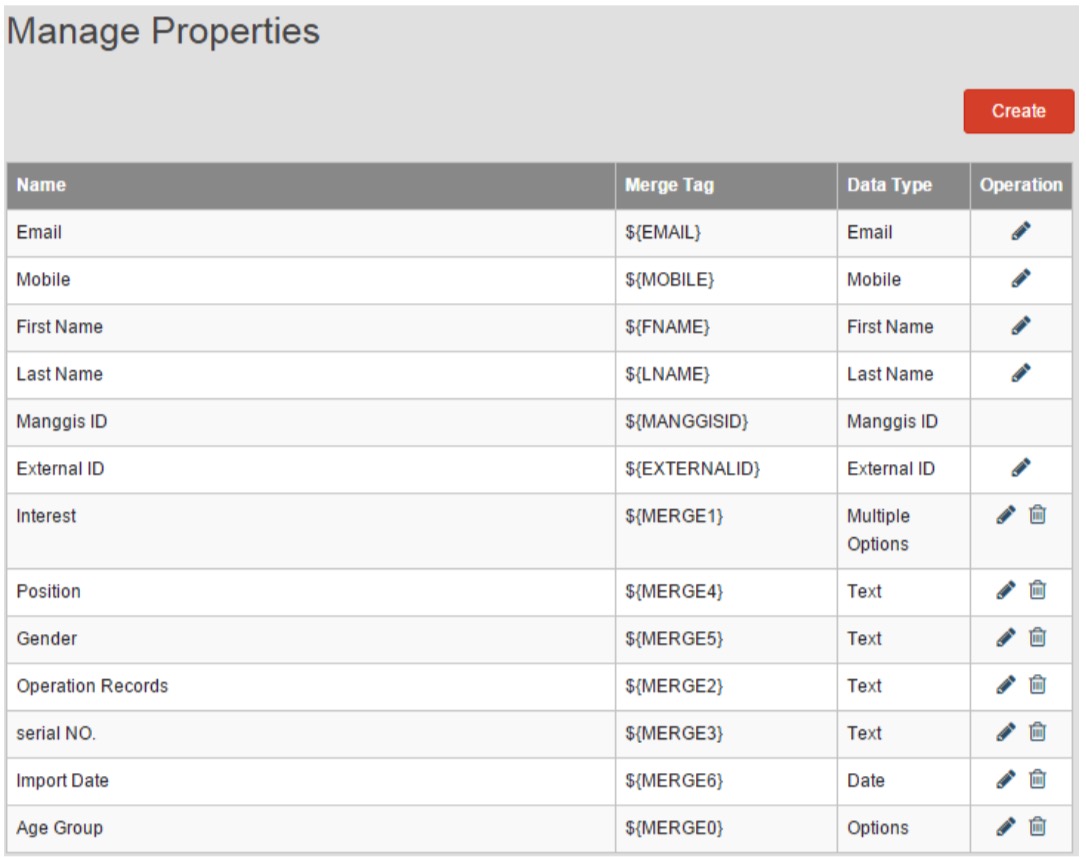
You can create new properties according to the column name in a customer records file to be imported into database.
Click ‘Create’ to enter properties creation page.
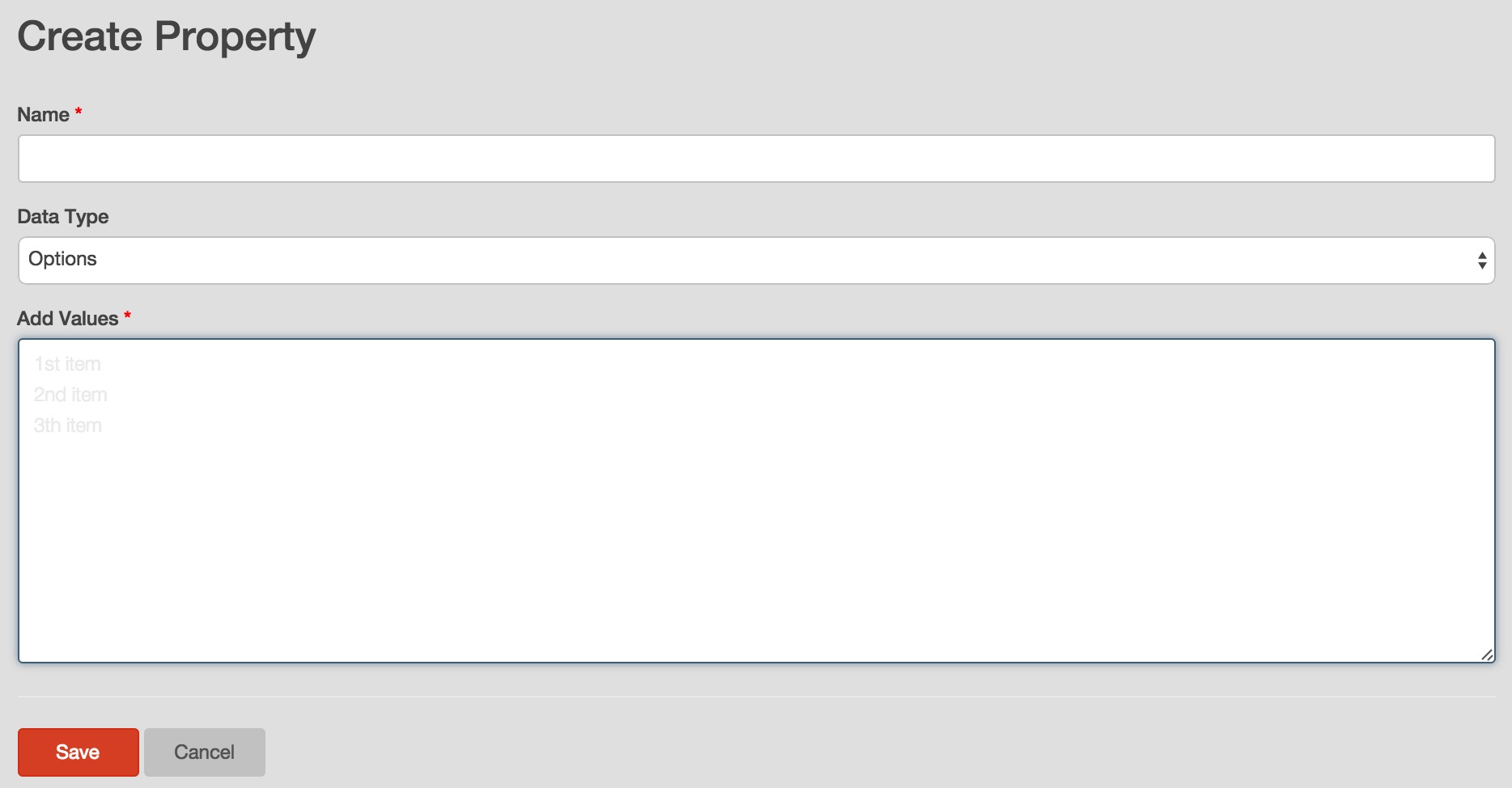
You can create a new property by following steps:
1. Input the new property name. The Name field supports all kinds text content including Chinese and English characters, punctuations, Arab numbers, special characters. The character length of name must be within 80 characters.
2. Click Data Type and select the value from drop down list. The data type of the new property can not be modified after it is created, you must select correct data type for your property.
3. For data type as options or multiple options, you must set option items in ‘Add Values’ column and input the items in independent line.
4. Click ‘Save’ to store your new property.
RiMANGGIS will generate merge tags for new properties to identify them in campaign design page.
Edit properties
Move your mouse over a property and click its edit icon to edit the property.
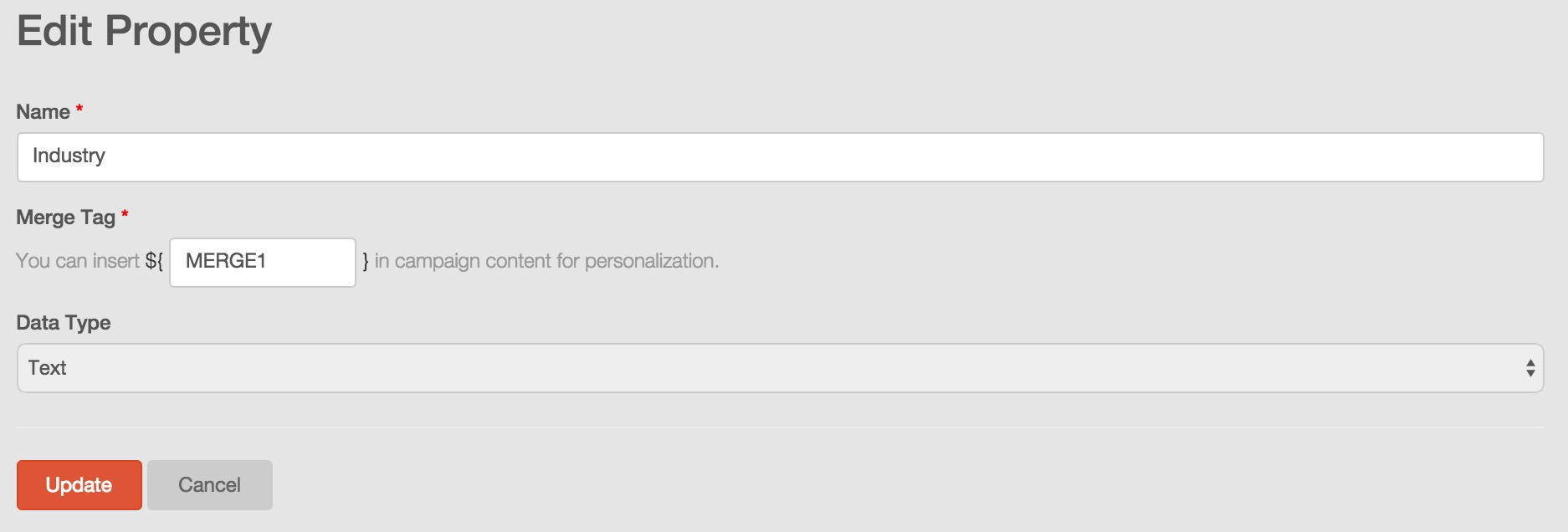
Edit your property field:
- Name: You can edit all properties’ name except Manggis ID.
- Option items: If the data type of created properties is options or multiple options, you can modify and add option items if necessary.
- Merge tag value: Generally it is not necessary to change the merge tag value, you can’t use duplicate value for different merge tags if you want modify them. You can’t modify the merge tag value of default properties.
You can click ‘Update’ to save your modification and return to properties management page.
Delete properties
You can delete created properties:
1. Move your mouse over your created property
2. Click the edit icon  and you will view a confirmation message box.
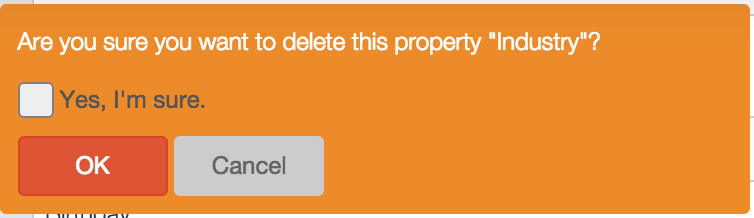
3.Click the confirmation check box and then click ‘OK’ to delete the property permanently.