
Basic Configuration Requirements
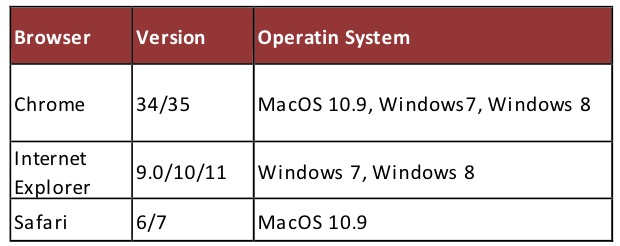
It is recommended to operate RiMANGGIS with following configuration.
Sequencing Rule of Customer List
The customer record list is sequenced in ascending order according the merge tag character of customer properties.
The following table describes an example for correct customer property sequence.
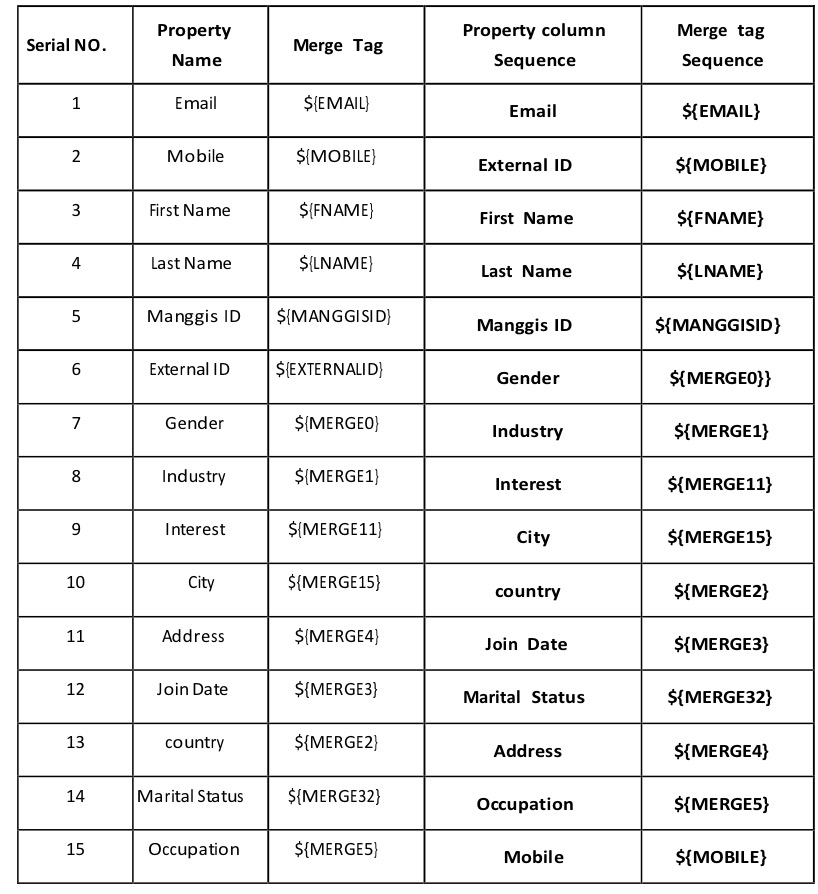
In the table, all merge tags can be classified into four groups according to their first characters: E, F, L, and M.
- Correct sequence of merge tags with first character ‘E’: ${EMAIL} and ${EXTERNALID}.
- Correct sequence of Merge tags with first character ‘F’ and ‘L’: ${FNAME} and ${LNAME}.
- The remaining eleven merge tags include ${MANGGISID}, ${MOBILE} and nine merge tags with the same first five characters ‘MERGE’. Firstly RiMANGGIS sequence all the eleven merge tags according to second letters, thus ${MANGGISID} is sequence before all the other ten merge tags, and ${MOBILE} is sequenced at the end. For the nine merge tags with the same first five characters ‘MERGE’, RiMANGGIS will sequence them according to their number character sequence from 0 to 5. The correct sequence of the eleven merge tags with first character ‘M’ is ${MANGGISID}, ${MERGE0}, ${MERGE1}, ${MERGE11}, ${MERGE15}, ${MERGE2}, ${MERGE3}, ${MERGE32}, ${MERGE4}, ${MERGE5}, ${MOBILE}.
Base on above described rule, the correct sequence of merge tags is displayed as the fifth column in the table, and the correct sequence of corresponding customer property is displayed as the fourth column in the table.
Display setting of customer records list
Display setting page:
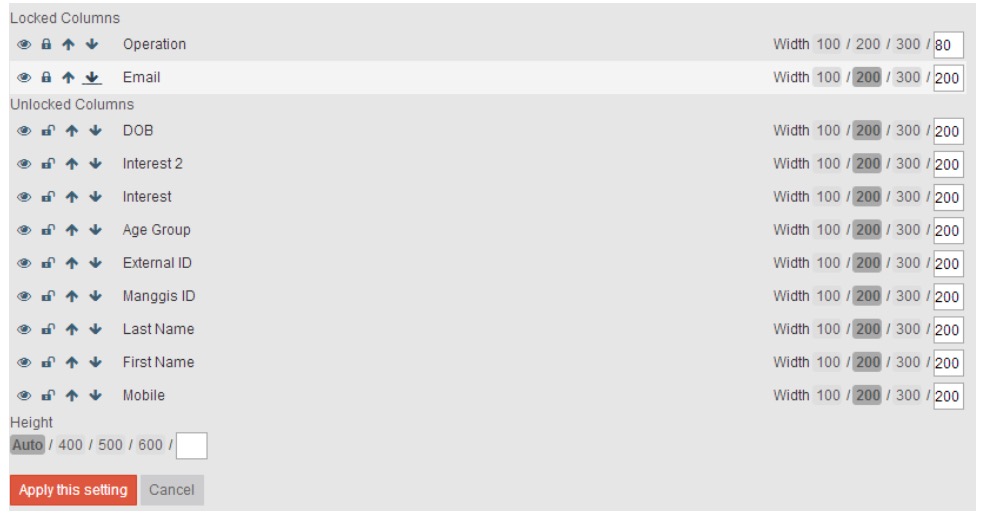
1. Move your mouse to select the column and modify its display setting.
- Click
 to set the visibility on that column.
- Click
 to lock the column so that the column is locked and fixed when you scroll the table.
- Click
 to modify the display sequence of columns.
2. Input pixel value (data range: 34‐300 pixels) in the filling box or select the preset value to set column width.
3. Input pixel value (data range: 100‐9999 pixels) in the filling box or select the preset value to set column height. Click Auto to make the displayed height automatically adjust with the pixel of your page. If your input pixel value is less than 100, RiMANGGIS will automatically adjust your input value to 100.
4. Click ‘Apply this setting’ to save your setting.
The display setting will be stored on RiMANGGIS server. If you have configured the display setting, as long as you use the same RiMANGGIS account, the display of customer record list will be identical with the display setting stored on server even if you change the device to operate RiMANGGIS.