
Choose your imported file
You can import your customer records into a database. Firstly, you need to select the database in which you need to import customer records, and then open your database menu and click Import to enter import customer page.
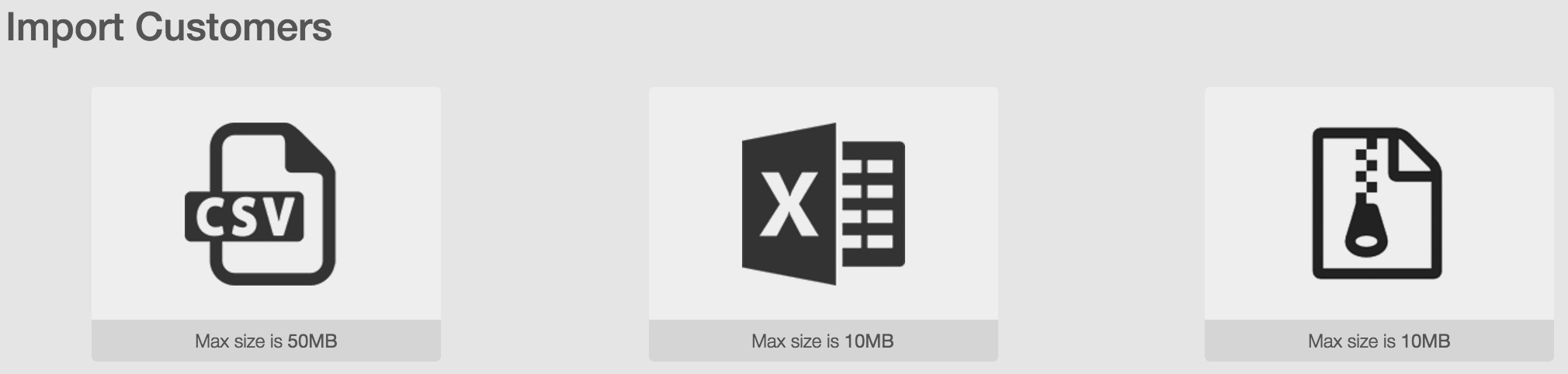
In this page, you need to choose the type of your imported file: CSV, Excel or compressed file. You can drag and drop your file into the icon or click the icon and select the file to be imported. The compressed file in zip or rar format can only include a csv, xls or xlsx file at most, otherwise you will fail to import the file and you will view the following alert information

Match columns with properties
After you select the imported file, RiMANGGIS will automatically match the column name in imported file with the properties name in database and synchronise the records into database.
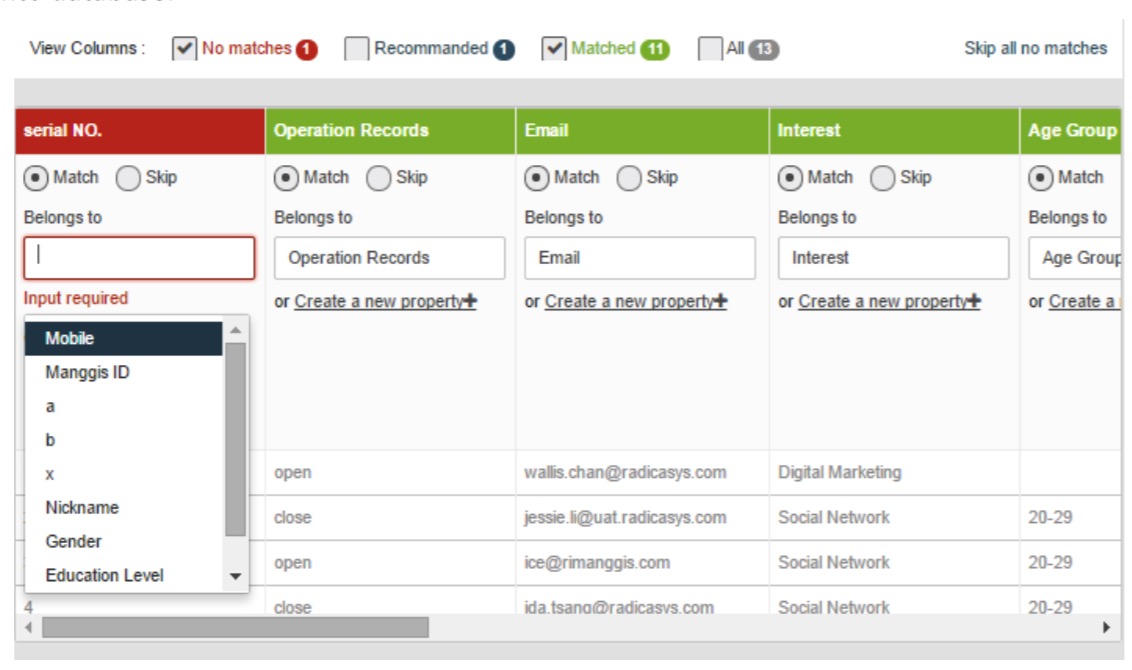
The imported columns can be classified into four types according to matching results: Matched, Recommended, No matches and Skipped.
1. Matched information (marked as ‘Matched’): RiMANGGIS will automatically match the columns in imported file of which name are identical with properties in database, and synchronize these columns records into database.
2. Recommended matching (marked as ‘Recommended’): RiMANGGIS will regard the columns of which name are highly similar with the properties as recommended matching, you can match these columns with the recommended properties in database.
3. Unmatched information (marked as ‘No matches’): you need to manually handle unmatched columns.
- Click ‘Belongs to ’field and select properties in database.
- If you can’t find suitable property to match your column, you can click ‘create a new property’ and your column name will be automatically filled in the name field of the new property. You can modify the property name.
- Select the data type from drop down list.
-
If you select the data type as options or multiple options, you can click ‘Auto Fill’ to upload the option items in the same column to Option Items box.
- Click option items to modify the value if necessary
- Click ‘Add’ to save new properties.
Skipped: If you don’t want to match columns with properties, you can click Skip to ignore single column or click ‘Skip all no matches’ to skip all unmatched columns. After the import operation is finished, RiMANGGIS will display all customer records with skipped columns, and users can export these records and modify them for reimport with complete information.
After you complete all columns matching, you need to click ‘Check’ to confirm whether values in columns with option or multiple options are successfully uploaded into database.

After columns information matching, you need to complete the rest settings as described below paragraph to finish customer file import.
Confirm opt‐out list
Customers who unsubscribe campaigns through the link in edm will be automatically added into opt‐out list. However, some customers probably unsubscribe campaigns by phone, fax or email; you need to make a list of unsubscribe customers.
While importing an unsubsribe customer list into database, you need check the opt‐out list option to add these customer records into opt‐out list. RiMANGGIS will filter customer records in opt‐out list automatically while sending campaigns and these customers will not receive campaigns.
- If the imported customer records are unsubscribed list, you need to click and select the opt-out list option.
- The customers in opt‐out list will not receive the corresponding campaign type emails.
- Users can specify unsubscribed channels and campaign types to import the customer records into the corresponding unsubscribed customer list.
 Operation steps:
- Click the check box of opt‐out list.
- In the extended list of all unsubcribed campaign types in current database, you can click the “all” option to select all campaign types. The customer records to be imported will be added into all unsubscribed campaign type list.
- If you need to specify a unsubscribed campaign type, you can click to select the corresponding unsubscribed campaign type options.
Import hard bounce list
If customer records to be imported are hard bounce list, you need to select the hard bounce option and hard bounce channels.
If a customer record is marked as hard bounce customer because of automatically added by system or manually imported by users, the customer record can not be moved out from hard bounce list.
If users import a customer and RiMANGGIS matches a record with the same address in hard bounce list, the newly imported will be merged or replaced into the same record in hard bounce list.
Matched record handling
RiMANGGIS will check imported records by the sequence of Manggis ID, External ID, Email and Mobile. You need to select the handling method if the imported records have the the same Manngis ID, External ID, Mobile or Email information with the record in database.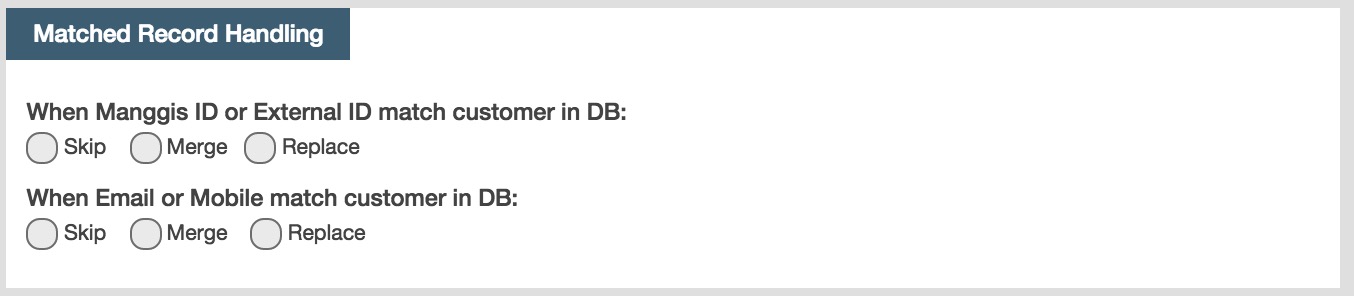
When Manggis ID or External ID match customer in DB:
Both Manggis ID and External ID must be unique, the different records with same ID information cannot exist in system. You can skip, merge or replace records with duplicate ID.
When Email or Mobile match customer in DB:
For duplicate email or mobile, multiple customers probably have same email or mobile information, you can choose to create a new record with the same email or mobile existed in database besides skip, merge or replace operation.
- Skip: RiMANGGIS will skip the records and will not import them to database. Users can download skipped records to handle them manually. You can select this option if you don’t need RiMANGGIS to handle duplicated records.
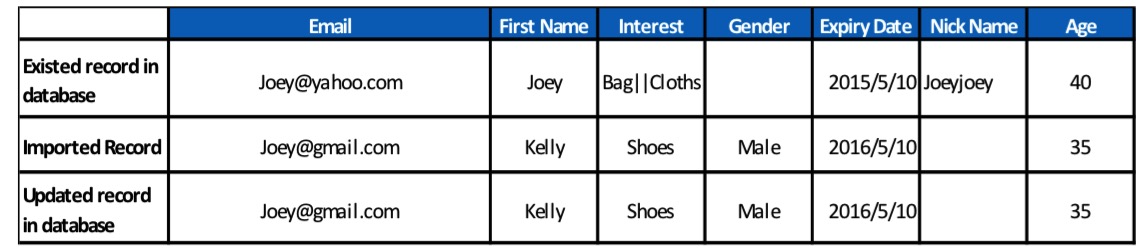
- Merge: RiMANGGIS will merge the information in the same columns of duplicated records into a record. You can select this option if you are not sure the imported records contain every piece of information. Information with different property data type will be handled in different ways.
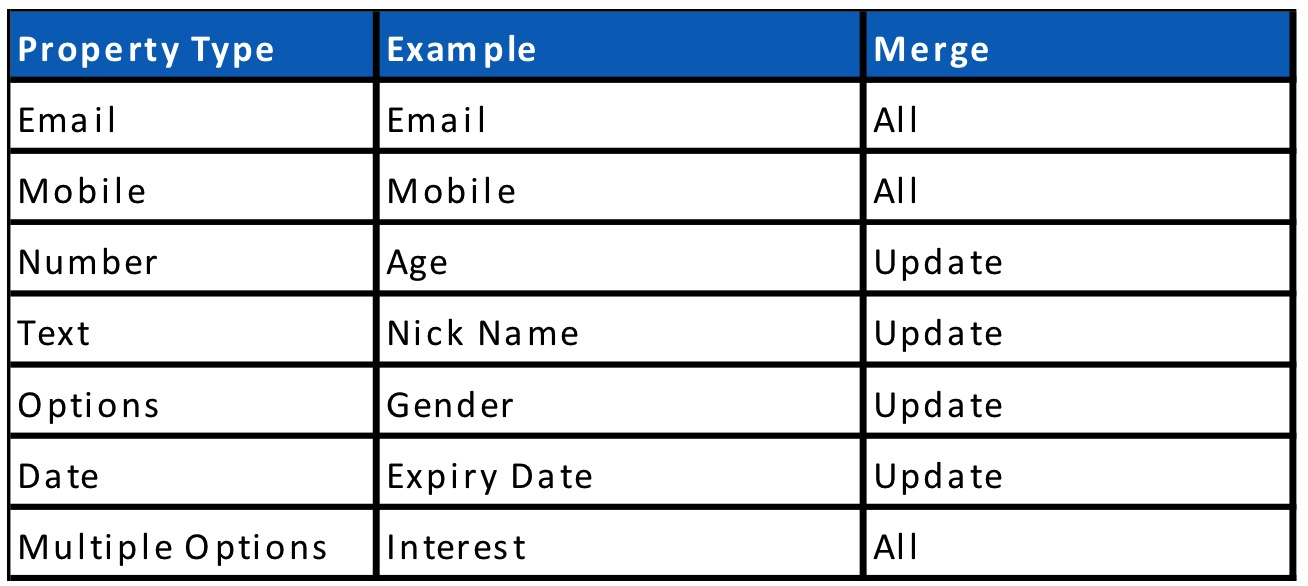 Example:

If the imported customer records include blank field , RiMANGGIS will retain the old information of the corresponding field in database. In aboved described example, the property field Nick Name in imported record is blank, RiMANGGIS retains the original information with the same field in database.
For merge operation, RiMANGGIS defines the propeties which can be merged including email, mobile and multiple options properites. The records of other properties in database will be replaced by imported record except blank fields.
- Replace: RiMANGGIS will completely replace original records in database with latest imported records even they contain empty value. You can select this option if you are sure that the imported records are latest and contain completed infor‐ mation.
Matched unsubscribe record handling
RiMANGGIS will not delete unsubscribed customer records in opt‐out list, it only filters them while sending out campaigns. If the imported records include the same ID, mobile or email information with the records in opt‐out list, RiMANGGIS will regard the matched records as the same records. You need to set the handling method for matched unsubscribe records.

- You can select ‘Re‐opt in the matched record’ to move matched unsubscribed records out from the opt‐out list. You need to select campaign types which you want re‐opt customers to receive.
- You can select ‘Keep the matched records unsubscribe’ if you want to keep matched customer records in opt‐out list.
Add tags for imported records
You need to add tags for imported customer records to identify them as specific cus‐ tomer group. You must select at least one tag for your imported customer records.
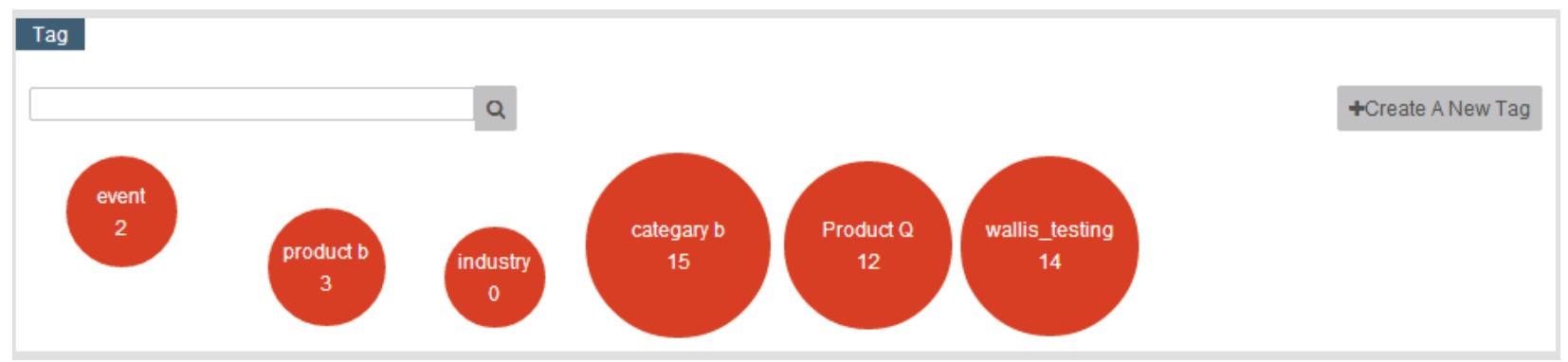
For example, the imported customer records are from name cards collected in an event, you can select the tag ‘Event’ for these records to classify these customers into event group. You can find out customers who have participated in the event easily when you need to send campaigns about the event to these customers.
- If you want to find tags quicky, you can use tags quick search bar to find the tag you want to add for imported records.
- If you can’t find suitable tags for imported customer records, you can click ‘Create A New Tag’ to create a new tag and add it to your imported customer records.
- You can also edit and manage your tags.
Importing execution and result
After you complete all import steps setting, you can click ‘Import’ to start the import job. The import will be executing in background so that you can make other operations like creating campaign during. RiMANGGIS will estimate the time needed for import execution.
If it will take longer time for import job, RiMANGGIS will display the import progress and send you an notification email after the import job is completed. You can also input additional email addresses to receive notification email. If you have multiple email addresses to be input, you need to use semicolon to separate addresses.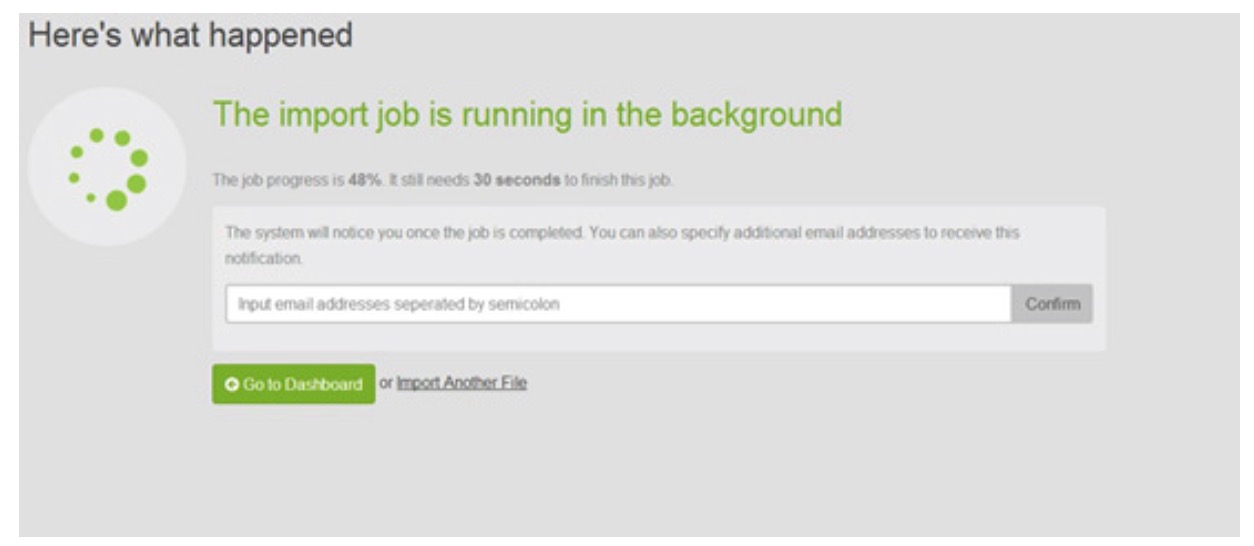
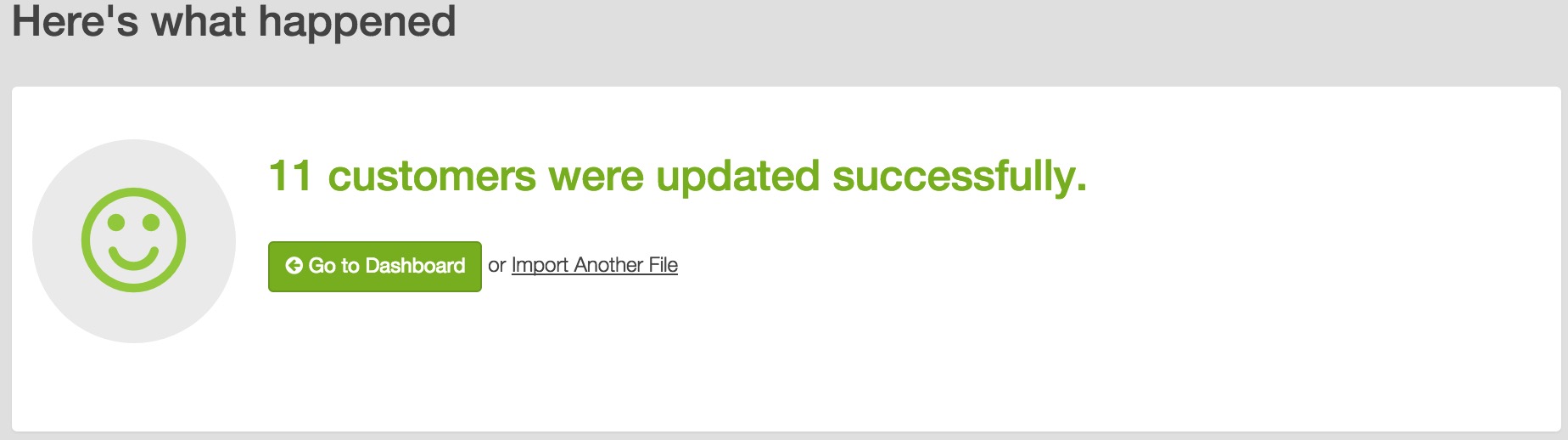
After the importing is finished, RiMANGGIS will display the total number of successfully imported customer records.
You can click ‘Go to Dashboard’ to view your dashboard report, or click ‘Import Another File’ to import another file.
Exceptions may happen during importing process. You can refer to import exceptions handling to process exceptions handling.