
About Tags
Tags are used to identify customer groups; users can add tags for customer records and define tags’ name. It is better to define customer oriented name for tags. For example, customers in a list to be imported are all interested in Product A, users can create a tag named ‘Product A’ and add this tag for these customer records to identify them.
Tags are added to customers in two circumstances as below:
- Add tags for customer records: while importing customer records, users must add tags for customer recor The imported customer records will be classified into customer groups according to tags. For operation details, please refer to 4.2. Import customer.
- Add tags for campaigns: users can add tags in the setup step of creating new campaigns, or add tags for links in campaig Customers who open campaigns or click links with tags will be automatically added and classified into the customer group of tags. For operation details, please refer to Create regular campaign.
About tags privilege
Users with different privileges can make different operations related with tags.
- Users with database access rights can create, edit and delete tags.
- Users with import customer rights can import customer records for tags.
- Users with access customer rights can view tags and customer records.
- Users with export customer rights can select tags and export related customer records file in CSV format.
- Users with delete customer rights can delete tags and their included customer records.
Create a new tag
Open your database side menu and click tags to enter tags management page, you will view all created tags in database.
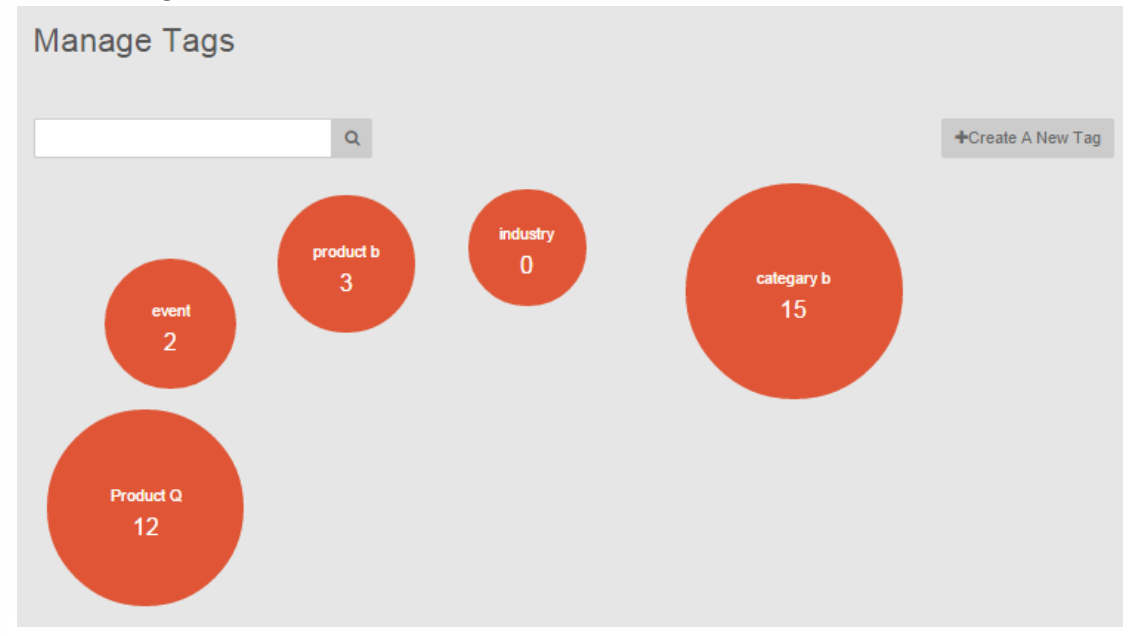
You can create a new tag.
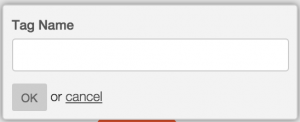
1. Click the button  and input your new tag’s name. The tag name can consist of any kinds text content including Chinese and English characters, punctuations, Arab numbers, special characters.
2. Click OK to save your new tag.
Search Tags
You can use tags quick search bar to find tags quickly.

1. Input key words of tags to be searched.
2. Click  to find the tag you want. All the searched tags containing input key words will display.
3. Click  in searching field to quit searching and view all tags in database.